
How to Secure Law Firm Documents: Access Control Best Practices for Client Confidentiality
Learn how to secure law firm documents with access controls, encryption, and audit trails that protect client confidentiality and meet ABA rules.
Law firms owe clients an absolute duty of confidentiality, rooted in both professional ethics and trust. Yet many practices still treat document protection as a storage problem solved by backups and file servers, overlooking the harder question of who can access what, when, and how. To truly secure law firm documents, you must implement deliberate access controls that restrict sensitive files by role, matter, and need, layering permissions, encryption, monitoring, and authentication to meet both your ethical obligations under the New York Rules of Professional Conduct and the heightened regulatory scrutiny facing NYC law firms.
Document breaches don't typically happen because a server failed. They occur when the wrong person opens the wrong file, whether that's a paralegal viewing conflict-walled matters, a former associate retaining remote access, or an unauthorized device syncing client data to personal cloud storage. The stakes for your firm include malpractice exposure, regulatory penalties, reputational damage, and loss of client trust. Securing law firm documents means building a framework that enforces confidentiality at every layer, not just at the perimeter.
ELMIDA Solutions approaches law firm document security as a compliance-first discipline, building access control, encryption, audit trails, and identity verification tailored to the unique risks and ethical duties of legal practice. This guide walks you through the practical controls your firm needs to protect client confidentiality, satisfy cyber insurance requirements, and meet New York's evolving data protection standards.
Key Takeaways
- Securing law firm documents requires access controls that restrict files by role, matter, and need, not just backup or storage.
- Encryption, multi-factor authentication, audit trails, and data loss prevention are essential layers for protecting client confidentiality and meeting ethical obligations.
- NYC law firms must build compliance-focused document security policies that satisfy professional conduct rules, regulatory standards, and cyber insurance requirements.
Why You Must Secure Law Firm Documents to Protect Client Confidentiality
Law firms face binding ethical duties and real financial exposure when client files are not properly secured. Weak access controls create direct pathways to bar discipline, malpractice claims, and loss of client trust.
The Ethical Duty to Protect Client Files Under ABA Model Rules
New York Rule of Professional Conduct 1.6, which follows ABA Model Rule 1.6, requires you to maintain client confidentiality and make reasonable efforts to prevent unauthorized access to client information. This ethical obligation extends beyond avoiding intentional disclosure. You must implement appropriate safeguards against data breaches, unauthorized employee access, and third-party exposure.
Rule 1.1, Comment 8 adds a competence requirement. You need to understand the risks associated with digital communication and storage technologies. If you cannot implement these protections yourself, you must secure competent assistance.
State bars increasingly tie disciplinary action to inadequate document security. Several jurisdictions have sanctioned attorneys for failing to encrypt emails containing privileged information or for allowing non-privileged staff to access confidential files without proper controls.
Your ethical duties include:
- Restricting file access to authorized personnel only
- Encrypting documents containing sensitive client data
- Monitoring who accesses privileged communications
- Training staff on confidentiality protocols
- Vetting and supervising any third-party vendors who handle client files
Financial and Reputational Risks of Document Breaches
A single document breach can trigger immediate financial liability and lasting reputational harm. You face exposure through malpractice claims when clients suffer damages from leaked information. Many professional liability policies now require specific cybersecurity controls as coverage conditions.
Direct financial consequences include malpractice exposure, breach notification costs, forensic investigation fees, and the ongoing revenue impact of losing the client relationship.
Beyond immediate costs, clients increasingly ask about your security practices during intake. Corporate clients and litigation funders often require specific certifications or audit rights before engagement.
Public disclosure of a breach damages your firm's reputation in ways insurance cannot repair. In competitive NYC legal markets, trust and discretion form the foundation of client relationships.
How Access Control Differs From General Document Storage
General document storage platforms let you save and organize files. Access control determines who can open, edit, share, or delete those files based on their role and need. This distinction matters for client confidentiality because storage alone does not prevent unauthorized viewing.
Role-based access control (RBAC) assigns permissions according to job function. Associates working on a matter see only files relevant to their role. Staff handling billing access invoices but not privileged strategy memos. Partners review everything, while temporary contract attorneys receive limited, matter-specific access that expires when their engagement ends.
Multi-factor authentication (MFA) adds a second verification step beyond passwords. This prevents unauthorized access even when login credentials are compromised through phishing or stolen devices.
Encryption renders files unreadable without the proper decryption key. You need encryption both when documents sit on servers (at rest) and when they travel over networks (in transit). This protects secure law firm documents during email transmission, cloud sync, and remote access sessions.
Audit logs track every access event with timestamps and user identities. When questions arise about who viewed a confidential settlement agreement or opposing counsel's privileged work product, detailed logs provide accountability and help you satisfy discovery obligations or ethics inquiries.
Understanding Access Control: The Foundation to Secure Law Firm Documents
Access control determines who opens, edits, and shares each privileged file in your practice. It enforces confidentiality at the document level by blocking unauthorized users from viewing client matter files, discovery materials, and attorney work product regardless of how those individuals gained network access.
What Access Control Means in a Legal Practice
Access control is the system of permissions and authentication that limits document visibility to specific attorneys and staff. When an associate opens a SharePoint folder containing settlement agreements, access control verifies their identity and checks whether they belong to the matter team before granting or denying the request.
This differs from network security or firewalls. Those tools control who enters your firm's systems. Access control governs what they see once inside, creating boundaries around individual files and folders based on role, matter assignment, and seniority.
Access control enforces three distinct protections:
- Authentication confirms the person requesting access is who they claim to be
- Authorization checks whether that verified identity has permission to view the specific document
- Audit logging records every access event for compliance review
For a litigation matter, this means your system grants the lead partner, assigned associates, and designated paralegals access to case files while blocking everyone else. A family law intake coordinator cannot open corporate transaction documents. A contract attorney hired for document review sees only the discovery subset assigned to them, not the entire matter repository.
Least Privilege Principles for Law Firm Staff
Least privilege means granting each user the minimum access required to perform their assigned responsibilities. A paralegal handling e-filing needs permission to view finalized motions but should not edit or delete executed engagement letters.
Role-based access structures your document permissions around job functions rather than individual names. You define access policies for roles like "litigation associate," "family law partner," or "intake staff," then assign users to those roles. When someone joins a new matter team, you add them to the matter's access group rather than adjusting hundreds of individual file permissions.
This approach reduces insider risk. Former employees, contractors with expired engagements, and staff who transfer between practice groups lose access automatically when their role assignment changes. You avoid scenarios where a departed associate retains access to privileged client communications months after leaving your firm.
Permission sprawl occurs when access grants accumulate over time without corresponding revocations. An attorney works on twelve matters across two years and gains access to each matter folder, but when those cases close, the permissions remain active. Least privilege requires scheduled audits where you review who can access closed matters and revoke unnecessary permissions.
Common Access Control Failures in Small Firms
Small firms without dedicated IT oversight often rely on shared network drives with folder-level permissions set once and never revisited. Every attorney can navigate to every matter folder because someone decided years ago that "everyone should see everything" or because no one understood how to configure granular restrictions.
This creates direct exposure under Rule 1.6. When a device is compromised or an employee acts improperly, the breach extends to every privileged file stored on that shared drive rather than limiting damage to the specific matters that person legitimately needed to access.
The most frequent access control breakdowns include:
- Generic credentials shared among multiple staff members, eliminating audit trails
- Personal OneDrive or Dropbox accounts used to bypass firm-managed permissions
- No access removal process when attorneys depart or contractors complete projects
- File sharing links with "anyone with the link" settings that persist indefinitely
Without multi-factor authentication, stolen passwords grant complete access to your document repository. An adversary who obtains one attorney's login credentials can download privileged matter files, client intake forms, and discovery materials without triggering alerts because the access appears legitimate in your audit logs.
Role-Based Permissions for Law Firm Documents

Role-based permissions assign document access according to job function and seniority rather than giving every attorney and staff member the same level of access. This approach protects client confidentiality by ensuring that only those who need to work on a matter can view sensitive files, which helps your firm meet ethical obligations and cyber insurance requirements.
Defining Roles by Practice Area and Seniority
Your firm needs to establish clear role categories that reflect how your teams actually work. Start by separating roles by practice area, litigation, corporate, family law, immigration, or estate planning, since attorneys in one practice group rarely need access to another group's client files.
Within each practice area, define permission levels based on seniority. Partners typically need full access to all matters within their practice group, while associates may require access only to cases they are assigned to. Paralegals and legal assistants should have access limited to the specific tasks they support, such as drafting documents or managing discovery.
Common role structures for small firms:
- Practice Group Partner: Full read, edit, and delete access to all matters in their practice area
- Practice Group Associate: Access only to assigned matters, with edit rights
- Paralegal/Legal Assistant: Task-specific access to assigned matters, often read-only for sensitive files
- Administrative Staff: No access to client files unless specifically required for billing or scheduling
This structure prevents unauthorized access and creates clear audit trails when you need to demonstrate who viewed or modified secure law firm documents.
Setting Permissions in Microsoft 365 and SharePoint
SharePoint permissions work through groups and permission levels that you assign to document libraries and folders. Create a security group in Microsoft 365 for each role you defined, such as "Litigation Partners" or "Corporate Associates", and add the appropriate staff members to each group.
In SharePoint, assign these groups to your document libraries using permission levels like Full Control, Edit, Contribute, or Read. Litigation Partners receive Full Control on the litigation library, while Corporate Associates get Read access only to matters where they are assigned.
Key permission settings to configure:
- Break inheritance on matter-specific folders so that access doesn't cascade from parent libraries
- Use custom permission levels if the default options are too broad for your confidentiality requirements
- Enable access requests so attorneys can request permission to specific matters through a controlled workflow rather than asking IT or the managing partner directly
Microsoft 365 access controls integrate with your firm's Azure Active Directory, allowing you to enforce multi-factor authentication and conditional access policies that require attorneys to authenticate from approved devices before viewing client files. This layered approach strengthens law firm document security beyond basic password protection.
Reviewing and Updating Permissions as Staff Change
Permission audits should occur whenever staff join, leave, or change roles, and at least quarterly for all active users. When an associate moves from litigation to corporate practice, remove their access to litigation matters immediately to prevent inadvertent disclosure or conflicts of interest.
Run SharePoint permission reports monthly to identify users with unusually broad access or permissions that no longer match their current role. Look for situations where individuals have been granted direct access to folders outside the role-based structure, which often happens when someone needs quick access to a file and a well-meaning colleague shares an entire folder.
Document your permission review process in writing to satisfy compliance audits and cyber insurance underwriting. Record who conducted the review, which accounts were modified, and why changes were made. This documentation demonstrates that your firm takes reasonable steps to secure law firm documents and protect client confidentiality, which becomes critical evidence if you ever face a data breach investigation or malpractice claim.
Encryption Strategies to Secure Law Firm Documents at Rest and in Transit
Law firms must deploy encryption both when documents sit on servers or in cloud storage and when files move between parties via email or file transfer. Strong key management ensures that encryption remains effective across your entire document lifecycle.
Encrypting Files Stored on Servers and in the Cloud
Encryption at rest protects documents stored on physical servers, laptops, and cloud platforms by converting readable data into scrambled code that requires a decryption key to access. If a laptop is stolen or a cloud account is breached, encrypted files remain unreadable to unauthorized parties.
You should verify that your cloud document management provider encrypts all stored files using AES-256 encryption, the current industry standard. For on-premise servers, enable BitLocker on Windows systems or FileVault on macOS devices to encrypt entire hard drives automatically. Mobile devices issued to attorneys should have device-level encryption enabled and protected by strong passcodes, not simple PINs.
Cloud encryption typically includes two components: server-side encryption managed by your vendor and client-side encryption where files are encrypted on your device before upload. Client-side encryption offers greater control because your provider never holds the decryption keys, but it may limit search and preview features within the platform.
Securing Documents Sent via Email and File Transfer
Encryption in transit protects documents while they move across networks, preventing interception by malicious actors or unauthorized monitoring. When you send a PDF containing discovery materials or a Word file with merger terms, encryption ensures only the intended recipient can read the contents.
Email encryption requires two approaches. Transport Layer Security (TLS) encrypts the connection between mail servers, visible when you see HTTPS and a padlock icon in webmail interfaces. End-to-end email encryption goes further by encrypting the message content itself, requiring tools like S/MIME certificates or encrypted client portals that replace email attachments entirely.
Secure file transfer protocols such as SFTP or managed file transfer platforms offer better protection than standard email attachments when exchanging large document sets with clients or co-counsel. These platforms encrypt files during upload, storage, and download while maintaining detailed access logs that satisfy compliance requirements. Many cyber insurance policies now require law firms to use encrypted transfer methods for documents containing personally identifiable information or protected health data.
Key Management Practices for Legal Practices
Your encryption is only as strong as your key management practices. Encryption keys function like master passwords that unlock scrambled data, and losing control of these keys compromises your entire security framework.
Store encryption keys separately from the encrypted documents themselves, never on the same server or device. Use a dedicated key management system or hardware security module that restricts access to authorized IT personnel only. Rotate encryption keys on a regular schedule, typically every 90 to 180 days, to limit exposure if a key is compromised.
Key management essentials for legal practices:
- Assign unique encryption keys to different practice groups or matter types
- Maintain secure offline backups of encryption keys in a physical safe or vault
- Document key rotation procedures and assign responsibility to specific staff
- Revoke keys immediately when employees leave the firm or change roles
- Test key recovery processes quarterly to ensure you can restore encrypted files after hardware failures
You must also establish clear protocols for key escrow situations where a departing attorney or deceased partner held sole access to encrypted files needed for active matters. Multi-party authorization requirements prevent any single individual from accessing all firm encryption keys without oversight.
Ethical Walls and Conflict-of-Interest Access Restrictions
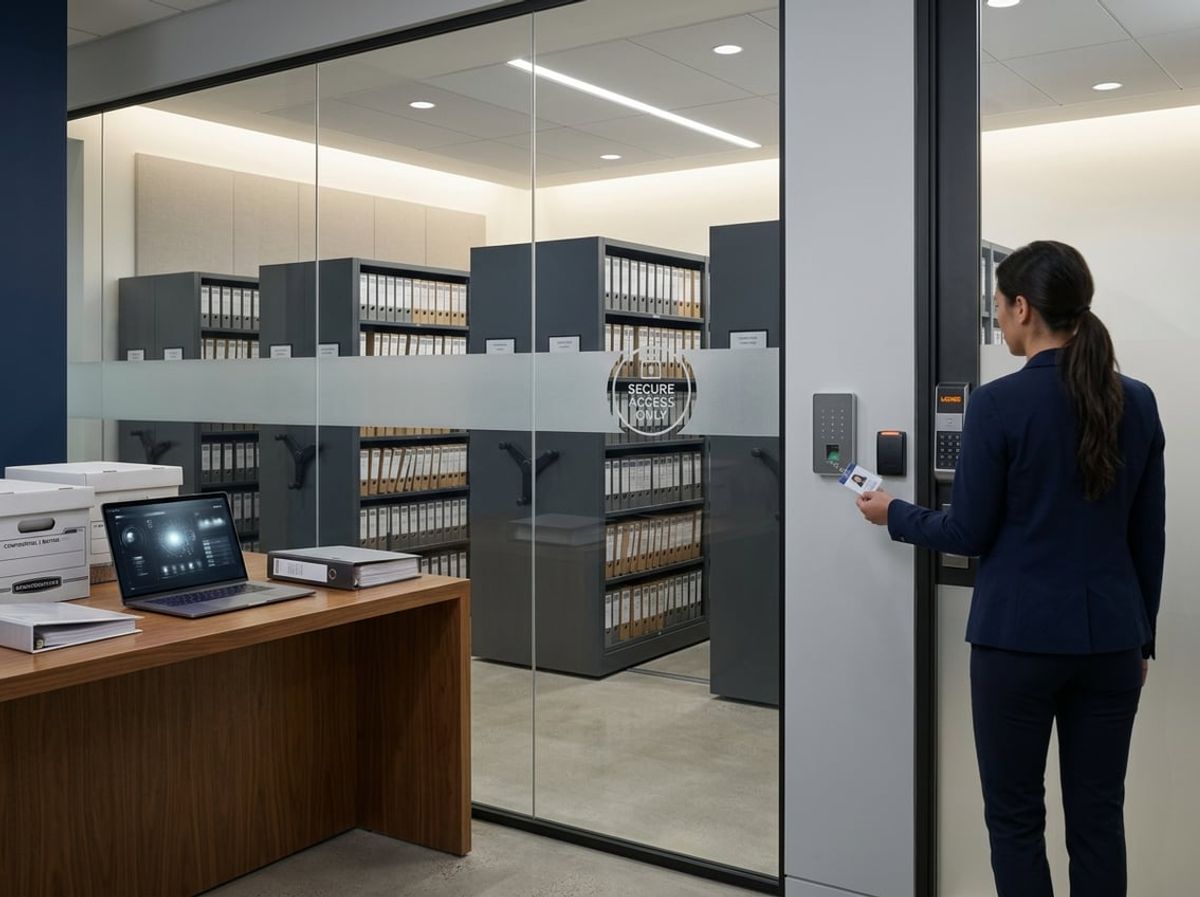
Ethical walls protect client confidentiality by preventing lawyers and staff from accessing matters where a conflict of interest exists. These access restrictions require technical controls that automatically enforce information barriers across your document management system, time-entry software, and client files.
Why Ethical Walls Matter for Client Confidentiality
New York's Rules of Professional Conduct require your firm to keep a written record of its engagements and to run proposed engagements against current and prior matters through a conflict-checking system, so conflicts surface before work begins. When your firm represents clients with potentially adverse interests, you must prevent lawyers working on one matter from accessing confidential information related to the conflicting matter.
Ethical walls address specific legal scenarios, including:
- A lawyer who previously represented the opposing party
- Two current clients involved in related matters on opposite sides
- Departments holding price-sensitive information that others must not access
- Transactions where one client's interests may conflict with another's
Your duty to protect client confidentiality means implementing technical barriers, not just relying on professional conduct. If a lawyer can technically view documents from a conflicting matter through your document management system or case files, you have not established an effective ethical wall. This requirement differs from general business access permissions because it stems from your professional obligations under Rules 1.6, 1.9, and 1.10 of the New York Rules of Professional Conduct, which govern confidentiality, duties to former clients, and when one lawyer's conflict is imputed to the whole firm.
Without proper information barriers, you risk inadvertent disclosure when lawyers search for documents, run conflict checks, or review billing records. Securing law firm documents against internal access requires role-based controls that enforce need-to-know restrictions automatically.
Configuring Information Barriers in Practice Management Software
Your document management platform must support granular access controls that restrict viewing, searching, and reporting on specific client matters. When you establish an ethical wall, the system should prevent affected users from seeing that the protected matter exists in search results, document lists, or billing reports.
Key configuration requirements include:
- Matter-level segregation that blocks all files, communications, and time entries related to the protected client
- Role-based enforcement that applies restrictions based on which lawyers and staff are assigned to conflicting matters
- Cross-system coordination ensuring ethical walls apply to document repositories, email, billing software, and client databases simultaneously
You need separate fee earners handling each side of the conflict. Your access controls must prevent the lawyer representing Client A from viewing any documents, emails, or billing information related to Client B's conflicting matter. This requires structural separation within your firm's systems, not just policies instructing lawyers not to look.
Most dedicated legal practice management platforms provide ethical wall features that integrate with Active Directory or your existing user permissions. You designate specific matters as protected, identify which users require access, and the system automatically restricts everyone else from viewing related content. This ensures secure law firm documents remain isolated even when lawyers perform firm-wide searches or generate reports.
Auditing Ethical Wall Effectiveness
You must regularly verify that your information barriers function correctly across all systems where client data resides. Where screening is used to isolate a lawyer from a matter, New York's rules and the ethics opinions interpreting them expect that screen to be real and documented, which means evidence that the barrier actually prevented access rather than an assurance that it existed.
Your audit process should test:
- Whether restricted users can locate protected matters through search functions
- If billing reports expose time entries or client names from segregated matters
- Whether document links or metadata inadvertently reveal confidential information
- How access logs track attempted breaches of ethical walls
Run quarterly audits where you attempt to access protected matters using accounts that should be restricted. Document the results and remediate any gaps immediately. Your cyber insurance carrier may require proof of functioning ethical walls as part of law firm document security protocols.
Review access logs monthly to identify unauthorized attempts to view conflicting matters. Most violations occur accidentally when lawyers search broadly or click shared links, but your systems must block access regardless of intent. Automated alerts should notify your compliance officer whenever someone attempts to breach an ethical wall, creating an audit trail that demonstrates your commitment to client confidentiality.
Multi-Factor Authentication and Identity Verification for Document Access
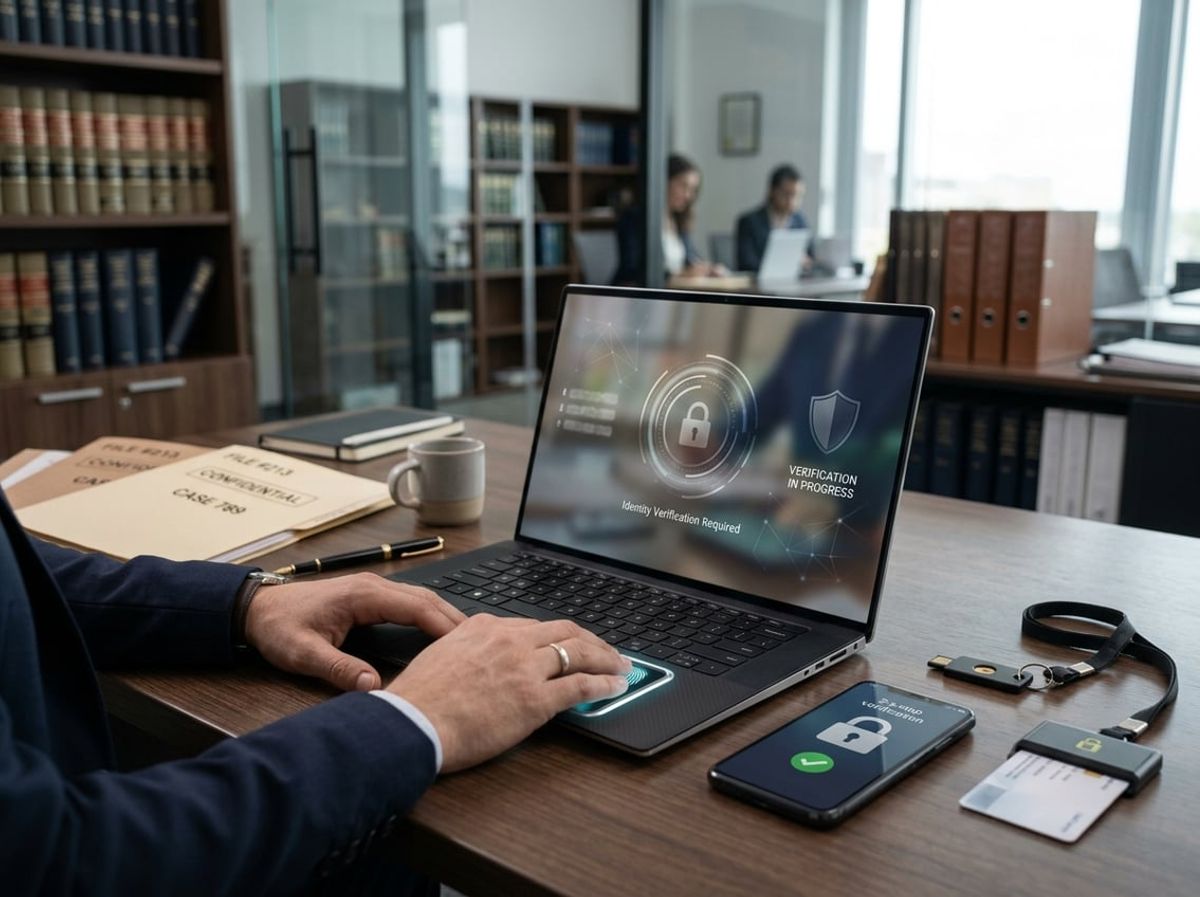
Multi-factor authentication protects secure law firm documents by requiring at least two independent proofs of identity before granting access, preventing unauthorized entry even when passwords are compromised. Law firms must select phishing-resistant MFA methods and enforce them uniformly across every document repository to satisfy cyber insurance requirements and protect client confidentiality.
Why Passwords Alone Cannot Secure Law Firm Documents
Passwords provide inadequate protection for sensitive legal files because credential theft has become routine. Phishing emails targeting law firms are among the most common routes to a credential compromise, giving attackers direct access to case files, client communications, and privileged work product. Once a password is stolen through a fake login page or keylogger, nothing prevents unauthorized document access.
Your ethical duty to maintain client confidentiality extends to the technical controls you implement. A single compromised password can expose years of client files, billable hour records, settlement agreements, and attorney-client privileged communications. Many cyber insurance carriers now require multi-factor authentication as a condition of coverage, recognizing that password-only protection is insufficient for law firm document security.
Shared passwords among legal staff magnify the risk. When multiple team members use the same credentials to access document repositories, you cannot trace who viewed or downloaded specific files, creating both security gaps and potential ethics violations under confidentiality rules.
Choosing Secure MFA Methods for Legal Teams
Not all MFA methods provide equal protection for securing law firm documents. SMS text codes remain vulnerable to SIM-swapping attacks where criminals hijack phone numbers to intercept authentication codes. Push notifications to mobile apps offer better security but can still fall victim to MFA fatigue attacks, where users approve fraudulent login attempts after repeated prompts.
Phishing-resistant MFA methods include:
- Hardware security keys (FIDO2/WebAuthn) that use cryptographic authentication
- Biometric verification combined with device-based certificates
- Certificate-based authentication tied to managed devices
Hardware security keys provide the strongest identity verification because they cannot be phished, intercepted, or replicated. Your attorneys and staff insert or tap a physical key during login, which cryptographically proves their identity without transmitting codes that attackers could steal.
For remote document access, certificate-based authentication ensures only firm-managed devices can connect to your document repositories. This approach satisfies compliance obligations by preventing access from personal or compromised devices regardless of correct login credentials.
Enforcing MFA Across Document Repositories
Comprehensive document access security requires MFA on every system where you store client files. Many firms mistakenly protect email but leave practice management software, cloud storage, and remote desktop access exposed to password-only authentication. You must enforce multi-factor authentication for document management systems, matter management platforms, SharePoint libraries, and any cloud storage containing legal documents.
Administrative accounts that control document permissions need the strongest MFA methods available. Attackers specifically target admin credentials to gain broad access to your entire document repository, modify access controls, or exfiltrate multiple client files simultaneously.
Configure conditional access policies that require MFA whenever staff access documents from outside your office network or from unrecognized devices. This approach balances security with usability while protecting against credential theft that occurs outside your direct control.
Your cyber insurance policy likely mandates MFA for remote access to secure law firm documents. Review your coverage requirements and document your MFA deployment across all systems, including onboarding procedures for new attorneys and regular audits of MFA compliance among existing staff.
Audit Trails and Monitoring for Document Access

Comprehensive activity logs document who accessed which files, when, and from where, creating a defensible record that satisfies regulators, supports malpractice defense, and validates cyber insurance requirements. Effective monitoring combines granular logging with automated detection of unusual access patterns.
What to Log When Client Files Are Accessed
Your audit trail must capture identity, timing, action type, and document state for every interaction with secure law firm documents. Record the specific user account, timestamp, IP address, device identifier, and geographic location for each access event. Document whether the user viewed, downloaded, edited, shared, or printed the file, along with which version was accessed.
Effective logs also track permission changes, sharing actions, and folder-level access. When a user grants access to an external party or changes a document's confidentiality classification, your system should record who authorized the change and under what circumstances. Version history becomes critical when multiple attorneys revise a brief or contract, as you may need to demonstrate which draft was reviewed at a specific point during representation.
Maintaining this level of detail serves as evidence of due diligence during regulatory examinations, bar complaints, or malpractice claims. Your logs should be tamper-evident and retained according to your jurisdiction's record-keeping requirements, typically matching the statute of limitations for legal malpractice actions.
Detecting Unauthorized Access Attempts
Automated monitoring flags access patterns inconsistent with normal work activity, such as bulk downloads outside business hours, access from unfamiliar locations, or repeated failed authentication attempts. Configure alerts for specific high-risk actions: downloads of client trust account records, access to sealed case files, or exports of entire matter folders.
Watch for lateral movement where a user accesses files outside their assigned matters or practice areas. Role-based access control should prevent paralegals from opening partner-only compensation documents or associates from viewing unrelated client files. When these boundaries are crossed, immediate notification allows you to investigate before sensitive information leaves your environment.
Geographic anomalies warrant scrutiny. If an attorney's credentials authenticate from two distant cities within an hour, credential compromise is likely. Similarly, access requests from jurisdictions where your firm has no offices or clients may indicate unauthorized entry attempts requiring immediate password resets and account reviews.
Using Audit Logs for Compliance Reporting
Audit trails satisfy multiple compliance obligations simultaneously, including your Rule 1.6 confidentiality duty, state data breach notification laws, and cyber insurance policy conditions. When regulators or insurers request evidence of access controls and monitoring capabilities, comprehensive logs demonstrate your firm's commitment to securing law firm documents against unauthorized disclosure.
Generate reports showing access patterns for specific matters, clients, or time periods. During litigation holds, these reports prove which users accessed potentially relevant documents and whether any materials were modified or deleted. During breach investigations, logs identify the scope of unauthorized access and support required notifications to affected clients.
Your cyber insurance carrier may require annual attestations confirming that monitoring systems are active and reviewed regularly. Structured log exports showing consistent oversight and incident response help maintain coverage and support claims if breaches occur. Retain audit data for at least the policy period plus applicable statutes of limitations to ensure availability during future claims or regulatory inquiries.
Data Loss Prevention for Confidential Client Files

DLP systems act as automated gatekeepers that detect when confidential client files are about to leave your firm's control and either block the transfer or alert your team in real time. These tools help small and mid-sized practices prevent both accidental leaks and deliberate data theft without requiring constant manual oversight.
Identifying Sensitive Client Data Automatically
DLP tools scan your files to find patterns that indicate confidential information: Social Security numbers, bank account details, case numbers, attorney-client privileged communications, and client names paired with medical or financial records. You configure rules that flag documents containing these elements, and the system applies protective policies automatically.
Modern DLP solutions use content inspection to examine files at rest in your document management system and in motion when staff send emails or upload to cloud services. The software looks inside PDFs, Word documents, spreadsheets, and email attachments without requiring anyone to manually tag files.
For law firms handling estate planning, family law, or personal injury cases, automatic detection ensures that wills, divorce settlements, and medical records receive protection even when staff forget to label them as confidential. This safeguard directly supports your ethical duty to maintain client confidentiality under Rules 1.6 and 1.9, which New York adopts from the ABA Model Rules.
Blocking Unauthorized Downloads and Transfers
Once your DLP policies identify sensitive data, they enforce restrictions on how staff can move those files. You can block employees from copying client documents to USB drives, uploading to personal cloud accounts, forwarding to non-firm email addresses, or printing without approval.
These controls operate at the endpoint level on laptops and desktops, monitoring file activity in real time. When someone attempts an unauthorized transfer, the system stops the action and logs the incident for review. You can configure different restriction levels based on user roles: partners might have broader access while contract attorneys face tighter limits.
DLP policies also prevent accidental data loss when staff work remotely or use personal devices. By restricting which applications can access secure law firm documents, you reduce the risk that malware or phishing attacks will exfiltrate confidential client files. This protection satisfies cyber insurance requirements and helps demonstrate reasonable security measures in the event of a breach investigation.
Setting DLP Policies Without Disrupting Workflow
Effective DLP policies balance security with usability so attorneys can serve clients without constant friction. Start by identifying your highest-risk scenarios: client files leaving the firm network, privileged communications shared with opposing counsel by mistake, or case strategy documents emailed to the wrong recipient.
Create tiered policies that apply stricter rules to the most sensitive categories. For example, allow staff to email routine correspondence freely but require manager approval before sending merger agreements, litigation exhibits, or files containing more than five client Social Security numbers. Use "monitor and alert" mode initially to understand workflow patterns before switching to full blocking.
Your DLP system should integrate with your existing access control infrastructure so permissions remain consistent across platforms. When an attorney loses access to a client matter, DLP policies should automatically revoke their ability to download or share those files. This alignment between access permissions and data transfer rules prevents confidential file protection gaps that occur when systems operate independently.
Secure Document Sharing With Clients and Co-Counsel

Law firms routinely share case files, discovery materials, and privileged communications with clients and external attorneys, yet many still rely on methods that expose sensitive information to interception or unauthorized access. Controlled sharing through portals with encryption, role-based permissions, and expiring links protects attorney-client privilege and satisfies your ethical duty to safeguard confidential information.
Risks of Email Attachments and Consumer File Sharing Tools
Sending documents as email attachments or through consumer-grade services like Dropbox, Google Drive, or WeChat leaves your firm vulnerable to data breaches and ethical violations. Email travels unencrypted across multiple servers, and attachments remain permanently in recipients' inboxes where they can be forwarded, stolen in phishing attacks, or exposed through compromised accounts.
Consumer file sharing tools lack the audit trails and access controls required to secure law firm documents. You cannot revoke access once a file is downloaded, track who viewed a document, or prevent recipients from sharing links publicly. These platforms store data on shared infrastructure without guarantees of encryption at rest or compliance with legal confidentiality standards.
New York's Rules of Professional Conduct require you to make reasonable efforts to prevent unauthorized disclosure of client information, and the New York SHIELD Act separately requires reasonable administrative, technical, and physical safeguards for the private information of New York residents. Using unsecured channels can result in malpractice claims, state bar sanctions, and loss of cyber insurance coverage. One breach involving privileged communications can destroy client trust and trigger notification obligations under that statute.
Using Secure Client Portals for Document Exchange
Secure client portals encrypt files during transmission and at rest, ensuring only authorized parties access case materials. These portals require multi-factor authentication before granting access, preventing credential-based attacks that bypass simple passwords.
Role-based permissions let you control exactly what each client or co-counsel can view, download, or edit. You assign access by matter, preventing conflicts and accidental cross-contamination between cases. External attorneys can collaborate on shared files without becoming users on your firm's system, maintaining separation while enabling efficient co-counsel collaboration.
Key features to require in any portal:
- Encryption in transit and at rest, using AES-256 or an equivalent standard
- Activity logs showing who accessed which documents and when
- Version control to track changes and maintain document integrity
- Automatic virus scanning before upload or download
- Compliance certifications relevant to legal practice (SOC 2, HIPAA where applicable)
Portals eliminate the need for clients to create separate accounts or download special software. They receive a secure link via email, authenticate their identity, and access only the documents you've shared with them. This approach protects confidentiality while meeting client expectations for convenient access.
Setting Expiration Dates and Permissions on Shared Links
Expiring links automatically revoke access after a set period, preventing outdated documents from circulating indefinitely. You should set expiration dates based on case needs, typically seven to fourteen days for routine file review, shorter for highly sensitive materials like settlement offers or expert reports.
Download restrictions add another layer of control. You can allow recipients to view documents in their browser without saving local copies, reducing the risk that files end up on unsecured personal devices or shared accidentally. Watermarking identifies the recipient on each page, discouraging unauthorized redistribution.
Permission settings should default to view-only access. Grant download or edit rights only when necessary for the recipient's role. For co-counsel collaboration on draft pleadings or discovery responses, enable commenting and tracked changes while restricting the ability to share further.
Monitor access logs regularly to identify unusual activity: downloads at odd hours, repeated failed login attempts, or access from unexpected locations. Configure alerts for these events so you can respond immediately to potential security incidents. Most cyber insurance policies now require these monitoring capabilities as a condition of coverage for securing law firm documents.
Mobile and Remote Access Controls to Secure Law Firm Documents

Remote work introduces specific access risks that demand targeted controls: attorneys working from home, clients logging in from mobile devices, and documents accessed across public networks all require layered safeguards that verify user identity, assess device security, and enforce session limits to protect client confidentiality.
Securing Document Access on Attorney Laptops and Phones
Your attorneys need access to case files from laptops, tablets, and phones, but each device becomes a potential entry point for unauthorized access. Mobile device management (MDM) software lets you enforce minimum security standards, requiring device encryption, up-to-date operating systems, and active screen locks, before any device can connect to your document repository.
You should mandate full-disk encryption on every laptop and enable remote-wipe capabilities on phones and tablets. If an attorney leaves a device in a taxi or coffee shop, you can erase all firm data remotely before anyone opens a single client file.
Application-level controls add another layer. Configure your document management system to require multi-factor authentication on mobile devices and to prevent documents from being saved to local storage or uploaded to personal cloud accounts. Documents should open only within your approved apps, not in third-party readers that lack security controls.
Separate personal and work data using containerization or work profiles on mobile devices. This approach keeps client files isolated from personal apps, so a compromised game or social media app cannot reach your documents.
Conditional Access Policies for Remote Work
Conditional access evaluates each login attempt in real time, checking user identity, device health, location, and network before granting access to secure law firm documents. You set rules that adapt to risk: an attorney logging in from your office Wi-Fi with a managed laptop gets full access, while the same attorney on airport Wi-Fi from an unrecognized device triggers additional authentication steps or restricted permissions.
Location-based rules can block access from countries where you have no clients or operations, immediately stopping credential-theft attacks originating overseas. Time-based policies can restrict access to business hours or require additional approval for late-night logins, which often signal compromised accounts.
Device compliance checks ensure that only laptops and phones meeting your security baseline, antivirus installed, firewall enabled, latest patches applied, can reach client files. If a device falls out of compliance, conditional access automatically revokes its access until the attorney updates and secures it.
Session controls limit what users can do once authenticated. You can permit viewing documents but block downloading or printing when an attorney logs in from an unmanaged device, balancing access needs with confidentiality obligations.
Managing Access When Devices Are Lost or Stolen
Your lost device protocol must execute within minutes, not hours, to prevent unauthorized access to client data. Designate a single point of contact, often your IT support provider or office manager, who can immediately disable the user's account and initiate a remote wipe of the missing device.
Immediate response checklist:
- Disable user credentials across all systems
- Trigger remote wipe on the lost device
- Review recent access logs for suspicious activity
- Notify clients if sensitive case files were stored locally
- File a police report and document the incident for cyber insurance
Remote wipe works only if the device connects to the internet, so you cannot rely on it alone. Require full-disk encryption as your first line of defense; even if a thief never connects the device to a network, encrypted files remain unreadable without the decryption key.
Track which documents were accessed from the lost device in the 30 days before the incident. If the attorney downloaded client files to local storage, you may face ethical disclosure obligations depending on your jurisdiction's rules and the sensitivity of the information.
Test your lost device response quarterly. Have an attorney report a device "missing" and measure how quickly you disable access and complete the protocol.
Compliance Frameworks Governing Law Firm Document Security

Several regulatory and industry frameworks directly govern how you must protect client documents. NIST guidance provides technical baselines for access control and encryption, state bar rules enforce confidentiality duties through ethics opinions, and cyber insurance policies increasingly audit whether your document security practices meet underwriting standards.
NIST and ABA Guidance on Data Protection
NIST Cybersecurity Framework 2.0 organizes document security into Govern, Identify, Protect, Detect, Respond, and Recover. For law firms, the Protect function covers access controls, encryption at rest and in transit, and least-privilege permissions tied to specific matters.
NIST SP 800-171 becomes relevant when your firm handles controlled unclassified information from government clients or contractors. This framework requires you to limit system access to authorized users, encrypt CUI on laptops and cloud storage, and maintain audit logs showing who accessed which documents. If you store defense or public-sector client files, segregating that data into separate systems can reduce compliance scope.
Rule 1.6(c), in New York and in the ABA model it follows, requires you to make reasonable efforts to prevent unauthorized access to client information. Many state bar ethics opinions interpret "reasonable" through a technology lens: multi-factor authentication for remote access, encryption for portable devices, role-based restrictions that prevent paralegals from viewing partner-level strategy files, and vendor due diligence when using third-party document platforms. Your document security controls must align with both technical standards and professional responsibility obligations.
State Bar and Client Confidentiality Requirements
New York Rules of Professional Conduct 1.6 and related ethics opinions require you to assess the sensitivity of each matter and apply appropriate safeguards. A personal injury case may tolerate standard email encryption, while M&A documents or grand jury materials demand stricter access logging and need-to-know restrictions.
State bar guidance often addresses specific technologies. Ethics opinions have covered cloud storage approval, password strength expectations, laptop encryption mandates, and communication method choices based on data sensitivity. You cannot assume one security posture fits all client files.
Your firm should document which controls apply to different matter types:
- High sensitivity: privileged work product, settlement strategy, health records, financial statements
- Required controls: MFA, device encryption, role-based access, external sharing disabled, audit trails
- Moderate sensitivity: routine litigation files, publicly filed documents
- Required controls: password protection, basic access logs, secure disposal
This classification helps you demonstrate reasonable care during client audits or after an incident.
Aligning Access Controls With Cyber Insurance Requirements
Most cyber insurance applications now ask whether your firm enforces MFA, encrypts devices, restricts administrative privileges, logs document access, tests backups, and reviews third-party vendor security. Insurers use your answers to set premiums and coverage limits.
If you cannot prove that only authorized users access client files, or if former employees retain cloud document access months after departure, your insurer may deny a claim after a breach. Access control gaps become underwriting risks.
Your policy may require:
Aligning your document access policies with insurance requirements reduces premium costs and ensures coverage during a claim.
Building a Document Security Policy for Your Law Firm

A written document security policy transforms technical controls into enforceable procedures that protect client confidentiality and satisfy ethical obligations. The policy must define who can access specific documents, how staff should handle sensitive files, and when controls should be reassessed.
Core Elements of an Access Control Policy
Your access control policy should specify exactly which roles can view, edit, or share each category of client file. Start by categorizing documents based on sensitivity: client privileged communications, M&A deal documents, litigation work product, and general correspondence each require different permission levels.
Role-based access control (RBAC) assigns permissions by job function rather than individual names. Associates access matter files they're assigned to, paralegals see documents relevant to their tasks, and administrative staff have limited read-only access to billing records. Partners retain override permissions but all access attempts should generate audit logs.
Your policy must address:
- Authentication requirements – mandate multi-factor authentication for remote access to secure law firm documents
- Guest access rules – define how clients and co-counsel receive view-only links with expiration dates
- Device restrictions – specify whether personal devices can access firm files and under what conditions
- Removal of access – require immediate revocation when staff leave or change roles
Document these rules in plain language and reference them in employment agreements. Many cyber insurance policies require written access controls, so this policy serves both compliance and coverage purposes.
Training Staff on Document Handling Procedures
Technical controls fail when staff don't understand their confidentiality obligations. Training on document handling procedures should occur during onboarding and quarterly thereafter, covering both ethical duties and practical steps.
Focus sessions on real scenarios your firm encounters. Demonstrate how to encrypt email attachments containing privileged communications, verify recipient addresses before sending, and use secure client portals instead of consumer file-sharing tools. Show staff where the confidentiality policy lives and how to report suspected breaches.
Address common mistakes directly:
- Sending unencrypted emails with Social Security numbers or medical records
- Accessing client files from public WiFi without VPN protection
- Leaving printed documents on shared printers
- Discussing cases in elevators or public areas
Document attendance and require signed acknowledgment that staff understand their responsibilities for securing law firm documents. This creates accountability and demonstrates reasonable measures if a breach investigation occurs. Rule 1.1 and its technology comment require competence in the technology that affects client confidentiality, making training a professional obligation rather than optional practice.
Reviewing and Updating the Policy Regularly
Your document security policy requires scheduled reviews to address new threats, technology changes, and regulatory updates. Establish a policy review cycle that examines controls at least annually, with interim updates triggered by security incidents or software migrations.
During reviews, audit actual access patterns against policy requirements. Pull reports showing who accessed specific client matters and whether permissions align with current roles. Check whether former employees still appear in sharing lists or whether guest links remain active beyond their intended use.
Update your access control policy when you adopt new tools, change practice areas, or face new compliance requirements. The New York SHIELD Act, state breach notification laws, and the security terms clients write into engagement letters all evolve, and your procedures must reflect current obligations. Document each policy version with effective dates and communicate changes to all staff in writing.
Test incident response procedures during reviews by running tabletop exercises. Walk through scenarios where a laptop is stolen or ransomware encrypts client files, verifying that your written policy actually works under pressure and that staff know their roles.

Law firms managing sensitive client matters face practical questions about protecting privileged communications and meeting confidentiality obligations. The answers below address specific access control, encryption, and compliance concerns relevant to legal practices without dedicated IT departments.