
Revoking Employee Access: The Accounts Everyone Forgets
A practical guide to revoking employee access at AEC firms, covering design software, cloud project sites, field devices and vendor portals.

A project architect at a 15-person New York City design firm gives two weeks' notice on a Friday. By the following Monday, her email is disabled and her office login is gone, and you assume the job is done. Three weeks later, she still has access to a Revit central model through a shared Autodesk seat, a Bluebeam Studio session with a consultant, and a job site tablet that stays signed in.
Revoking employee access at an AEC firm means closing far more than the email account and the office login, because project work spreads across design software accounts, cloud project sites, field systems, and vendor portals that no single system lists in one place. If you run an architecture, engineering, design-build, or construction firm without a dedicated internal IT team, this gap is easy to miss. Disabling one person's own accounts does not touch a login the whole team used, such as a shared seat or a plotter account.
Revoking employee access is a process, not a task you finish in one afternoon. The rest of this article walks through where firms miss accounts, from forgotten logins to vendor portals, and how to build a checklist you can repeat every time someone leaves.
Key Takeaways
- Offboarding at an AEC firm reaches well beyond email, into design software, cloud project sites, field devices, and vendor portals.
- Shared logins, such as a common software seat or a job site tablet, are the gaps that individual account shutdowns leave open.
- A documented, repeatable checklist and a periodic audit of active accounts against your current staff list catch what memory misses.
Why Revoking Employee Access Is Harder at AEC Firms Than It Looks

A departing designer at an AEC firm typically holds far more accounts than a departing office worker: design software seats, project cloud sites, shared team logins, and portals owned by outside consultants. Closing the office login and email leaves most of that untouched.
The Software Stack Nobody Fully Inventories
In a generic office, offboarding is mostly email and a shared drive. At your firm, one person's work spreads across tools that are bought, set up and renewed by different people.
A single project coordinator may hold:
- A Revit and AutoCAD seat, plus a worksharing identity on a Revit central model
- A Bluebeam Studio account tied to open review sessions
- Access to Egnyte or SharePoint project folders
- Autodesk Forma, formerly Autodesk Forma (formerly Autodesk Construction Cloud), or Procore accounts for submittals and RFIs
- Point cloud data on a local workstation or an external drive
- Vendor portals for plotting, reprographics and material suppliers
Disabling the Microsoft 365 login stops none of these on its own. A missed Bluebeam Studio account means a former employee may still see markups on a live drawing set. A worksharing identity left in place can leave elements checked out on the central model, which blocks a teammate from editing them on deadline day.
No single system lists all of this, so you need a written inventory per role.
Shared Logins and Why They Defeat Individual Offboarding
Disabling one person's account does nothing about a login the whole team used. This is the gap that most often stays open after revoking employee access.
Common examples at small and mid-size firms:
- A shared Autodesk seat passed between drafters
- A job site tablet with one saved login for everyone
- A plotter or reprographics account with a single password
- A generic project email address used for client and consultant correspondence
The departed employee still knows the password, and nothing in your systems flags that. A tablet left logged in on a job site can keep syncing drawings long after the person has left.
The remedy is to change each shared password the day someone with knowledge of it departs, and to move toward named accounts wherever the vendor allows it. Where a vendor offers only one login, record who knows it, so you know what to rotate. Your IT provider can build that record into the offboarding checklist.
Consultants, Subcontractors and the Access That Crosses Firm Lines
Not everyone with access to your project data is on your payroll or your systems. Structural, MEP and civil consultants, plus subcontractors, often work inside your Bluebeam Studio sessions, your Forma or Procore projects, or file exchanges you administer.
This creates two problems. First, a departing employee may have been the person who invited those outside parties, and may be the only administrator on a project site. If that account closes without a handover, nobody on your team can add or remove users.
Second, an employee may hold access on someone else's system, such as a consultant's file exchange, which you cannot reach to disable.
Before an employee leaves, list the outside sites where they hold an account or administrator rights. Transfer admin rights to a current manager, then ask the consultant or subcontractor to remove the departing person. Set an expiration date on outside access when you grant it, so it does not outlast the project.
The Accounts Everyone Forgets When Revoking Employee Access
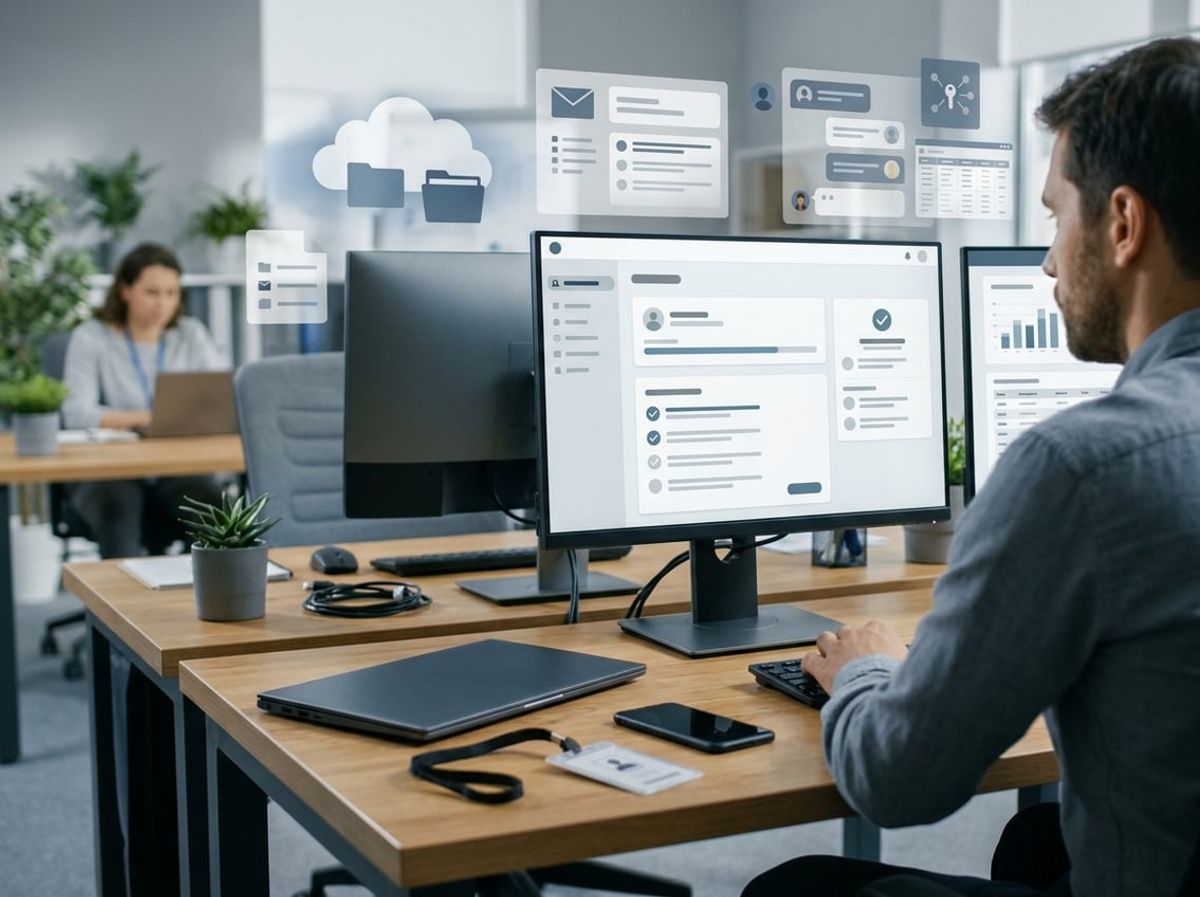
Most missed accounts sit in three places: design and review software tied to a person's login, project folders that sync to laptops and cloud sites, and shared logins on tablets, plotters and vendor portals. Closing email and the office login covers none of these, so revoking employee access needs a list that goes well past the obvious.
Design and Modeling Accounts: Autodesk, Bluebeam and Cloud Collaboration
An Autodesk account often holds more than a software seat. It can carry membership in Revit cloud worksharing projects, access to Autodesk Forma, formerly Forma, and viewer links to models you shared with consultants. If a departed project architect's account stays active, they may still open the Revit central model or download the latest sheet set.
Bluebeam Studio is easy to miss because sessions and projects belong to the person who created them. Imagine a session running a live drawing review with a structural engineer and a general contractor. If the host leaves and the account is still open, that person can still read markups, and you may also lose the host's ability to manage who is invited.
Check these places:
- Autodesk account membership, product seats and Forma project roles
- Revit cloud worksharing and any linked model permissions
- Bluebeam Studio sessions, Studio projects and invited outside parties
- Shared Autodesk or Bluebeam logins, which a single disabled user does not close
- AutoCAD plug-in or cloud storage accounts tied to a personal email
File and Project Storage: Shared Drives, Egnyte, SharePoint and Personal Sync Folders
Egnyte and SharePoint often hold the project folders for drawings, specifications, point cloud scans and submittals. Permissions there are usually set per folder, so a departed employee may keep access to one active project even after losing access to the rest. Review folder-level sharing, outside guest invitations and any links that give access without a login.
Sync is the quiet problem. A cached sync folder is a copy of project files stored on a laptop or home computer, and it stays on that device after the person leaves. If a former drafter synced a large point cloud folder to a personal desktop, those files remain there unless the device is wiped or returned.
Also look at:
- Mapped network drives and shared drives on a server or NAS
- Personal OneDrive or Dropbox folders where project files were saved for convenience
- Mailbox forwarding rules, which keep sending project email to an outside address after the account looks closed
- Procore or Forma folders where the person was the only administrator
When someone needs time to hand over work, narrow their access to read-only or route files to a manager instead of leaving full access open.
Field, Vendor and Peripheral Accounts: Job Site Systems, Plotters and Vendor Portals
A job site tablet is often signed in to Procore, Forma, Bluebeam and email under one shared login. When a superintendent leaves, disabling their personal account does nothing to that tablet. Change the shared password, sign the device out of every app, and confirm who still carries it.
A plotter login is another overlooked item. Many large-format printers keep a user list or a scan-to-email address book, and a former employee's entry can stay there for years. A shared plotter code that the whole office used also needs to change, not just be removed from one person.
A vendor portal usually lives outside any list your IT provider maintains. Typical examples:
Ask your IT provider to compare these accounts against the current staff list on a regular schedule. Many of them will only show up when someone checks.
Email and Identity: The Account That Unlocks Everything Else

Your Microsoft 365 account is usually the recovery address for design software, cloud project sites, and vendor portals, so a gap here reaches into every other system. Mail rules, delegate rights, single sign-on, and authenticator apps each decide whether a departed employee can still get in after you think the door is closed.
Mailbox Access, Forwarding Rules and Delegate Permissions
Locking the login is the first step in revoking employee access, but it does not finish the job. A forwarding rule is an automatic instruction that copies incoming mail to another address. If a project manager set one up to a personal Gmail account, RFIs, submittals, and consultant markups keep flowing to that person after they leave.
Mailbox delegate access is a separate permission that lets one person read or send from another person's mailbox. If a departed coordinator holds delegate rights to a principal's inbox, those rights can outlast the coordinator's own account unless someone removes them by name.
Check these items in the admin center for each departing user:
- Forwarding rules set by the user and forwarding set by an administrator
- Delegate and "Send As" permissions held by the user, and permissions others granted on the user's mailbox
- Shared mailboxes the user belongs to, such as a general RFI or bids inbox
Then decide who owns the mail. Convert the mailbox to a shared one or route it to a manager so client and consultant messages are not lost. Departing staff should not keep an open copy under their own credentials.
Single Sign-On and Why One Disabled Account Should Cascade
Single sign-on lets one Microsoft 365 or similar identity log you into many other tools. When your firm connects Autodesk accounts, Bluebeam, Procore, or Forma through single sign-on, disabling the main identity can shut those doors at the same moment. That is why the identity account is the first one to lock.
Cascade only works for tools that are actually connected. A Bluebeam Studio session set up with a personal email, or a Procore invitation sent to a former employee's private address, sits outside single sign-on and stays open.
Ask your IT provider two plain questions:
- Which project tools sign in through the firm's identity, and which use separate logins?
- When an account is disabled, do already-open sessions end, or do they run until they expire?
Sessions that stay open can let someone keep working in a cloud project site or a Revit worksharing session for hours or days. Ask for sessions and saved sign-in tokens to be ended along with the account. Keep a written list of the tools that sit outside single sign-on, because those need their own removal step each time.
Authenticator Apps and MFA Tied to a Personal Phone
Many employees set up MFA (a second sign-in check) with an authenticator app on their own phone. That phone then holds a working approval path for your Microsoft 365 account, and it stays with the employee when they leave.
If the account is disabled, the app alone cannot sign in. The risk appears when an account is only partly closed, for example when a handover period keeps the login open, or when the person's recovery phone number and backup email stay on the account.
During offboarding, remove the registered authentication methods for that user. This clears the personal phone, backup email, and any hardware key tied to the account, so a later password reset cannot be approved from a former employee's device.
Also check where the person was the approver for others. A principal who approves sign-ins for an assistant, or a BIM manager whose phone receives verification codes for a shared Autodesk or Procore login, creates a dependency that is easy to miss. Move those codes to a firm-controlled device or role-based method before the person leaves.
Project File Access: Central Models, Shared Drives and Who Still Has the Keys

A departed employee can hold live project access in three places: the Revit central model, the cloud project site, and a laptop or synced folder that keeps updating after they leave. Closing the email account does not touch any of them.
Revit Central Models and Worksharing Permissions
In Revit worksharing, the central model is the master file the whole team saves to. Each designer works in a local copy and syncs changes back, so a former employee who still has a local copy and a path to the file server or cloud host can keep syncing edits into live project work.
Revit does not keep its own user list for the central model. Access comes from the folder permissions on the server or cloud host where the file lives. That means revoking employee access to the model is a file permission task, not a Revit setting.
Check these items:
- Folder permissions on the central model location, including any groups the person belonged to
- Elements they still have checked out, which stay locked to their username until someone relinquishes them
- Local copies on their workstation, which may hold unsynced work your team still needs
Before you cut access, ask your BIM manager to confirm nothing is checked out. Otherwise, walls, sheets or views stay locked to a user who can no longer log in, and the team loses a day working around it.
Cloud Project Sites: Egnyte, SharePoint and Construction Cloud Permissions
Cloud project sites hold the live drawings, models and submittals, and each platform manages access separately. Disabling a person's email does not remove them from a project folder shared by direct invitation.
Egnyte folder permissions can be set per user or per group, and a person may hold access through both. Review each project folder and check for personal links, which can keep working after the person's own account is changed.
SharePoint permissions are inherited from the site by default, but individual folders or files may have been shared directly. A project folder that was shared with a link can stay open to anyone holding that link.
For Autodesk Forma, formerly Forma, access is managed project by project. A person may be a member of several projects, and the project admin, not your IT provider, may be the only one who can remove them. Procore works the same way.
Also check for outside consultants who were added under the departed employee's name as the contact.
Local Copies, Synced Folders and Files That Left on a Laptop
A synced OneDrive folder or a desktop sync client keeps a copy of project files on the device. If the device is still signed in, it may keep downloading new versions after the person has left, even when you have changed their folder permissions.
The practical risk is a laptop that was not returned or a personal computer that was signed in once for convenience. The files on it are a snapshot, and the sync connection may still be live.
Take these steps:
- Sign the person out of all devices from the Microsoft 365 or Egnyte admin console, so sync clients stop authenticating
- Ask your IT provider to wipe or retrieve company data from any laptop, phone or tablet that held project files
- Check removable drives and personal cloud accounts where large files such as point cloud scans or Bluebeam sets may have been copied
- Review sync client activity for the account to see which devices connected recently
Large point cloud data and archived Revit models are the files most likely to sit on a drive nobody remembers. Ask the project team where the person kept scans and exports, and confirm those copies are accounted for before you close the account.
Field and Job Site Access: What Gets Left Running After Someone Leaves

An office-focused offboarding checklist usually stops at email, the laptop and the file server. On a job site, the logins that stay open tend to be shared ones: a wifi password, a tablet, a camera system, a door panel.
Job Site Wifi Credentials and Shared Tablets
A trailer or temporary job site wifi network often has one password that everyone on the project knows. When a project manager or field engineer leaves, that password leaves with them, and changing it means updating every phone, laptop and tablet that connects. Many firms postpone the change for that reason, which leaves a former employee able to join the network.
Shared tablets carry a bigger exposure. A tablet kept in the trailer for rotating field staff is often signed in to Procore or Autodesk Forma, formerly Forma, plus a Bluebeam Studio session or a project folder in Egnyte or SharePoint. Disabling the departed person's own account does not sign out the tablet, because the saved session may belong to a generic login.
Take these steps when someone leaves:
- Change the job site wifi password and record who received the new one.
- Sign out and reset any shared tablet, then sign back in under a login you control.
- Check which project folders the tablet synced for offline use, since those files stay on the device.
Security Cameras, Access Control Panels and Site Logins
Camera systems and door or gate access panels are usually set up by a vendor or an electrician, not by your IT provider. Because of that, they rarely appear on any account list. A departed superintendent may still hold an admin login to the camera system, a mobile app that shows live footage, or a panel code assigned to their name.
Ask each vendor for a current list of user accounts, then compare it to your staff list. Remove individual users first. For any login shared across the team, such as a single admin account on a camera recorder, change the password and note the date.
Pay attention to remote access. Many camera systems link to a phone app or a cloud portal tied to a personal email address. If that address is the departed employee's, you may need the vendor's help to move ownership to a company address before you can close the account.
Also check access panel codes and key fobs issued to individuals. A code that was never deleted keeps working long after the project team changes.
Personal Devices Used for Work on the Job Site
Field staff often use a personal phone to photograph site conditions, review Bluebeam markups or open drawings from Procore. After they leave, that phone may still hold signed-in apps, cached project files and saved wifi passwords for your sites.
Ask the person to sign out of company apps before their last day, and have your IT provider remove their phone as a sign-in method for company accounts. If you run device management software on personal phones, a selective wipe can remove company apps and data without touching personal photos. Confirm the approach with counsel first, since employee consent and local rules may apply.
Site photos are a common gap. Images taken on a personal phone may sit in a personal cloud account and never reach the project record. Before the departure date, have the employee upload them to the project folder so that work in progress is not lost when you close their access.
Third Party and Vendor Access: The Accounts Outside Your Own Systems

Some of the accounts a departing employee uses live on servers you do not control, so removal means asking someone else to act. Vendor portals, consultant logins and project extranets each have a different owner who has to close the door.
Autodesk, Bluebeam and Other Software Vendor Portals
Your Autodesk portal and Bluebeam vendor account sit with the software company, not with your IT provider. Disabling a departed employee's email does not remove them from either one.
Check who the account administrator is. In many small firms the person who bought the licenses is the one who left, which leaves the portal tied to a personal email address you can no longer reach. Update the administrator contact first, then remove or reassign the seat.
Look for these items at the portal level:
- Named user seats: reassign or delete them so the license is not wasted and the person cannot sign in.
- Bluebeam Studio sessions and projects: remove the person as a participant, and transfer ownership of any session they started, or markups on a live review can become hard to manage.
- Shared or generic seats: change the password and the recovery email, since the departed employee still knows both.
- Billing and support contacts: replace them so renewal notices do not go to a closed inbox.
Consultant and Subcontractor Shared Accounts
A consultant shared login is a single username and password used by several people to exchange files, often created for one project and never revisited. When your employee leaves, they still know it, and so does everyone at the consultant's office.
Start by listing every shared login your project team uses with structural, MEP and survey consultants, including Egnyte or SharePoint guest folders and any FTP sites for point cloud data. Ask each consultant who actually uses the account today. Then change the password and move to named accounts, so future departures on either side are traceable.
Be careful with timing. A structural engineer waiting on a Revit model update does not want to be locked out mid-submission, so give the consultant a short notice and a new credential rather than cutting access without warning.
Write the new login details down in your offboarding record. That record is what lets you confirm, at your next audit, that the old login no longer works.
Client Portals and Project Extranets
A client portal or project extranet, such as a Procore project site, belongs to the owner or general contractor. You are a guest on their system, so your firm cannot remove a departed employee yourself.
Send a written request to the project administrator naming the person, the projects affected, and the date access should end. Ask for confirmation back, and keep it with the project file. Until the administrator acts, that former employee can often still view drawings, RFIs, submittals and meeting minutes.
Also check what the person owned on the extranet. Open RFIs, assigned submittal reviews and meeting invitations may still route to them. Name a replacement on each item so the contractor's questions reach someone who will answer them, and so project deadlines are not missed while the old account sits idle.
Make this request part of your standard checklist for revoking employee access, with the project administrator's name recorded for every active job.
Building a Revoking Employee Access Checklist That Actually Works

A checklist for revoking employee access starts with a list of every account a person holds, then orders the cuts by risk and handover need, then records each step so anyone can repeat it. Those three pieces turn offboarding from one person's memory into a process your firm can run every time.
The Access Inventory Step Most Firms Skip
You cannot close an account you do not know exists. Build the access inventory once, then update it whenever someone joins, changes roles, or gets a new tool.
For each employee, record accounts in these groups:
- Email and sign-in: mailbox, single sign-on, phone and tablet enrollments
- Design software: Autodesk accounts, Revit worksharing permissions, AutoCAD and Bluebeam Studio seats
- File storage: Egnyte or SharePoint folders, point cloud archives, cached sync folders on laptops
- Project platforms: Procore, Autodesk Forma (formerly Forma), consultant portals
- Field and shared tools: job site tablets, plotter accounts, shared logins
Mark shared and generic logins separately. If a departed project architect knew the password to a shared Autodesk seat or the job site tablet, disabling that person's own account does nothing to it, and the password has to be changed.
Also list accounts outside your own systems, such as consultant and subcontractor portals where an employee was invited by name. Those invitations sit with the other firm, so someone must be assigned to ask for removal.
Sequencing: What to Cut First and What to Hold Briefly
Lock down email first. It is usually the recovery path for other accounts, so a former employee with mailbox access can reset passwords elsewhere.
Next, cut what cannot be recovered if misused: remote access, mobile device connections, and Bluebeam Studio sessions where markups are shared live. Then close design software and project platform accounts.
Timing depends on why the person left. A for-cause departure usually means immediate removal across the board. A routine resignation may call for a short hold so a project manager can retrieve work in progress.
A hold should not mean leaving the account open under the employee's own credentials. Instead:
- Convert the mailbox to read-only or route incoming mail to a named manager.
- Move active Revit work to another team member and release the departed employee's worksharing permissions, so their checked-out elements do not stay locked for the team.
- Copy files from cached sync folders to the project folder, then remove the laptop's access.
Set an end date for the hold and record who owns it.
Documenting Offboarding So It Survives Staff Turnover
A written offboarding checklist matters most the week the person who usually handles it is out. Write each step as an action with an owner, a due time, and a place to initial and date it.
Keep these records for each departure:
- Completed checklist: every step marked, with the date and who did it
- Exceptions: accounts left open for handover, with the reason, the new owner, and the end date
- Outside requests: removal requests sent to consultants and vendors, and whether they confirmed
- Shared credential changes: which passwords were reset and who now holds them
If your firm has no internal IT staff, ask your outside IT provider to run this as a repeatable process and send you the completed record. Memory-based offboarding tends to fail as the firm grows or as staff turn over.
Finally, schedule a periodic audit that compares active accounts in email, file shares, design software, and vendor systems against the current staff list. Audits find leftover access that no checklist caught, before an incident does.
Common Mistakes That Leave Access Open

Most gaps in revoking employee access come from three habits: closing the visible account while hidden routes stay active, missing logins that belong to no single person, and never checking again after the last day. Each one lets a former employee, or anyone holding their credentials, keep reaching project data.
Disabling the Account but Not the Forwarding Rule
A common pattern at small AEC firms is that someone disables a departed project architect's login and considers the job finished. Meanwhile, a mailbox forwarding rule, which automatically sends copies of incoming email to another address, keeps running. Delegate access, which lets another person open and send from that mailbox, can survive the same way.
In practice, this means RFIs, consultant markups and Bluebeam Studio invitations can keep landing in a personal inbox outside your firm's control. A rule that sends mail to a private address also exposes bid documents and client correspondence to someone who no longer works for you.
Check these items after the account is locked:
- Automatic forwarding rules on the mailbox, including ones the employee set up years ago
- Delegate and shared mailbox permissions
- Calendar sharing, which can reveal site visit schedules
- Mobile devices still synced to the mailbox
Because email is usually the recovery path for other accounts, a surviving forward can also deliver password reset links.
Forgetting Shared or Generic Logins
Disabling one person's account does nothing to a login the whole team used. Shared logins are the most frequently missed item, and they tend to be the ones nobody wrote down.
Typical examples at AEC firms include a shared design software seat, a job site tablet signed in under a generic account, a plotter or scanner login, and a single vendor portal account used for ordering or permit filings. Field teams often rely on these because they are convenient on a trailer or site visit.
If the departing employee knew the password, they still have access after their own account is gone. Changing the credential is the fix, and it affects everyone who uses it, so plan it with your team.
Keep a written list of every shared login and who knows each password, so that list is the starting point on someone's last day.
Treating Offboarding as a One-Time Event Instead of an Audit Cycle
Even a careful offboarding on the last day misses things. A cached sync folder, meaning a copy of project files stored on a laptop or phone, may keep working after the account closes. A consultant may have added the former employee to a Procore or Forma project directly, outside your own user list.
New leftover access also appears later. A subscription the employee signed up for with a firm email, or an invitation accepted from an outside collaborator, shows up weeks after they leave.
The practical answer is a periodic stale account audit. Compare the accounts that are active in email, file shares, design software and vendor systems against your current staff list. Anything unmatched gets reviewed and closed.
An outside IT provider can run this on a schedule and keep a record of what was found. Without a fixed schedule, leftover access tends to surface only after something goes wrong.
What Leftover Access Means for Cyber Insurance and Client Trust

When a former employee can still sign in to a Revit central model, a Bluebeam Studio session, or a project folder, the problem reaches beyond IT. It shows up when you renew a cyber policy, answer a client's security review, or respond to an incident that began with a stale account.
What Insurers Commonly Ask About Access Controls
When you apply for or renew a cyber policy, insurers commonly ask how you manage access controls for people who leave. Typical questions include how quickly accounts are disabled, who is responsible for doing it, and whether the steps are written down. Requirements vary by carrier and policy, so check yours with your broker.
Your answer needs to match how the firm actually works. If you say accounts are closed on the last day, but a former project architect still has a shared Autodesk seat, a plotter login, or a synced Egnyte folder on a home laptop, the application says one thing and your systems say another. That gap can become a problem if you later file a claim.
Insurers also tend to ask whether you review accounts periodically. A short record showing that active accounts were compared against the current staff list across email, file shares, design software, and vendor portals is a straightforward way to support your answers.
Client Security Questionnaires and Proof of Offboarding
Owners, developers, and larger prime firms increasingly send a client security questionnaire before awarding work or sharing project data. Expect questions such as:
- How soon after a departure is access to client project data removed?
- Is the removal documented, and by whom?
- Do consultants and subcontractors working outside your systems get the same treatment?
- How do you handle shared logins on job site tablets or common accounts?
A client asking these questions wants evidence, not reassurance. A dated offboarding checklist showing that email, the Forma or Procore project site, design software, and file shares were each handled gives you something concrete to hand over.
Consultants and subcontractors are a frequent weak point, because their access often sits in your project folders but not in your staff directory. Include them in your records.
If you hold personal data about employees or clients, the NY SHIELD Act may apply to your firm and speaks to reasonable safeguards for that data. Confirm with counsel whether and how it applies to you.
The Cost of a Former Employee Incident
A former employee incident does not need malice to be costly. A departed coordinator whose mailbox still forwards messages, or whose cached sync folder still holds drawing sets, can expose client files without anyone intending harm.
The costs tend to fall into a few categories:
Dollar amounts vary widely with firm size and what was exposed, so ask your carrier or IT provider for realistic estimates rather than relying on a generic figure.
The most dependable protection is a documented offboarding process run consistently, backed by periodic audits that catch leftover accounts before a client, an insurer, or an incident does.
How ELMIDA Approaches Offboarding for AEC Firms

For firms without an in-house IT team, ELMIDA Solutions runs offboarding as a documented, repeatable process that involves your project leads and HR from the first day of notice. It then keeps checking afterward, so leftover access gets caught on a schedule rather than by accident.
A Managed Offboarding Process, Not a Checklist Run Alone
A checklist handed to an office manager works until the office manager is busy. ELMIDA's managed IT offboarding treats each departure as a short project with an owner, a written task list and a sign-off at the end.
The first task is always email, because it is usually the recovery path for other accounts. From there, the list covers the places project work actually lives:
- Microsoft 365 sign-in, mailbox forwarding rules and shared mailboxes
- Egnyte or SharePoint project folders, including cached sync copies on laptops
- Shared logins such as a plotter account or a job site tablet, which stay active after one person's account is disabled
- Vendor and consultant portals that your team accessed under a firm email address
ELMIDA handles the access side of this work. Autodesk and Bluebeam licensing stays with whoever manages those subscriptions at your firm.
You get a completed record for each departure, so you can show what was closed and when. Our cybersecurity services include this offboarding work alongside other protections for NYC AEC firm IT.
Coordinating With Project Leads and HR Without Slowing Down Turnover
Technology cannot decide on its own whether an account closes today or next week. That depends on why the person is leaving and who needs to retrieve work in progress.
ELMIDA asks HR for the departure date and circumstances, then asks the project lead one practical question: what does this person hold that the team still needs? Examples include an open Revit worksharing session with unsynced changes, a Bluebeam Studio review the person started, or point cloud files saved to a local drive.
Based on those answers, access is handled in one of two ways:
- Immediate disable when the departure is sudden or contested.
- Short, narrowed access when a handover is needed, with the account set to read-only or its mail routed to a manager instead of staying open under the employee's own credentials.
The project lead confirms handover is complete, and ELMIDA closes the remaining accounts the same day. A designer leaving on good terms with a deadline pending should not stall a submission, and a security gap should not wait on a busy week.
Routine Access Audits as Part of Ongoing IT Support
Even a well-run offboarding misses things, and some accounts only surface months later. That is why ELMIDA runs a periodic access audit instead of treating offboarding as a one-time cleanup.
Each audit compares active accounts against your current staff list across four areas:
The goal is to find the typical leftover: a former drafter still listed on a project site, or an intern still in a shared folder for a finished job. You receive a short list of what was found and what was removed.
Because the audit is part of ongoing IT support, you do not have to remember to ask for it. For firms with growing headcount or frequent project-based staffing, that regular check is often what keeps revoking employee access from depending on anyone's memory.