
Construction Data Backup: Protecting Job Records, Not Just Drawings
Learn what construction data backup should cover, from RFIs and daily reports to contracts, photos and change orders, not just drawings.

Picture your current job file the way it actually exists: a Revit or AutoCAD set on the server, a Procore or Autodesk Forma project (formerly Autodesk Forma (formerly Autodesk Construction Cloud)) full of RFIs, daily reports typed from a phone on site, hundreds of job photos, signed contracts and change orders, and an email thread with a consultant that settled a scope question. Most firms protect the first item on that list and assume the rest takes care of itself.
Construction data backup for a contractor has to cover job records such as contracts, daily reports, RFIs, submittals, change orders, inspection logs, photos, and correspondence, not only drawings and models, because those records are what settle a dispute or payment claim after the drawings have done their job. This article focuses on the job records most firms forget to protect, since those are the files you will be asked to produce months or years after a project closes.
If you run a contracting, design-build, or project management firm in or around New York City without a dedicated IT department, this gap is likely yours too. Your records sit in project platforms, email, phones, accounting software, and shared drives, so construction data backup works only when you plan it system by system. The sections ahead cover where those records live, how to decide what gets backed up and how often, how long to keep them, and who should be responsible for it all.
Key Takeaways
- Back up job records such as contracts, daily reports, and change orders, not just drawings and models.
- Plan protection system by system, and keep records well past project closeout.
- Test restores on a regular schedule, and assign one party to own the whole process.
What Construction Data Backup Actually Means for a Contractor

For a contractor, protecting data means protecting the entire job file: the contracts, daily reports, RFIs, submittals, photos, and change orders that prove what happened, along with the drawings and models. It also means knowing where each of those records lives, since they rarely sit in one place.
Drawings and Models Are Only Part of the Job File
Revit models and AutoCAD drawings are the files most people picture when they think about backup. They matter, but they are references that crews and estimators work from. The records that settle a payment claim or a schedule dispute sit beside them.
Your job file typically includes:
- Contracts, subcontracts, and insurance certificates
- Daily field reports and inspection logs
- RFIs, submittals, and change orders
- Site photos and correspondence
- Punch lists and meeting minutes
These records are scattered. Procore or Autodesk Forma (formerly Forma) may hold RFIs and submittals, while photos sit on crew phones, approvals sit in email, and billing sits in QuickBooks or a similar platform. One backup job will not cover all of them, so the plan has to be built system by system.
Prioritize by how critical and how changeable a record is, not by size. A daily report log is small but hard to recreate. A large point cloud or rendering file may be regenerated from source data if it is lost.
The Records That Follow a Project After It Closes
Project closeout does not end your need for the job file. Warranty questions, payment disputes, and insurance inquiries can surface long after substantial completion. When they do, the daily reports, approved change orders, and inspection logs are the documents people ask for.
That makes retention a separate question from day-to-day recovery. Many firms set up backup to restore a deleted file from the past few weeks or months. Job records often need to be kept for years, so a short recovery window can leave you without the documents you need most.
Closeout is also when files get moved, archived, or deleted from active platforms to save space. Confirm that archived records still exist in a backed-up location before you clear them from the system your team uses daily. Ask your attorney and your insurance carrier how long to keep each record type, since the right period varies by contract and claim exposure.
Why Generic File Backup Falls Short for Construction Work
A backup tool that copies a shared drive to the cloud protects only what is on that drive. It does not capture RFIs stored inside Procore, photos that never left a foreman's phone, or Bluebeam Studio sessions where markups live. SharePoint, Microsoft 365 mailboxes, Egnyte folders, and accounting data each need their own coverage.
Generic backup also tells you little about recovery. A job that finishes without errors does not prove you can restore a project folder and open it. Expect to run test restores on a schedule that matches how often the data changes, such as more often for active jobs and less often for closed ones.
Finally, someone has to own it. Backup that is assumed to be somebody's job tends to go unmonitored. Assign responsibility explicitly, usually to a managed IT or backup provider, covering setup, monitoring, and periodic restore testing.
Beyond the Drawings: The Job Records Firms Forget to Protect

Drawings and models get the most attention in a backup plan, but the records that settle a payment dispute or a claim are usually the day-to-day paperwork of the job. Field logs, photos, closeout documents, and the contract trail all live in different systems and need their own protection.
Daily Reports, Field Logs and Inspection Records
Daily reports are small files that are very hard to recreate. A superintendent's entry on weather, manpower, deliveries, and delays is a record of what happened on a specific day, and nobody can reconstruct it from memory months later.
These records often sit in a project platform such as Procore, in a field app on a phone, or in a spreadsheet saved on a trailer laptop. Each location needs its own backup, because a backup of the main office server does not capture any of them.
Pay attention to these items:
- Daily reports and manpower logs: Export or back up on a schedule that matches how often they change, which is daily during active work.
- Inspection logs and test results: Keep signed copies along with the platform record.
- Meeting minutes and correspondence: These often live in email, so confirm your mailbox data is covered too.
Because these files are small but hard to replace, back them up frequently and keep them for years, not just until closeout.
Photos, Punch Lists and As-Built Documentation
Job photos are among the most useful evidence in a claim, since they show conditions before walls were closed up. They are also scattered across personal phones, field app galleries, and shared folders, and a lost or replaced phone can take months of images with it.
Confirm that photos taken in the field sync to a system you control, with the date, location, and project tags intact. Original files matter more than compressed copies, since metadata can be stripped during resizing.
Punch lists and closeout records need the same attention:
- Punch lists: Keep the final signed version and the history of items opened, completed, and verified.
- As-built drawings and redlines: Bluebeam Studio sessions and markups can hold the only record of field changes, so export finished sets to storage you manage.
- Warranties, O&M manuals, and closeout binders: Owners may ask for these years after turnover.
Drone captures and large point clouds take up more space, but they can often be regenerated from source data. Prioritize the punch list and photo record first, since those are harder to rebuild.
Contracts, Change Orders, RFIs and Submittals
Contracts and change orders carry the financial terms of the job. If a signed change order is missing during a payment dispute, you may have difficulty proving that extra work was authorized.
RFIs and submittals show how design questions were raised and answered, along with who approved what and when. They move between the GC, subcontractors, and the design team, which means your copy may live in a platform you do not fully control, such as Autodesk Forma, formerly Forma, or Procore.
Cover each of these paths:
Assign one party, usually your managed IT or backup provider, to implement, monitor, and test coverage for these systems. Test a restore on a regular schedule, since a completed backup job does not prove you can recover a specific signed change order when you need it.
Where Job Records Actually Live, and Why That Complicates Backup

Contract documents, RFIs, daily reports, photos, change orders, and payment records sit in at least four different kinds of systems at most contractors. Each one has its own owner, its own retention behavior, and its own way of failing, so one backup job rarely covers them all.
Project Management Platforms Like Procore and Autodesk Construction Cloud
Procore and Autodesk Forma, formerly Forma, usually hold the formal project record: RFIs, submittals, change order requests, meeting minutes, inspection logs, punch lists, and the drawings and models everyone references. Bluebeam Studio sessions often hold marked-up sets alongside them.
Because the data lives in the vendor's cloud, many firms assume it is already backed up. Those platforms offer version history and deleted-item recovery, which handle everyday mistakes, but those features are built for collaboration and have limits on how far back they reach.
The complication is that records here are linked to each other. An RFI points to a drawing sheet, which points to a revision, which points to a submittal. A backup that exports only the drawing folder can leave you with files that no longer explain themselves.
Ask three questions for each platform:
- Who is the account administrator, and can that person export everything?
- How long are deleted items recoverable?
- What happens to the project data when the subscription ends?
Email, Phones and Field Apps Used by Site Staff
A large share of the day-to-day record never makes it into the formal platform. Superintendents and project managers negotiate scope changes by email, send verbal-approval confirmations from their phones, and text photos of conditions found behind a wall.
Mail usually sits in Microsoft 365 or a similar service, so the mailbox of a project manager who leaves the firm can hold the only written trail of a change order discussion. Photos and notes often start on a personal phone camera roll or in a field app before anyone uploads them.
Field apps add another layer. Daily reports, timecards, and site photos may be captured offline and synced later, so what is on the device can differ from what reached the server.
Plan for these gaps:
- Email: project correspondence tied to individual mailboxes, with no project-level home.
- Phones: photos and texts that may exist nowhere else.
- Field apps: reports and photos that depend on a successful sync.
Written site-staff practices, such as requiring photos and approvals to be filed to the project record the same day, reduce what a backup has to chase.
Accounting, Scheduling and Document Control Systems
The financial side of the job record lives in accounting software such as QuickBooks or a construction-specific equivalent: contracts and commitments, pay applications, retainage, lien waivers, and the cost reports that support a payment claim. These systems are often installed on a local server or hosted by a vendor, and they need a backup method suited to a database, not a folder copy.
Schedules add another set of files. A Primavera or Microsoft Project schedule with its baseline and updates can be central to a delay claim, yet it may sit on one scheduler's laptop.
Shared drives and document control systems such as SharePoint or Egnyte tie it together. They hold signed contracts, insurance certificates, close-out binders, and exported reports, often in folder structures that vary by project.
Each of these is a separate system with a separate backup path. That is why a backup plan for job records has to be built system by system, with each one assigned an owner and tested on its own.
Building a Construction Data Backup Plan That Covers the Whole Job File

A workable plan starts with a list of every place job records live, then sets how often each record type is copied, and ends with a clear view of what your cloud platforms do and do not protect. Drawings and models are only part of the file; the daily reports, RFIs, change orders, and photos are what you will lean on in a payment dispute.
Mapping Every System That Holds Job Data Before Choosing a Tool
Start with a written inventory before you compare any backup product. Job records are scattered, so one backup job will not cover them. Walk through a live project and note where each record type actually sits.
This data mapping exercise often exposes gaps, such as photos that exist only on a foreman's phone or approvals that sit in an inbox. Record the owner of each system, the admin login, and who is responsible for the backup of that source.
Matching Backup Frequency to How Often Each Record Type Changes
Set backup frequency by how critical and how changeable a record is, not by file size. A daily report log is small but hard to recreate, so it deserves frequent copies. A large point cloud or rendering file can often be regenerated from source data, so a slower schedule may be acceptable.
A practical starting point for a construction data backup plan:
- Daily or more often: active RFIs, submittals, daily reports, change orders, email, and accounting data during billing periods.
- Daily, with photos synced as they are taken: site photos and field app records.
- Weekly or on milestone: stable drawing sets, closed submittal packages, and regenerable models.
Adjust the schedule as a project moves from preconstruction to peak buildout to closeout. Then test restores on a regular schedule that fits how actively the data changes. A backup job that finishes without errors does not prove you can recover a project folder.
Keep records well past closeout, often for years, since claims and insurance questions can appear long after substantial completion. That window is usually longer than the one set for everyday file recovery.
Where Cloud Platforms Already Protect Data and Where They Do Not
Cloud platforms such as Procore, Forma, Egnyte, and Microsoft 365 protect their own infrastructure. They also include features like version history and deleted-item recovery, which handle everyday mistakes well. Those features are built for collaboration, and recovery windows are limited.
Gaps tend to appear in a few places: a bulk deletion by someone with broad permissions, a sync that overwrites good files, data lost during a platform migration, and records that age out of a retention window before anyone checks. Review each vendor's current documentation to confirm what is retained, for how long, and how an administrator restores it.
Also decide who owns the result. Backup and recovery work best when one party, usually a managed IT or backup provider, is named responsible for implementing, monitoring, and periodically testing it. Without that assignment, each person assumes someone else is handling it.
What Gets Backed Up, What Gets Archived, and What Gets Neither

Sorting your data by how hard it is to recreate, and how often it changes, tells you where it belongs. Active job records need frequent backup, closed jobs need long retention at lower cost, and some large files may not need backup at all.
Active Project Data Versus Closed Job Records
Active project data is anything your teams are still changing: daily reports, RFIs, submittals, change orders, punch lists, inspection logs, site photos, and the current drawing and model sets. These records change daily, and losing even a week of them can leave you without proof of what was reported, approved, or directed on site.
Back this data up on a frequent schedule, and do it system by system. Procore, Forma (Autodesk Forma, formerly Forma), Bluebeam Studio, QuickBooks, SharePoint, and email each hold a different slice of the job, so no single backup job covers all of them.
Closed job records are different. Once a project reaches closeout, its contracts, final change orders, warranties, and correspondence rarely change, but they still matter if a claim, payment dispute, or insurance question surfaces years later.
Move closed jobs to lower-cost archive storage with long retention, often for years past substantial completion. Keep the archive indexed by job number so you can find a specific RFI or approval quickly. Archived records also need their own backup copy, because an archive can fail like any other storage.
Large Files Like Point Clouds and Renderings: Backup or Regenerate
File size is a poor guide to what deserves backup. A daily report log is small but nearly impossible to rebuild, while a multi-gigabyte point cloud or rendering is large and sometimes recoverable from its source.
Ask one question for each large file: can you regenerate it, and how long would that take?
Regeneration only works if the source data is protected. A rendering you can rebuild is worth skipping, but only when the Revit or other source model is backed up.
Treat anything that documents existing conditions on a specific date as a record, not a convenience file. If a scan shows a wall before a dispute over rework, it may be the only evidence you have.
Personal Devices and Why They Should Not Hold the Only Copy
Field staff often hold the only copy of important records on a phone or laptop: site photos, voice memos, handwritten note scans, and text threads with subs or inspectors. A dropped phone, a lost laptop, or a departing employee can take that evidence with it.
Photos taken in the camera roll rather than in Procore or Forma are a common gap. They may not sync to any shared location, and they carry no project tag.
Set a clear rule: records created in the field must land in a company system, such as the project platform, a SharePoint library, or an Egnyte folder, within a defined window, ideally the same day. Configure phones to upload automatically where your platform supports it.
Be specific about what the rule covers. Photos, daily report drafts, and signed field documents belong in company systems. Text threads that contain directions or approvals should be copied into the project record.
Assign someone to check that uploads happen. A policy that nobody monitors tends to fail quietly, and a managed IT or backup provider can include device sync in its regular checks.
Retention: How Long Job Records Need to Survive Past Project Closeout

Job records often need to be kept for years after project closeout, which is longer than the window most firms set for everyday file recovery. The right retention period depends on your contracts, the type of project, and the kind of record, so a single default rarely fits.
Why Claims and Disputes Surface Years After Substantial Completion
Substantial completion marks the point where the owner can use the building, not the point where your exposure ends. Latent defects, water intrusion, and failed finishes can take seasons to show up. A payment dispute with a subcontractor can also sit unresolved until a final retainage release or an audit forces the question.
When a claim arrives, the drawings have already done their job. What you need are the daily field reports, the RFI log, approved submittals, signed change orders, inspection logs, site photos, and the email trail that shows who agreed to what and when. Those records live in Procore, Autodesk Forma (formerly Forma), Bluebeam Studio sessions, email, and field phones.
Contracts, warranty periods, and insurer questions set the clock. Many firms plan for a retention range of roughly six to ten years after closeout, and some hold records longer for projects with extended warranties or public owners. Confirm the right range for each contract with counsel and your insurance broker.
Setting Retention by Record Type Instead of One Blanket Policy
A blanket policy usually fails in one of two ways. Either it is too short for the records that settle disputes, or it is so long that everything, including disposable working files, piles up in storage.
A tiered approach works better. Group records by how much they matter in a dispute and how hard they are to recreate:
Notice that file size does not drive the tiers. A daily report log is tiny but difficult to replace, while a large rendering can be regenerated.
Set the retention period for each tier in writing, and make sure each system that holds those records, including SharePoint, Egnyte, and project platforms, follows it.
What Happens When Backup Retention Is Shorter Than Legal Exposure
Many backup setups are tuned for recovery from accidents, such as a deleted folder or an overwritten spreadsheet, and keep versions for 30 to 90 days or a year. That window is reasonable for undoing mistakes, but it can expire long before a claim appears.
Consider a typical scenario. A water infiltration claim arrives several years after substantial completion. The owner's counsel asks for the daily reports and photos from the envelope work, and the only copies were in a project workspace that was archived and later purged under a short retention setting. Without those records, you may be unable to show what was installed, inspected, and approved.
Retention that runs out before your exposure does can weaken your position in a dispute and complicate conversations with your insurer. It can also mean paying to reconstruct records from partial email threads and memory.
To avoid this, ask your managed IT or backup provider to document how long each system keeps data, and whether closeout archives are covered. Assign one party the responsibility of confirming that closed projects move into long-term retention, and test restores of older records on a regular schedule.
The Cost of Missing Records: Claims, Disputes and Payment Fights

Delay claims, payment disputes, and liability claims each turn on a specific kind of job record, and a gap in any one of them is hard to fill after the fact. The records in question are small files that rarely get a second thought until someone challenges them.
Delay Claims That Depend on Daily Reports and Photos
A delay claim asks you to show what stopped work, on which days, and who caused it. Your daily field reports are the primary evidence. They record weather, crew counts, deliveries, inspections, and any condition that held up the work.
Photos tie those entries to the physical site. A report that says the slab pour was postponed for an unresolved RFI carries more weight when it sits beside time-stamped photos and the RFI log from Procore or Forma, formerly Forma.
If those reports and photos are lost, you are left rebuilding a timeline from memory and email threads. The other side only needs to question one gap to weaken the entire claim.
Records that commonly support or defend a delay claim:
- Daily reports with weather and manpower entries
- Site photos with capture dates
- RFI and submittal logs showing response times
- Meeting minutes and schedule updates
- Correspondence about access, deliveries, and owner decisions
Daily report logs are small in file size but hard to recreate. That is why they belong in your backup plan ahead of larger files that can be regenerated from source data.
Payment Disputes Without a Paper Trail of Change Orders
Payment disputes often start with a simple question: who approved this work, and at what price? Your change order record answers it. That record includes the original request, the pricing backup, the written approval, and the revised contract amount.
Much of this trail sits in different places. The signed change order may live in your project management platform, the pricing in a spreadsheet, the approval in an email, and the billing in QuickBooks or a similar accounting system. If any piece goes missing, you may find yourself unable to show that extra work was authorized.
Verbal direction from the field is a frequent weak point. A superintendent's text message asking you to proceed can be the only authorization, and it lives on a phone that may be replaced or lost.
Records that support a payment claim:
Because these records are spread across systems, your backup plan has to cover each one separately.
Insurance and Liability Claims That Need the Original Record
Liability claims and insurance questions often surface long after substantial completion. A water intrusion complaint or a defective work allegation may arrive years later, and your carrier will ask what was built, who inspected it, and what the condition was at handover.
The original record is what answers those questions. Inspection logs, submittals showing approved materials, installation photos taken before walls were closed, and punch list sign-offs all help establish what was done and when. Records that were altered, exported without metadata, or only partly preserved are harder to rely on.
This is also where retention matters. Many firms keep day-to-day file recovery windows far shorter than the period in which a claim can arise. Your job record retention should run well past project closeout, often for years. Confirm the right period for your contracts and project types with counsel and your insurance broker.
Keeping the original files intact, along with a tested way to restore them, gives you something to hand your carrier rather than a reconstruction.
Testing Restores: Why a Backup You Have Never Restored Is a Guess

A backup job that finishes without errors tells you the software ran, not that your daily reports, RFIs, and change orders will come back intact. Restore testing turns that assumption into a measured result, with a known recovery time and a checked project file set.
What a Real Restore Test Looks Like for a Project File Set
Pick a closed or active job and restore its full project file set to an isolated location, never over live data. Include the record types that settle disputes: contracts, daily reports, RFIs, submittals, change orders, inspection logs, photos, and correspondence, along with the drawings.
Then check the results against a short list:
- File counts and folder structure match the source, including subfolders for each trade.
- Spot-checked files open: a Bluebeam markup set, a signed change order PDF, a batch of site photos, a QuickBooks company file.
- Dates and authorship on daily reports survived the restore.
- Recovery time was recorded from request to usable files.
Test each system separately. A restore from SharePoint or Egnyte says nothing about whether your Procore exports or accounting data can be recovered. Write down what failed and who fixes it.
How Often Restores Should Be Verified for an Active Firm
Match the schedule to how fast the data changes. A firm running several live jobs, with daily field reports and constant RFI and submittal traffic, should verify restores more often than one with a few slow-moving projects.
A practical pattern:
These intervals are a starting point, not a standard. Adjust them to your risk, and assign one party, usually your managed IT or backup provider, to run the tests and report the results.
Signs a Backup Has Been Running but Not Actually Working
A green dashboard can hide real gaps. Watch for these warning signs:
- Nobody has restored anything in the past year, so recovery time is unknown.
- The job report says success, but file counts or backup sizes have barely changed while your project folders have grown.
- Field data sits outside the backup: photos on phones, files in field apps, or email attachments that no job covers.
- A restored file opens with errors, appears blank, or is missing recent edits.
- Shared mailboxes or project platforms were never added to the plan.
- Retention is short, so last year's closed job cannot be recovered when a claim surfaces.
If you spot any of these, run a test restore of a real job folder this week. One failed restore found during a drill costs far less than one found when a payment dispute depends on the records.
Common Mistakes Firms Make Protecting Job Records
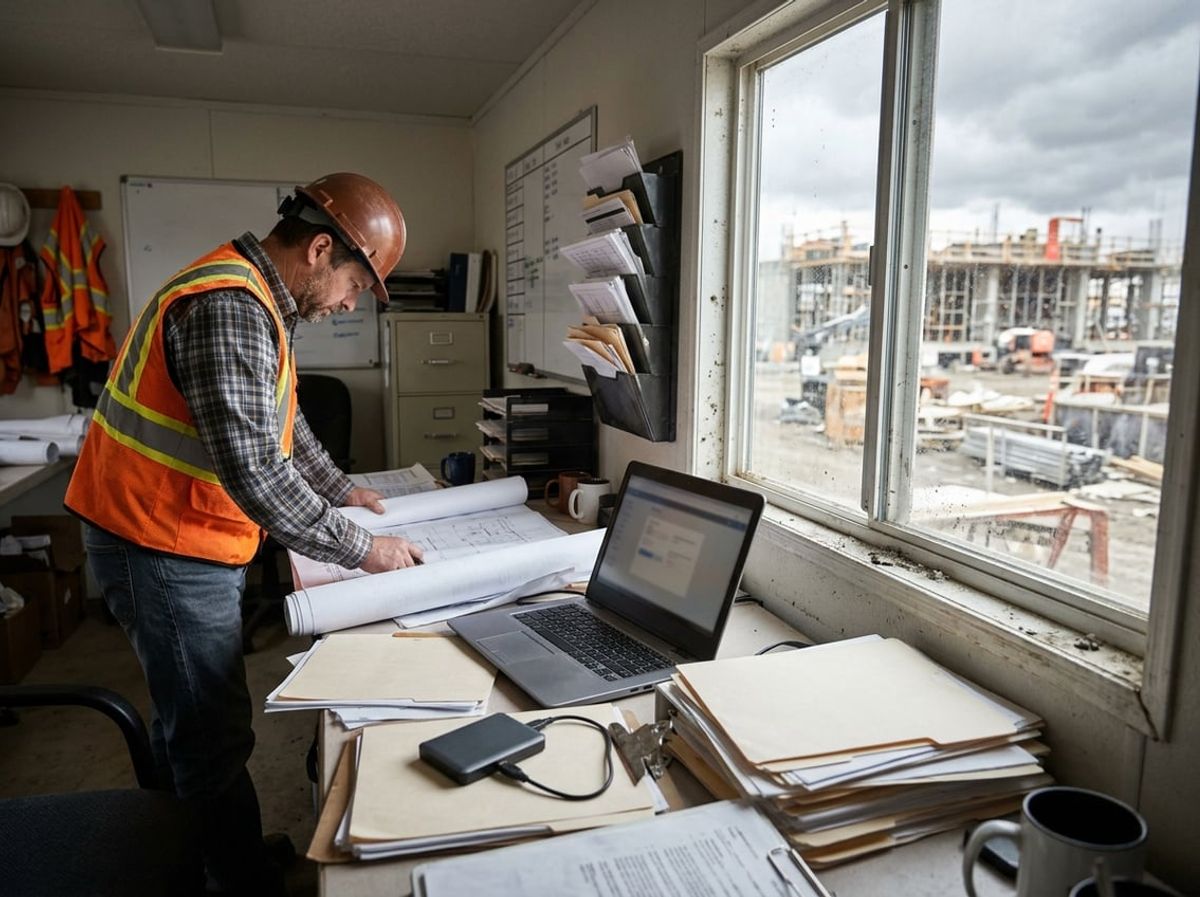
Most losses of job records trace back to a few predictable assumptions: that a platform's built-in redundancy equals a backup, that the office server is the only place records live, and that a backup configured once will keep working on its own. Each one leaves a gap that tends to show up when a payment claim or dispute needs the records most.
Assuming the Cloud Platform Already Handles It
If your RFIs, submittals, and change orders live in Procore or Autodesk Forma, formerly Forma, it is easy to assume the vendor is keeping a recoverable copy for you. The vendor does maintain infrastructure redundancy, but that is designed to keep the service running, not to restore a log your project engineer deleted in error last spring.
The same assumption extends to Microsoft 365, SharePoint, Egnyte, and Bluebeam Studio Sessions. These tools sync changes quickly, which means a bad edit or deletion can propagate just as quickly. Recovery windows for deleted items are limited and vary by product and plan.
Check each platform's current documentation for what it retains and for how long. Then decide whether the records in it, such as closed-out RFIs and executed change orders, need an independent copy held elsewhere.
Backing Up the Server but Not the Field
Many firms protect the office file server carefully and stop there. Meanwhile, daily reports, progress photos, punch list notes, and marked-up drawings are created on superintendents' phones and tablets and in field apps, often before they reach any central system.
A phone dropped from a deck, or a field app that stopped syncing two weeks ago without warning, can take records with it. Those photos and daily reports are often the evidence that settles a delay claim.
Confirm that field data is reaching a protected location, and look at where it actually ends up:
- Phones and tablets: photos and notes stored locally until they sync
- Field apps: reports and checklists that can fail to upload silently
- Email: subcontractor correspondence and approvals sitting in individual mailboxes
- Accounting software: QuickBooks or similar files holding job cost and billing records
Backup for construction companies works system by system, because no single job covers all of these locations.
Treating Backup as a One-Time Setup Instead of an Ongoing Practice
A backup configured during an IT project three years ago may no longer match how you work. New projects, new field apps, and new staff create data that the original job never included.
A job that finishes without errors does not prove you can restore from it. Test restores on a schedule that fits how fast your project data changes, such as pulling back a recent daily report log or a set of closed-out submittals, and note how long it takes.
Retention also needs attention. Claims and insurance questions can surface years after substantial completion, often longer than the short recovery window set up for everyday file restores.
Finally, make one party explicitly responsible, usually a managed IT or backup provider, for monitoring the jobs, running the tests, and reporting results to you. A task assumed to belong to someone, without being assigned, tends to go unchecked.
Choosing a Construction Data Backup Partner in New York

The right partner is the one who can name who owns backup, restores, and retention for every system your jobs run on. Your choice should come down to the questions you ask, the way your New York projects are spread across sites and consultants, and what the finished setup actually protects.
What to Ask a Provider Before Trusting Them With Job Records
Start with scope. Construction data backup has to cover contracts, daily reports, RFIs, submittals, change orders, inspection logs, photos, and correspondence, not only drawings and models. Ask the provider to list, system by system, what they protect across Procore, Autodesk Forma (formerly Forma), Bluebeam Studio, Microsoft 365, SharePoint or Egnyte, and your accounting platform.
Then ask about proof of recovery:
- How often do you test restores, and can you show me the last result? A backup job that finishes without errors does not prove a restore will work.
- How long do you keep job records? Claims and payment disputes can surface years after substantial completion, so retention should run well past closeout.
- Who is named as responsible for setup, monitoring, and testing? Put it in writing.
- What is the recovery order? Active-project records and accounting should come back before archived files.
A provider who answers these in specifics is worth a second meeting. One who answers in general terms is not.
Local Considerations for New York Contractors and Design-Builders
New York contractors rarely work from one place. You may have a main office, several job sites, field staff on phones, and outside consultants such as engineers, expediters, and specialty subs sharing files with your team. A backup plan has to reach photos taken on a phone at a site in Queens as reliably as a server in the office.
Think about how your records move. Daily reports and punch lists may start in a field app, while RFIs and submittals travel between you and the GC by email and platform. Ask how the provider captures records that live in more than one place.
Filing documents electronically with the city is now a routine part of NYC work, so the copies you submit and the correspondence around them need to be recoverable too. Also confirm the provider can support multiple locations and remote staff without asking everyone to change how they work.
What a Proper Backup and Disaster Recovery Setup Covers
A sound setup is built system by system, not as one job assumed to protect everything. Priority should follow how critical and how changeable a record is, not how large the file is. A daily report log is small but hard to recreate, while a large point cloud or rendering may be regenerated from source data.
Disaster recovery adds a written plan: who restores what, in what order, and how crews keep working meanwhile. Regular test restores, scheduled to match how actively the data changes, confirm the plan works.
If you want to see how a managed IT provider structures this, ELMIDA outlines its approach to backup and disaster recovery, led by Joel Abraham, for firms that want ownership assigned and tested.