
Job Site Internet: Setting Up IT on a New Construction Site
A practical guide to job site internet for AEC firms, covering cellular, satellite and fixed options for reliable trailer connectivity.
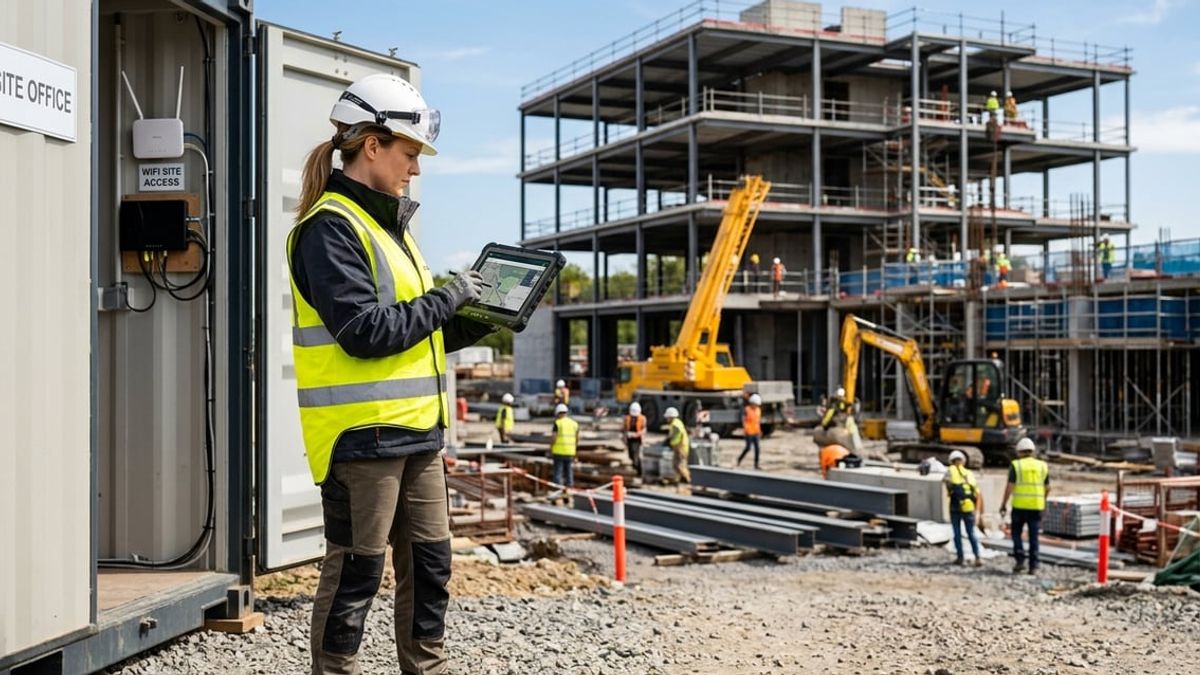
A superintendent stands in a construction trailer on a new site in Queens, watching a progress indicator crawl across the screen as a Bluebeam markup set tries to sync with the office. The trailer went up two days ago, but the project team still cannot reliably push submittals to Procore or pull the latest AutoCAD drawings without the connection dropping halfway through. Job site internet is not a smaller version of office IT; it is a temporary network built for a mobile workspace where location, project duration and daily upload volume determine the right setup, not a single default choice. Setting up connectivity for a construction trailer means planning around cellular coverage that varies by block, data plans that struggle under point cloud uploads, and hardware that must move when the site office relocates.
The right job site internet setup depends on where the trailer sits, how long the project will run, and what the team uploads each day. A cellular router works for most new sites because it can be ordered quickly and moved as the project progresses, but a site in a signal dead zone or a multi-year build with sustained heavy uploads needs a different approach. What consumes bandwidth on a construction site is not email; it is uploading point cloud scans, drone footage, progress photos and syncing platforms like Autodesk Forma, formerly Autodesk Construction Cloud, and Bluebeam Studio throughout the day.
This article walks through planning connectivity before the trailer arrives, comparing cellular, satellite and fixed options, building the network inside the trailer, connecting field teams to project files, and avoiding the common mistakes that slow down a new site. It covers what drives job site internet costs, when to bring in a partner, and how to secure the network so one carrier outage does not stall submittals and RFIs.
Key Takeaways
- The right job site internet setup depends on the site's location, project duration and daily upload volume rather than a single default option.
- Cellular routers are the usual starting point, satellite fits remote or signal-blocked sites, and fixed connections suit longer projects with heavy sustained uploads.
- Uploading point cloud scans, progress photos, drone footage and syncing platforms like Procore and Bluebeam Studio consumes far more bandwidth than routine email.
Why Job Site Internet Setup Differs From Office Networking
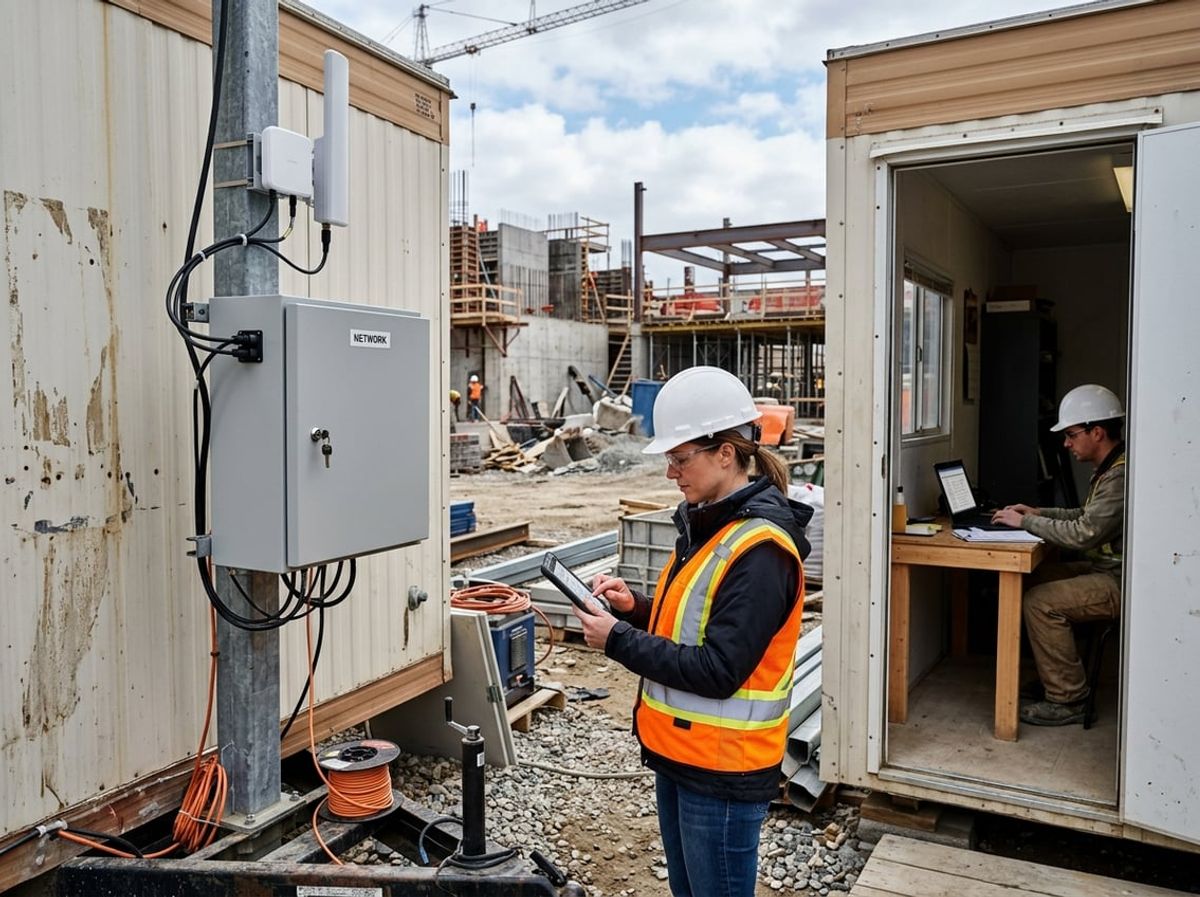
A permanent office network is designed once and left to run for years. A job site network is temporary infrastructure that must be planned, installed, and dismantled or relocated as the project moves through phases or wraps entirely.
The Trailer Is Not a Branch Office
Your construction trailer sits on an active site where dust, temperature swings, vibration from equipment, and weather exposure will destroy consumer-grade routers and switches in weeks. Standard office networking hardware assumes climate control, clean power, and a stable physical environment. Job site equipment must be ruggedized or enclosed in weatherproof housings.
The trailer location itself changes the connectivity equation. A site office may start at one corner of the lot during demolition, move mid-project as the building rises, and relocate again during closeout. Each move requires re-establishing the connection, and signal strength from cellular towers or a fixed wireless relay point can vary dramatically across a few hundred feet. Mounting antennas on temporary masts or trailer roofs becomes part of the install, not an afterthought.
Multiple parties share the same physical space but need separate networks. Your team, the subcontractors, the owner's representative, and outside consultants all need access without crossing into each other's data. VLANs and multiple SSIDs become essential where a single flat network would create liability and security exposure.
Timelines That Outlast a Typical Lease
Project duration drives the choice between different connection types in ways that office networking never considers. A six-month tenant improvement may run entirely on bonded cellular because the cost of installing temporary fiber or coax cannot be justified. A three-year hospital build may warrant a temporary fiber drop because the monthly savings and bandwidth headroom pay back the installation cost well before the project wraps.
You cannot wait 60 to 90 days for a fiber install if your team needs to sync Forma and upload progress photos starting next week. Bonded cellular or satellite becomes the interim connection while a longer-term fixed pipe is being arranged, adding a migration step that office networks rarely face. The connection you start with is often not the connection you finish with.
Equipment purchased for one job site is packed up and redeployed at the next, which means the SD-WAN appliance, cellular router, or Starlink dish must be portable and reconfigurable without lengthy setup. Office hardware stays in place for years. Job site hardware moves every 12 to 36 months.
Who Actually Needs a Connection on Site
Bandwidth planning on a job site is driven by who is actually working there and what they are uploading, not by static headcount. Early in the project, a handful of people in the trailer may be running Procore, uploading photos, and reviewing submittals: modest demands that a single-carrier LTE connection can handle. Mid-project, the crew expands to 50 or more workers, subcontractors are uploading Bluebeam markups, the surveyor is pushing point cloud scans, and drone footage from weekly progress flights needs to reach the owner and design team by end of day.
Your office network serves a predictable user base doing predictable tasks. Your job site internet must flex to match the phase of work, the number of active trades, and the specific deliverables due that week. A submittal package with hundreds of pages of annotated drawings, a laser scan dataset measured in gigabytes, or a day's worth of 4K drone footage will consume more bandwidth in an afternoon than a week of routine email and document review.
The general contractor's IT team rarely controls every device on site. Subcontractors bring their own tablets, laptops, and mobile hotspots, and the architect's team may connect remotely to pull the latest Revit central model or push updated sheets. You need enough capacity and proper network segmentation to support that mix without creating bottlenecks or security gaps.
Planning Connectivity Before the Trailer Arrives
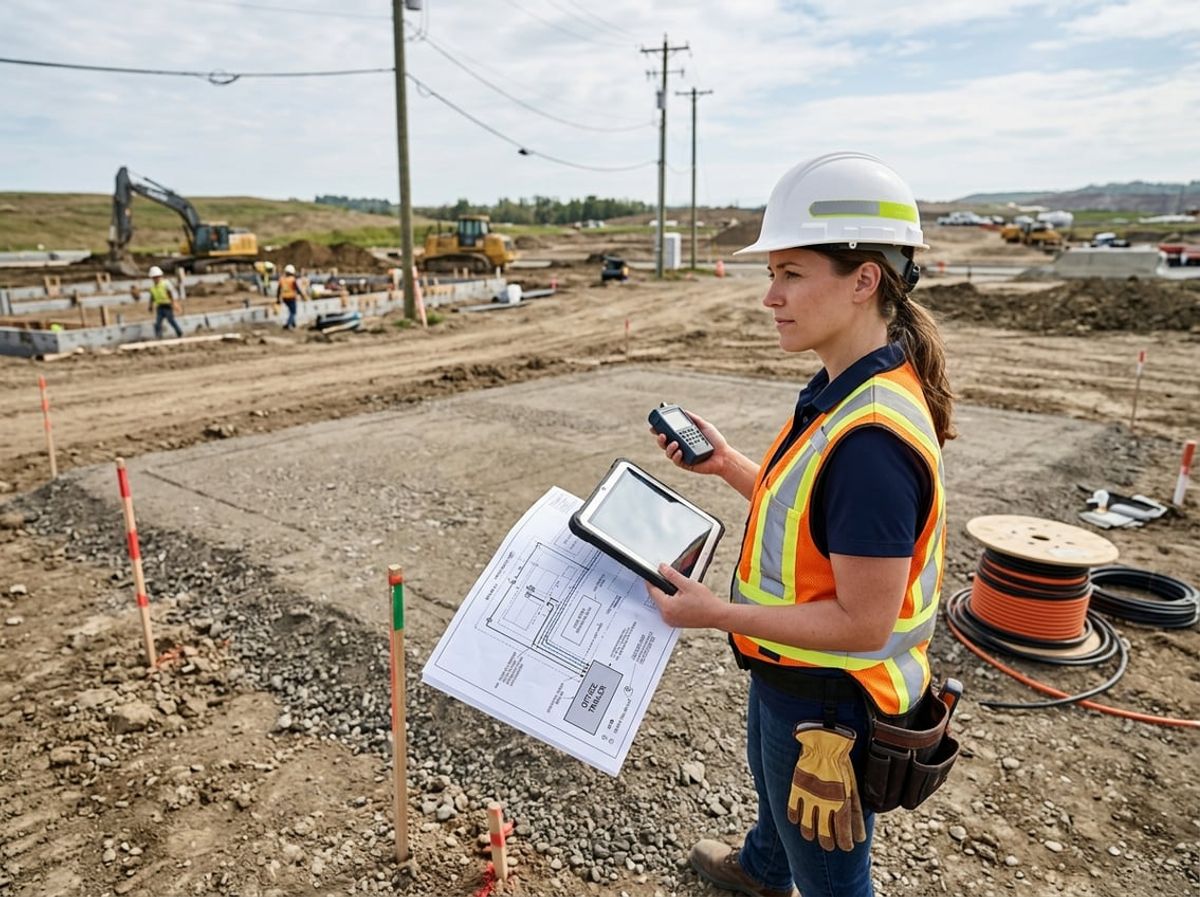
Signal strength varies widely across a construction site, and what works at the street may fail at the actual trailer location. Carrier lead times can stretch two to four weeks for fixed lines, and the general contractor needs to approve placement and access before any equipment shows up.
Reading the Site Before You Order Equipment
Walk the actual trailer location with a phone from each carrier you plan to use. Download a speed test app and check upload and download speeds at ground level where the router will sit, not just at the property entrance.
Signal that reads full bars at the sidewalk often drops inside a steel trailer or behind existing structure. Test indoors if the trailer is already in place. Note which carrier performs best at that specific spot.
Document whether the trailer will sit near existing buildings, under overhead cranes, or in a below-grade staging area. These conditions block cellular signal and mean you may need an external antenna, a satellite backup, or a temporary fiber drop rather than a standalone cellular router.
If the site is remote or surrounded by taller buildings, check whether Starlink or another satellite service has a clear view of the sky from the planned antenna location. Obstructions above 25 degrees from horizontal will disrupt service.
Matching the Connection to the Project Schedule
A project running three months or less usually relies on cellular or 5G because there is not enough time to justify the lead time and installation cost of a fixed line. Longer projects benefit from coax or fiber if the upload volume is high and the carrier can install before the team needs to sync Procore, Forma, or Bluebeam Studio daily.
Carrier installation timelines for business coax or fiber range from two to six weeks depending on whether existing infrastructure reaches the site. Order as soon as the trailer location is confirmed, not after the team arrives and discovers uploads are stalling.
Build in time for the site survey the carrier will conduct before installation. The survey confirms whether a drop is feasible, where the demarcation point will sit, and whether trenching or conduit work is required. Any delay in access or permitting adds weeks to the schedule.
Coordinating With the General Contractor and Property Owner
The general contractor controls site access, staging areas, and temporary utility placement. Confirm trailer location, power availability, and whether you need a separate service entrance before ordering equipment or scheduling installation.
Ask whether other trades or the GC have already arranged internet service. Some general contractors provide shared connectivity; others expect each firm to handle their own. Clarify ownership and support responsibility in writing before you deploy anything.
If the carrier needs to trench, run conduit, or mount an antenna, the property owner and GC must approve the work and the restoration plan. Document what gets removed at project closeout and who pays for it. Unapproved installations create delays, cost disputes, and damaged relationships when the project wraps.
Job Site Internet Options: Cellular, Satellite and Fixed Connections
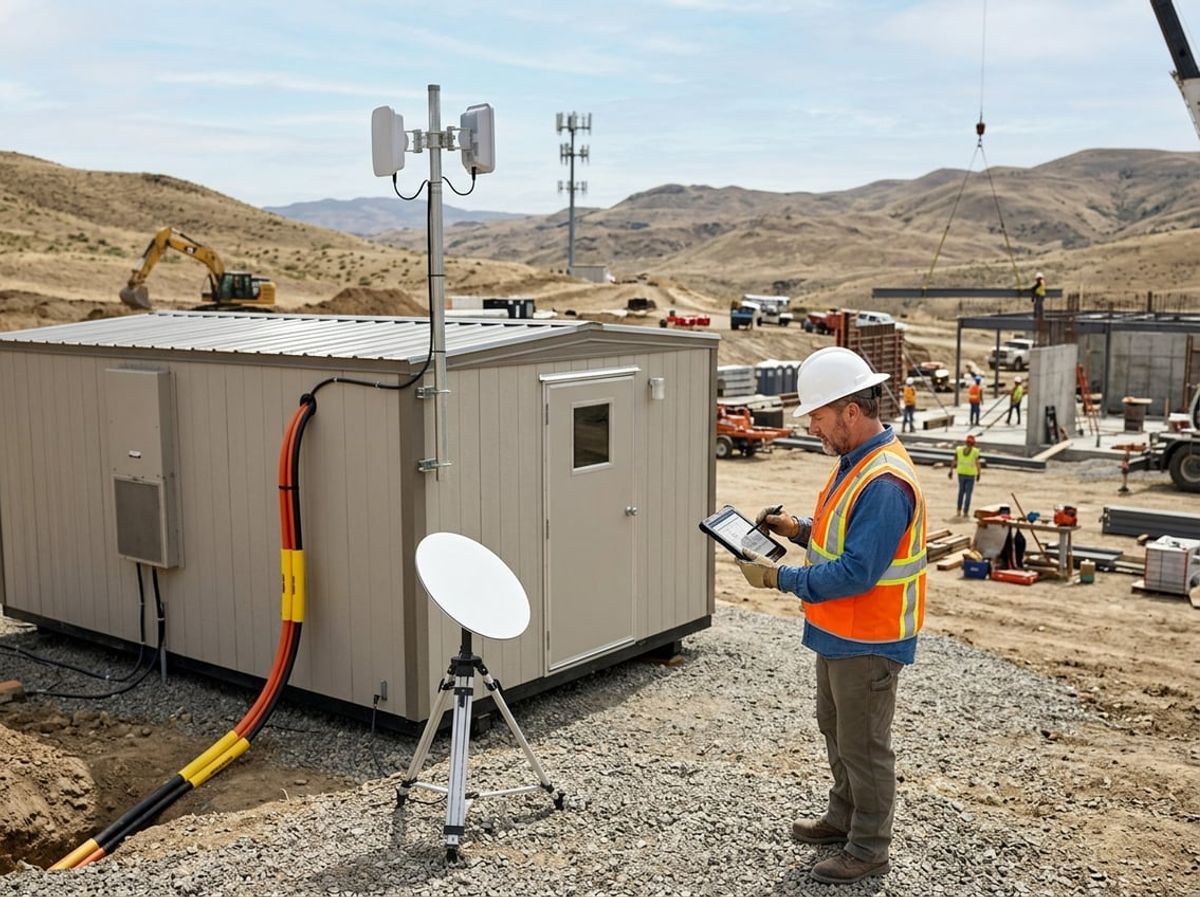
Cellular routers deliver the fastest deployment for most job sites, satellite services fill gaps where cell coverage fails or structures block signal, and temporary fixed connections offer the most stable pipe when daily uploads justify the installation lead time and cost.
Cellular Routers and Bonded LTE or 5G
A cellular router with a business SIM card is the most common first connection on a new site. You can mount the router in your trailer, activate it the same day, and start syncing Procore and uploading progress photos within hours. Most routers support external antennas that improve signal when the trailer sits inside a partially framed building or behind steel-stud walls.
Bonded LTE or 5G combines two or more cellular connections from different carriers into a single pipe. When you bond connections, the router splits your upload across multiple networks simultaneously, which speeds up large file transfers and keeps the connection live if one carrier drops. This matters when you need to push point cloud scans or sync a central Revit model at the end of the day.
Cellular plans are sold by the gigabyte or with monthly caps. A site uploading 360-degree photos, drone footage, and daily Bluebeam markups can easily exceed 200 GB per month. Check your plan's throttling threshold and overage cost before you commit. If your team regularly uploads large files, bonded service spreads the load and reduces the chance that a single carrier's congestion stalls a submittal.
The main limitation is coverage. If your site sits in a valley, a dense urban canyon, or a rural area with weak signal, a cellular router will struggle. Test signal strength before you order, and plan a backup if coverage is marginal.
Starlink and Satellite for Remote or Shielded Sites
Starlink and other low-earth-orbit satellite services deliver bandwidth almost anywhere, including sites with no cellular coverage and locations where the surrounding structure blocks line-of-sight to nearby towers. You mount a dish on the roof of your trailer or on a temporary pole, plug in power, and the system connects within minutes.
Satellite works well as a backup or supplement to cellular. If your primary connection fails or becomes congested, the satellite link keeps Forma accessible and lets your team continue uploading drawings and RFIs. On a remote site with no other option, satellite becomes the primary connection by default.
The trade-off is latency. Traditional geostationary satellites introduce 500 to 700 milliseconds of delay, which disrupts VoIP calls and makes real-time collaboration tools sluggish. Starlink and similar low-orbit services reduce latency to 20 to 40 milliseconds, which is acceptable for most cloud platforms and video calls but still higher than a wired or cellular connection.
Weather can degrade performance. Heavy rain, snow, or ice on the dish reduces throughput and may drop the connection temporarily. If your project depends on continuous access for time-sensitive submittals or coordination meetings, pair satellite with a cellular router so you have a second path when conditions deteriorate.
Temporary Fiber, Coax and Tapping an Existing Service
A temporary fixed connection from a local carrier delivers the most consistent bandwidth and the lowest latency, but it requires installation time and a commitment that makes sense only on longer projects. Carriers typically offer month-to-month business plans over coax, DSL, or fiber where infrastructure already exists near your site.
Coax and fiber both handle sustained daily uploads better than cellular data plans. If your team syncs large central models, uploads point cloud scans, and streams security camera footage to the cloud, a fixed connection removes the risk of hitting a data cap or throttling threshold mid-month. Latency is typically under 10 milliseconds, which keeps VoIP calls clear and reduces wait times when opening or saving files to Forma or Bluebeam Studio.
Installation takes two to four weeks in most cases, longer if the carrier needs to extend the line to reach your trailer. You will need a clear point of contact for the carrier's technician and a secure location to mount the modem and router inside the trailer.
On a project lasting six months or more, the fixed connection becomes your primary pipe and cellular or satellite serves as failover. On shorter projects, the installation delay and potential early termination fees usually make cellular or bonded LTE the better choice.
Building the Trailer Network: Router, Wifi and Switches
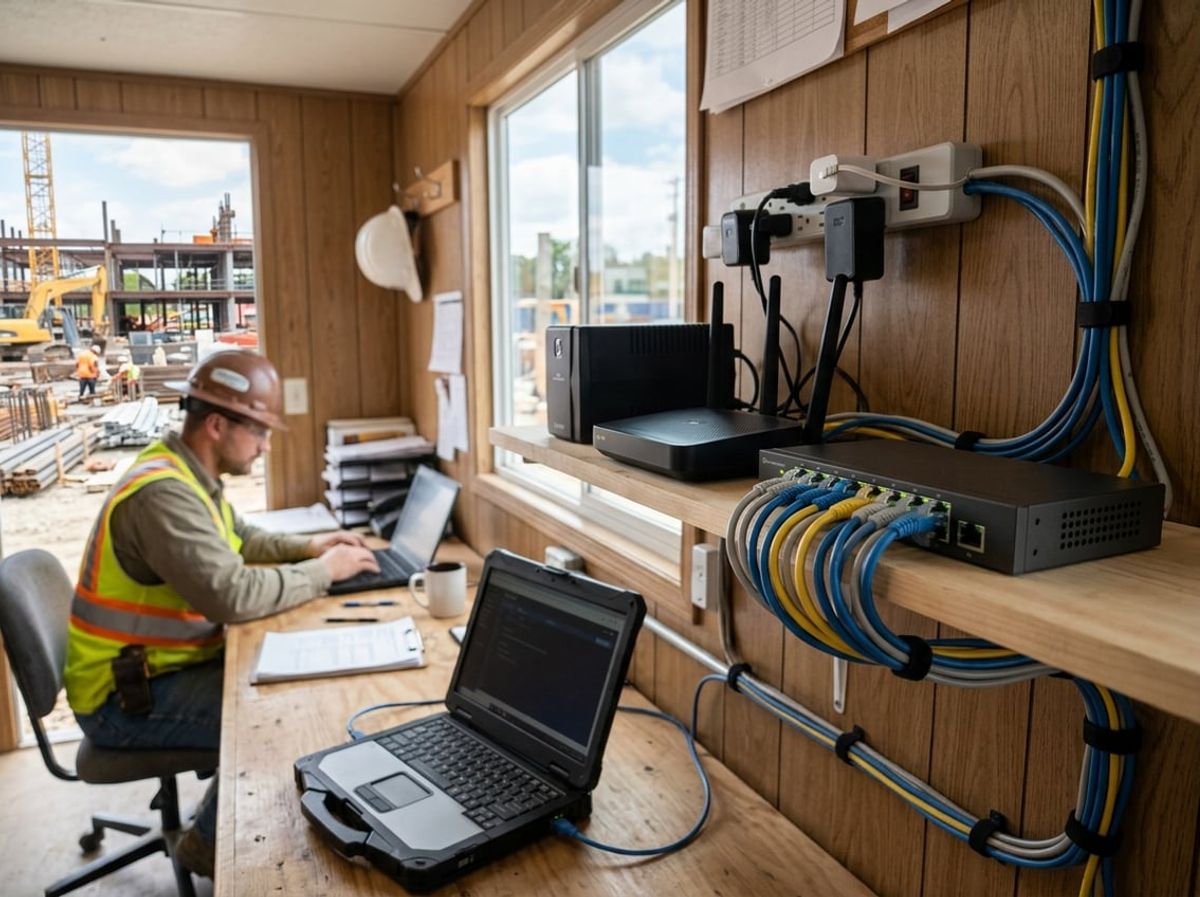
A business-grade router with firewall protection anchors the trailer network, while access points extend coverage across multiple trailers and wired drops keep plotters, workstations and cameras stable during uploads.
Choosing a Router and Firewall for a Construction Trailer
Your trailer network starts with a router that can handle simultaneous connections from field tablets, office workstations and guest devices without dropping traffic when a large scan uploads to Forma. A business-grade router includes firewall protection that blocks unauthorized access and separates your project network from subcontractor and visitor devices.
The router connects to your cellular modem, Starlink dish or temporary carrier drop and distributes that connection across the trailer. Look for a unit that supports VLAN segmentation so you can run separate wifi networks: one for your design team's laptops and Procore sessions, another for guests and trade contractors who need internet but should not reach your file server or plotter.
Place the router in a ventilated spot away from dust and moisture. Trailers heat up quickly in summer, and routers throttle or fail when internal temperatures climb. If your trailer lacks climate control, mount the router off the floor and leave airspace around it.
Wifi Coverage Across a Trailer Complex or Multiple Floors
A single consumer wifi router will not cover a multi-trailer complex or reach upper floors of a partially built structure where the superintendent and project engineer work. You need dedicated wifi access points positioned to blanket the office trailer, the superintendent's trailer and any common areas where field staff check tablets or upload progress photos.
Wire each access point back to your network switch using ethernet cable. This creates a unified network that hands off devices cleanly as someone walks from the main trailer to the field office. Avoid relying on wireless repeaters or mesh nodes that connect back to the router over wifi; each hop cuts bandwidth and adds latency that stalls Bluebeam Studio syncs and RFI uploads.
Mount access points on ceilings or high on walls, clear of metal filing cabinets and away from microwaves or other sources of interference. If your site spans a large footprint or includes a concrete structure under construction, plan for at least one access point per trailer and additional units to cover laydown yards or active floors where the team needs connectivity.
Wired Drops for Plotters, Workstations and Cameras
Plotters, desktop workstations and IP cameras should always run on wired ethernet, not wifi. A plotter pulling a 200 MB sheet set from the file server over wifi will stall other uploads and choke video calls. Running ethernet from your network switch to each plotter and workstation keeps that traffic off the wireless network and gives you the full speed of the wired connection.
Install a managed network switch in the main trailer to distribute wired drops. A five- or eight-port switch handles a small site; larger projects need sixteen or twenty-four ports to serve multiple plotters, workstations, a NAS and cameras monitoring site access. Managed switches let you assign priority to certain ports so that a Revit central model sync or a point cloud upload gets bandwidth ahead of routine web traffic.
Pull Cat 6 cable for each drop and terminate it neatly. Label both ends so you know which port serves which device. If you add a second trailer later in the project, run a shielded outdoor-rated cable between buildings or use a wireless bridge for the backbone and wire devices inside each trailer to a local switch.
Connecting Field Teams to Project Files, Procore and Bluebeam Studio
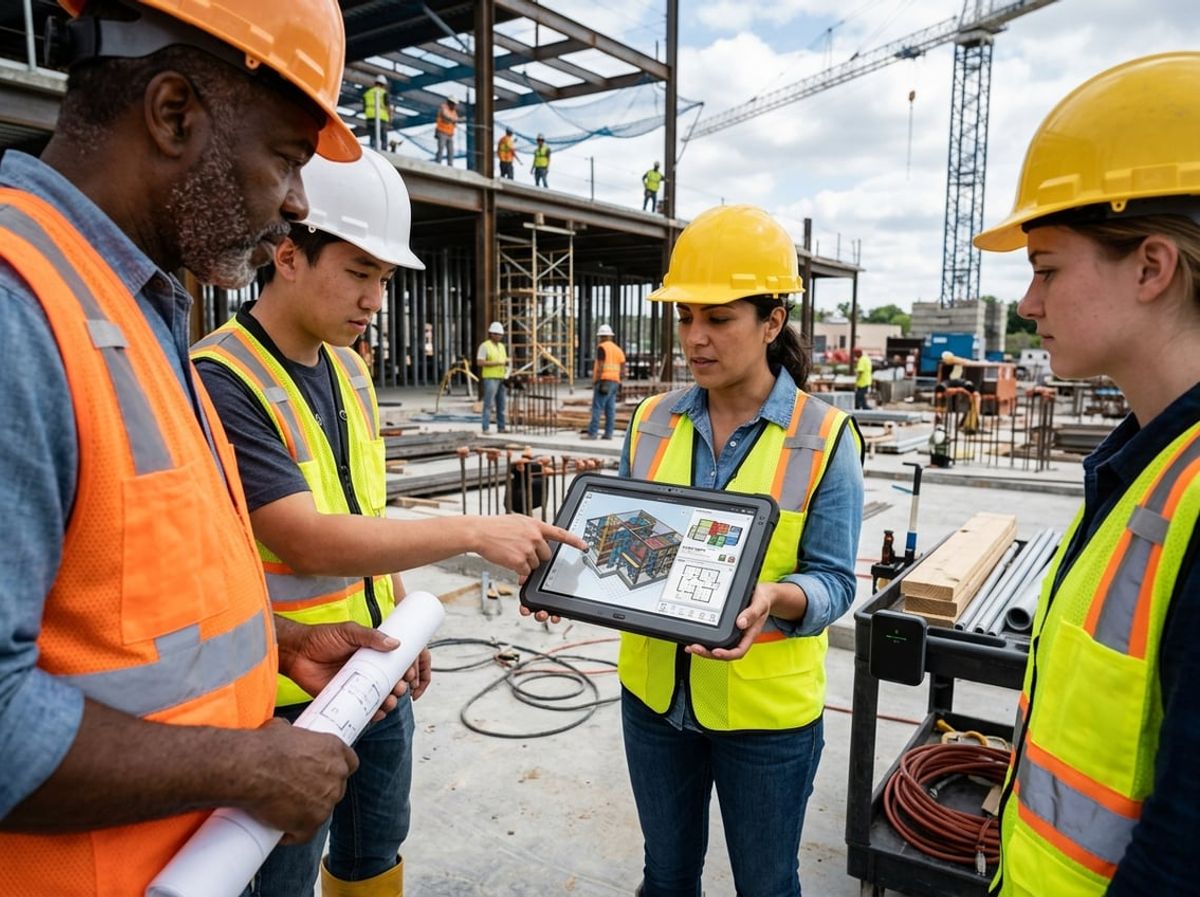
Field teams rely on job site internet to reach live project files stored in Procore, Forma and Bluebeam Studio, from syncing Revit central models in a site trailer to uploading marked-up submittals for review. When the connection slows or drops, those workflows stall.
Syncing Revit, AutoCAD and Bluebeam Files From the Field
Your team accesses the Revit central model over jobsite connectivity by logging into Forma through Revit, browsing to the project workspace, and creating a local copy on the site workstation. Each time someone synchronizes with central, Revit uploads changes and downloads updates from other users. The size of those sync transactions depends on how much geometry, annotation and detail has changed since the last sync.
AutoCAD drawings stored in Forma or a Procore Documents folder follow a similar pattern. Opening a drawing from the cloud creates a local working copy, and saving pushes the revised file back to the shared location.
Bluebeam Studio sessions let multiple reviewers mark up the same PDF simultaneously. Starting a session from Procore's Submittals tool sends the submittal PDF into a Bluebeam Studio Session without manually downloading and re-uploading between platforms. Markups sync in near real time as each participant adds comments, redlines or measurements. The Procore Submittals integration does not require a Bluebeam Studio Prime license.
All three workflows depend on sustained upload bandwidth. A 500 MB sync or a marked-up sheet set will not complete if the connection drops halfway through.
Procore and Autodesk Construction Cloud Over a Job Site Connection
Procore and Forma act as centralized hubs for drawings, specifications, submittals, RFIs and daily logs. Field teams upload progress photos, inspection reports and close-out documents directly from tablets and site workstations throughout the day.
Upload volume adds up quickly when multiple trades photograph their work, the superintendent logs daily progress with attached images, and the project engineer uploads marked-up shop drawings. A single day's worth of high-resolution photos from a large site can exceed several gigabytes before anyone touches a point cloud scan or drone footage.
Both platforms cache certain files locally to reduce repeated downloads, but submittals, model updates and new drawing revisions still require a live connection to pull the latest version. When the general contractor, design team and consultants all rely on the same Procore project or Forma workspace, a site internet outage blocks coordination until the connection returns.
What to Do When the Connection Drops Mid-Upload
A dropped connection during a large upload leaves the file incomplete on the server. Most platforms retry automatically, but Revit and some document management tools require you to start the sync or upload again from the beginning.
If you lose connectivity while syncing with central, Revit will alert you that the operation failed. Close the sync dialog, wait for the connection to stabilize, then initiate a new sync. Do not attempt multiple retries in quick succession; each failed attempt generates a transaction record that clutters the central model's history.
For uploads to Procore or Forma, check the platform's activity log or upload queue to confirm whether the file completed. If the upload shows as pending or failed, delete the incomplete entry and start a fresh upload once the connection is stable.
Keep local backups of any file you plan to upload until you confirm it reached the server. A dropped upload combined with an overwritten local file means recreating work. This matters most for marked-up submittals, RFI responses and daily reports that carry time-sensitive decisions.
Point Clouds, Progress Photos and What Actually Fills the Pipe
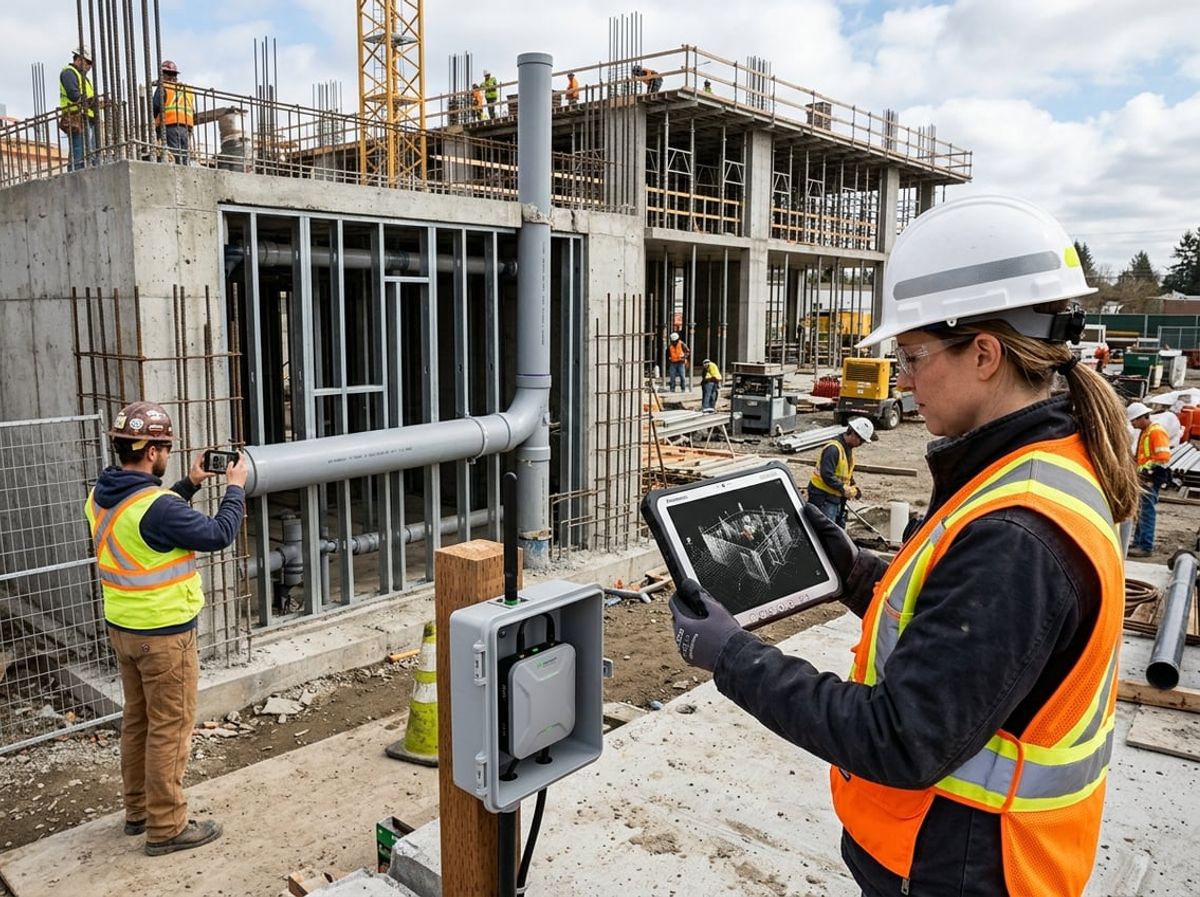
Laser scans from the field can reach hundreds of gigabytes in a single capture, while daily photo logs and drone runs add tens of gigabytes more before anyone opens email. Video calls with the design team and owner add real-time demand on top of those uploads, and your job site internet needs enough bandwidth to handle all three without stalling submittals or leaving scans stuck in a queue overnight.
Laser Scans and Reality Capture Uploads
Point cloud data from a laser scan documents existing conditions and as-built progress with millions of measured points, and a single scan of a floor or pipe trench can easily generate 50 to 200 gigabytes of raw data. Reality capture workflows rely on uploading those scans to Forma, Procore or a shared project server so the design team can overlay them against Revit models and check for coordination issues before the next trade moves in.
Upload bandwidth becomes the bottleneck. A 100-gigabyte point cloud pushed over a 50 Mbps cellular connection takes more than four hours under ideal conditions, and longer if the trailer shares that pipe with progress photos, Bluebeam markups and platform syncs running at the same time.
Most teams capture scans at the end of the day and leave them uploading overnight from the site office or trailer. If your connection drops or slows during that window, the scan sits incomplete and the morning coordination call starts without current data. Cellular plans with deprioritization clauses will throttle heavy uploads once you cross a monthly threshold, which means your second week of scanning can move slower than your first.
On longer projects with weekly or daily scanning schedules, a temporary fixed connection such as coax or fiber delivers the sustained upload speed you need without data caps or throttling.
Daily Photo Logs and Drone Footage
Progress photos captured on a smartphone or tablet throughout the day document each stage of work, and a typical day on an active site generates 50 to 200 images at 5 to 10 megabytes each. Drone footage adds another layer: a ten-minute site flyover shot in 4K can produce a 5 to 10 gigabyte video file, and orthomosaic processing requires uploading that raw footage to a cloud platform before you can generate measurable outputs like elevation models and cut-fill reports.
Your team uploads photos and footage to Procore, Forma or a similar platform so the general contractor, design team and owner can review progress remotely and verify that work matches the schedule. Those uploads happen throughout the day, not just overnight, and they compete with RFIs, submittals and model syncs for the same upload bandwidth.
If your jobsite connectivity relies on a single cellular router with limited upload speed, daily photo logs and drone footage will slow everything else down. A large photo set can take a long time to upload over a typical office connection, and adding a large drone video to the queue pushes that wait into hours.
Video Calls With the Design Team and Owner
Video calls with the design team, general contractor and owner have become routine during construction administration, whether you are walking through an RFI from the site office or holding a coordination meeting from a partially built floor. A single video call uses 2 to 4 Mbps of bandwidth per participant, and a four-person call can consume 8 to 16 Mbps for the duration of the meeting.
That demand is real-time and cannot be queued like a point cloud upload. If your job site internet is already handling a background scan upload or drone footage sync, the video call will stutter or drop unless you have enough headroom to support both at once.
Your construction site internet setup needs to account for overlapping demand: a video call in the morning, progress photos uploading throughout the day, and a laser scan pushing overnight. Cellular or 5G routers handle lighter video traffic without issue, but a site running daily scans and weekly drone flights will benefit from a temporary fixed connection that holds steady under sustained load.
Securing the Site Network
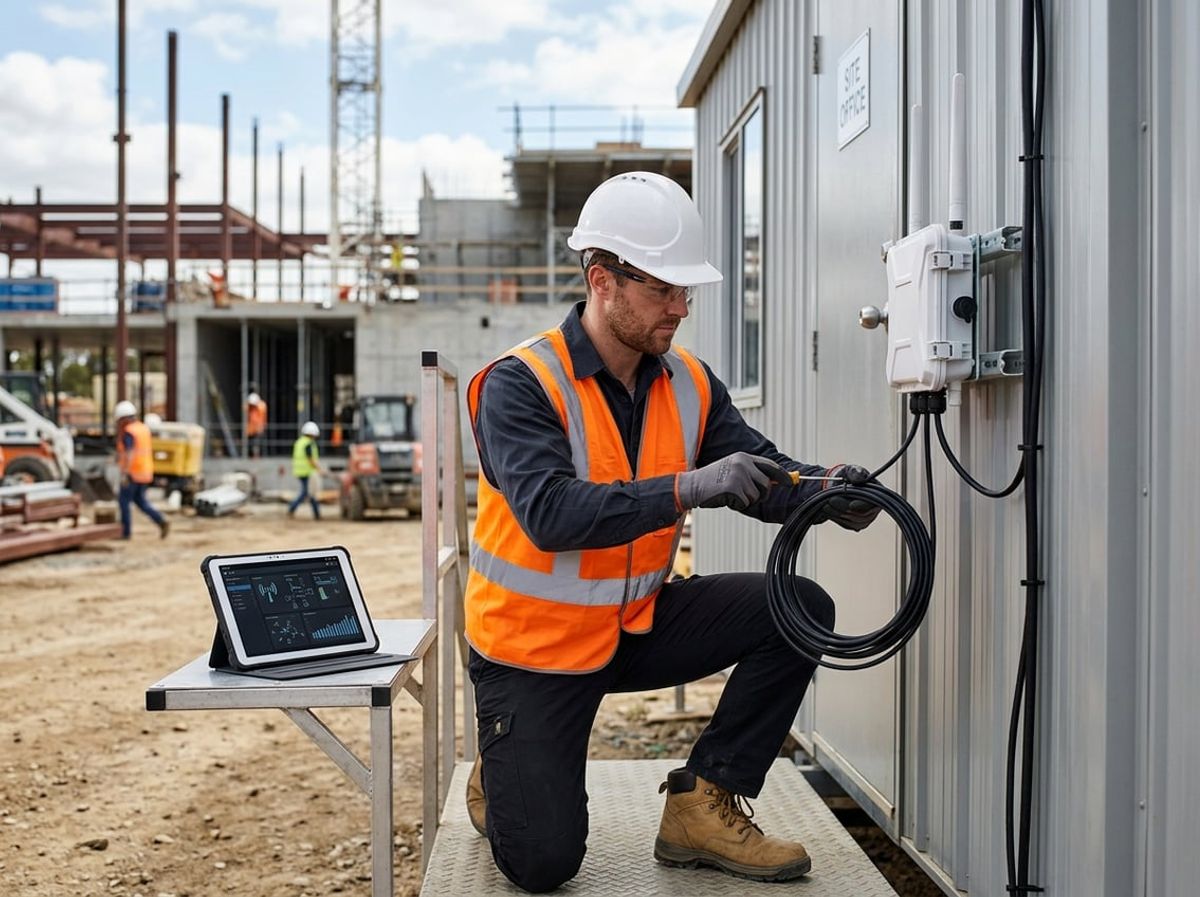
Network segmentation, field device login controls and physical equipment security form the baseline protection layer for job site internet. A typical construction site network carries live design data, daily photo uploads and synchronized project records across devices that move between trailers, the field and back to the office, all operating in an environment where visitors, subcontractor crews and equipment vendors connect throughout the day.
Separating Guest Wifi From the Business Network
You need network segmentation to keep visitor devices away from the project team's laptops, tablets and cloud sessions. A single shared SSID exposes Procore logins, Forma credentials and synced Bluebeam sessions to every device that connects, including a subcontractor's phone or a vendor rep's tablet.
Set up separate networks with different SSIDs and passwords:
- Business network – project team only, used for Revit syncs, point cloud uploads and daily photo batches
- Guest wifi – visitors, inspectors and subcontractors who need internet but do not need access to project files or construction cloud platforms
Most cellular routers and business-grade access points support multiple SSIDs out of the box. Configure the guest wifi to isolate devices from one another and block access to the business subnet entirely. Change the guest password weekly or after large subcontractor visits.
This separation prevents unauthorized devices from reaching shared folders, locally cached models or open RDP sessions running on a field laptop. It also keeps malware from a visitor's device off the network carrying your submittal uploads and RFI traffic.
Protecting Laptops, Tablets and Phones That Leave the Trailer
Field laptops and tablets move between the site office, the active floors and home offices, often connecting to multiple networks in a single day. Each device needs login protection, disk encryption and automatic updates to guard the project data it carries.
Require a password or PIN on every device. Field device login controls are the first barrier if a tablet is left in a truck or a laptop walks off a table during a site meeting. Enable full-disk encryption through BitLocker on Windows devices or FileVault on Macs so that a stolen drive cannot be read without the login credential.
Turn on automatic updates for the operating system and all installed software. Patches close vulnerabilities that let malware move laterally across a network once a single device is compromised. Schedule updates to run overnight or during lunch so they do not interrupt an active Bluebeam session or a model sync.
Install endpoint protection software that includes antivirus and malware scanning. Field devices often connect to unfamiliar networks at fabricator shops, consultant offices or during off-site coordination meetings, and a single infected USB drive can introduce ransomware that spreads back to the trailer when the device reconnects.
Physical Security for Equipment in a Trailer
Construction trailers are not staffed around the clock, and cellular routers, access points, switches and backup drives left on a desk are easy targets. Trailer security starts with locking equipment inside cabinets or mounting it out of sight.
Bolt routers and network switches to a wall or inside a lockable cabinet. Use cable locks for laptops and tablets stored overnight. An unlocked trailer with visible equipment invites quick grabs, especially on sites near public streets or in areas with high foot traffic.
Keep backup drives and spare devices in a locked file cabinet or a keyed drawer. External drives holding point cloud archives, photo backups or cached Revit central models contain weeks of project data, and replacing stolen files takes longer than replacing the hardware.
Log each device by serial number and MAC address. If equipment goes missing, a recorded serial number helps with insurance claims and police reports. MAC address logs also let you spot unfamiliar devices that connect to the business network, which can signal that someone brought their own hardware into the trailer without permission.
Connectivity on Multi-Trailer and Multi-Phase Projects
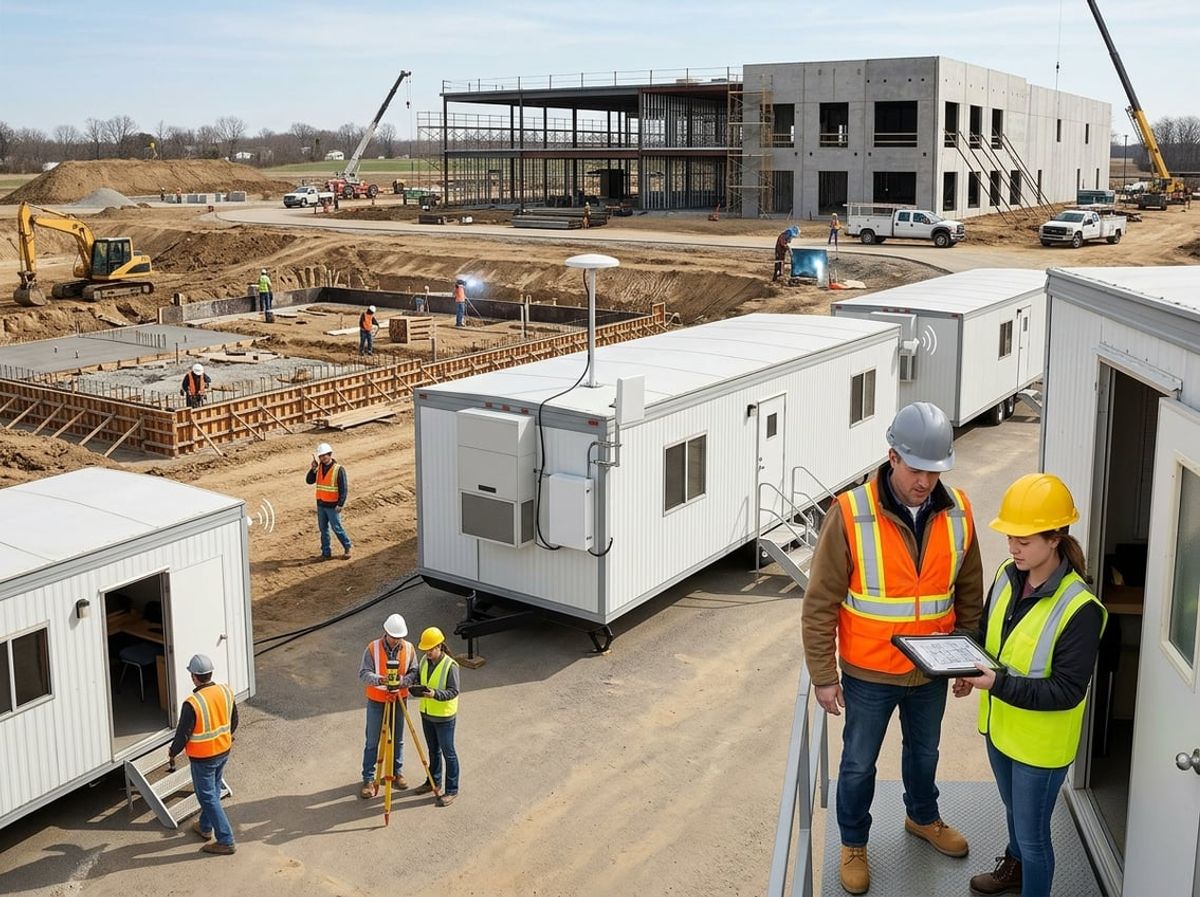
Larger sites require networks that stretch across multiple trailers and adapt as the project footprint shifts from demolition to vertical construction to fit-out. Managing which subcontractor teams can access which parts of the network becomes as important as the speed of the connection itself.
Linking Multiple Trailers on One Site
A multi-trailer site typically includes separate offices for the general contractor, owner's representative, architect, and various trades. Each trailer needs access to the same central internet connection without running separate service contracts for each structure.
The primary trailer houses the cellular router or satellite dish that brings internet to the site. From there, point-to-point wireless bridges extend the network to additional trailers up to several hundred feet away. These bridges use directional antennas mounted on the roof of each trailer, creating dedicated wireless links that handle far more traffic than repeating the signal through standard Wi-Fi extenders.
Ethernet cable can connect trailers that sit close together, typically within 300 feet. Outdoor-rated cable buried in conduit or strung overhead on temporary poles keeps the connection stable and protected from equipment traffic and weather. This wired approach delivers more consistent performance for uploading large AutoCAD drawing sets or syncing Revit central models during peak hours when multiple users are active.
Each trailer should have its own access point rather than relying on signal bleed from a single central unit. Concrete, metal framing, and trailer walls block Wi-Fi more than office drywall, and expecting one access point to cover a 400-foot site leads to dropped connections when uploading Bluebeam markups or pushing progress photos to Procore.
Moving Connectivity as the Project Phases Change
Phased construction changes the layout of a site every few months. The trailer that started near the street entrance may end up surrounded by framing or blocked by a new wing. The network needs to move with the project rather than stay anchored to the original setup.
Cellular routers and satellite dishes are portable by design. When the primary trailer relocates, the equipment moves with it. External antennas mounted on temporary masts rather than permanent fixtures allow the setup to shift without rewiring or calling a technician for a service visit.
Plan network expansion before the crew count doubles. A site office that supports fifteen people during early trades may hold fifty during MEP rough-in and finish work. Adding a second cellular carrier or upgrading from a single-modem router to a bonded unit should happen before the connection slows, not after submittals start timing out or Forma syncs stall overnight.
Temporary fixed connections such as coax or fiber become harder to justify on projects where the main office trailer moves multiple times. If the project runs long enough to warrant temporary fiber, negotiate relocation terms in the initial contract so the carrier will extend or reroute the line when the trailer shifts rather than treating it as a new installation with another construction charge.
Handling Multiple Subcontractors on the Same Network
Subcontractors need internet access for their own project management platforms, submittal uploads, and coordination drawings, but they should not share the same network segment as the general contractor's accounting system or the owner's project files.
Separate SSIDs isolate different user groups on the same physical connection. The GC team connects to one secured network, subcontractors connect to a guest network, and the owner's representative can use a third if required. Each SSID can have its own password, bandwidth limit, and access rules without requiring separate routers or data plans.
VLANs provide a deeper level of separation when needed. A VLAN keeps traffic from one group invisible to another even when both share the same switch and cabling. This matters on larger sites where sensitive bid documents, cost data, or contract files move across the network and need to stay isolated from guest devices that may not have current security patches.
Common access scenarios:
Require a unique password for each SSID and change it when a subcontractor finishes their scope and leaves the site. An open or widely shared password allows unauthorized access long after the team that originally received it has moved to another project.
Common Mistakes That Slow Down a New Site's Internet
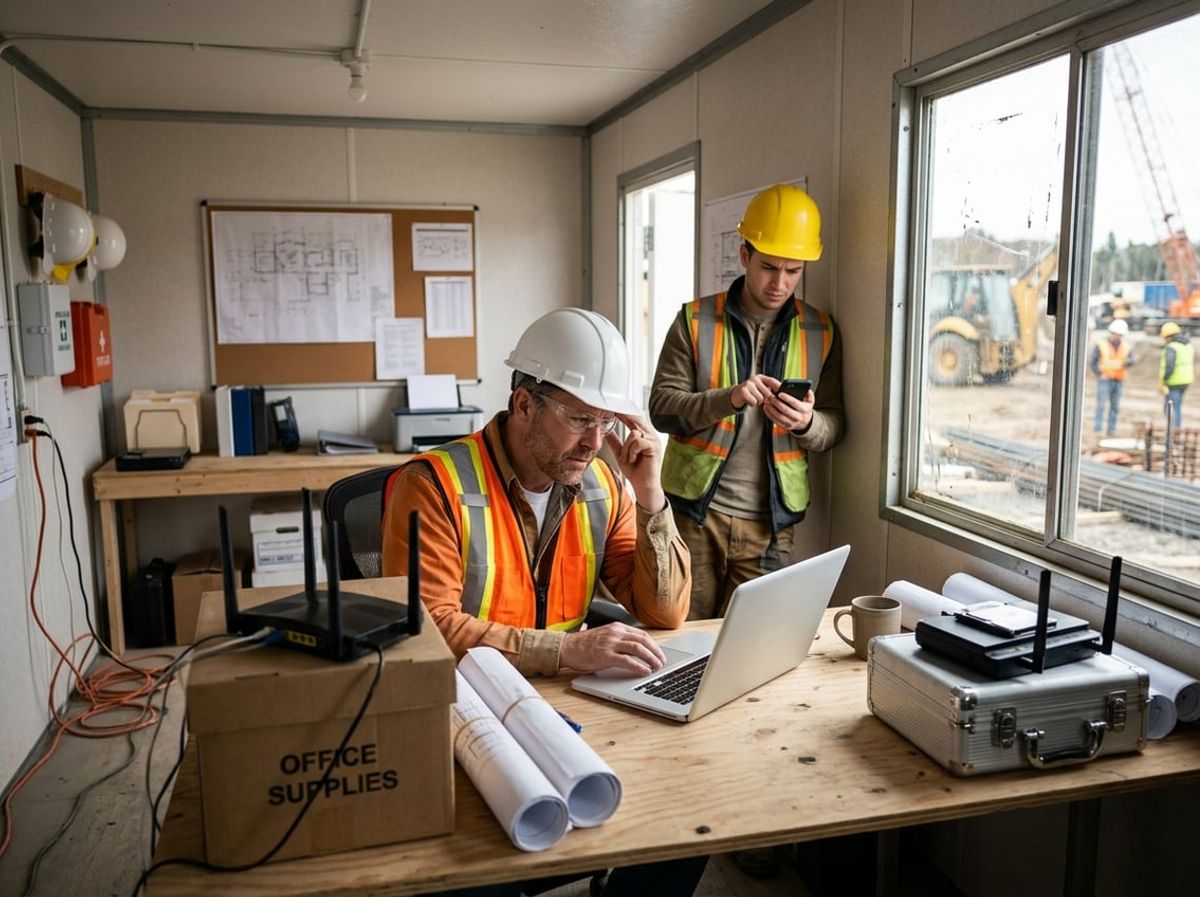
New job sites often struggle with connectivity issues that could have been avoided during planning. The most damaging mistakes involve ordering service too late to meet the project schedule, choosing plans built for download rather than upload, and running a single connection with no fallback when it drops.
Ordering Connectivity Too Late
Many project teams wait until the trailer is delivered or the first RFI is due before ordering job site internet. Cellular carriers typically need two to five business days to provision and ship a router, and temporary fixed connections such as coax or fiber can take three to six weeks from order to installation depending on what infrastructure already exists near the site.
A late connectivity order pushes real consequences onto the project schedule. Submittals sit on a laptop instead of reaching the architect. Bluebeam markups cannot be pushed to Studio. Point cloud scans from the previous week pile up on local storage because there is no pipe to move them off site.
Order connectivity before the trailer arrives. If the site will rely on a temporary fixed line for sustained heavy uploads, start that process during preconstruction so the circuit is live when the team moves in.
Underestimating Upload Needs Versus Download Speed
Most consumer internet plans and many cellular data plans prioritize download speed because that is what residential users need for streaming video. Job site work runs in the opposite direction: your team uploads far more than it downloads.
Syncing a Revit central model to Forma, pushing a day's worth of progress photos to Procore, and uploading a 4 GB point cloud scan all depend on upload speed, not download. A plan advertised as "100 Mbps" often delivers that speed only on the download side, with upload capped at 10 or 20 Mbps.
Check the upload limit before you sign. If the carrier lists only one speed, ask what the upload cap is. Cellular plans often throttle upload more aggressively than download, and data caps can choke a connection partway through the month when the team has been uploading scans and drone footage daily.
No Backup Connection When the Primary Fails
Running a single connection leaves the entire project dependent on one carrier and one piece of hardware. When that router loses signal, when the cellular tower goes down for maintenance, or when a construction vehicle cuts the temporary fiber drop, submittals stop moving and the schedule slips.
A backup connection does not need to match the primary in speed or cost. A second cellular router on a different carrier, or a Starlink dish that stays idle until the main line drops, keeps the most critical uploads moving when the primary fails. Configure the backup to activate automatically so the team does not lose hours waiting for someone to notice the outage and switch over manually.
Redundancy matters most on longer projects where the cost of a single day's delay exceeds the monthly price of a standby connection. Add the backup before the site reaches the phase where daily uploads become part of the critical path.
What Job Site Internet Costs and What Drives the Price
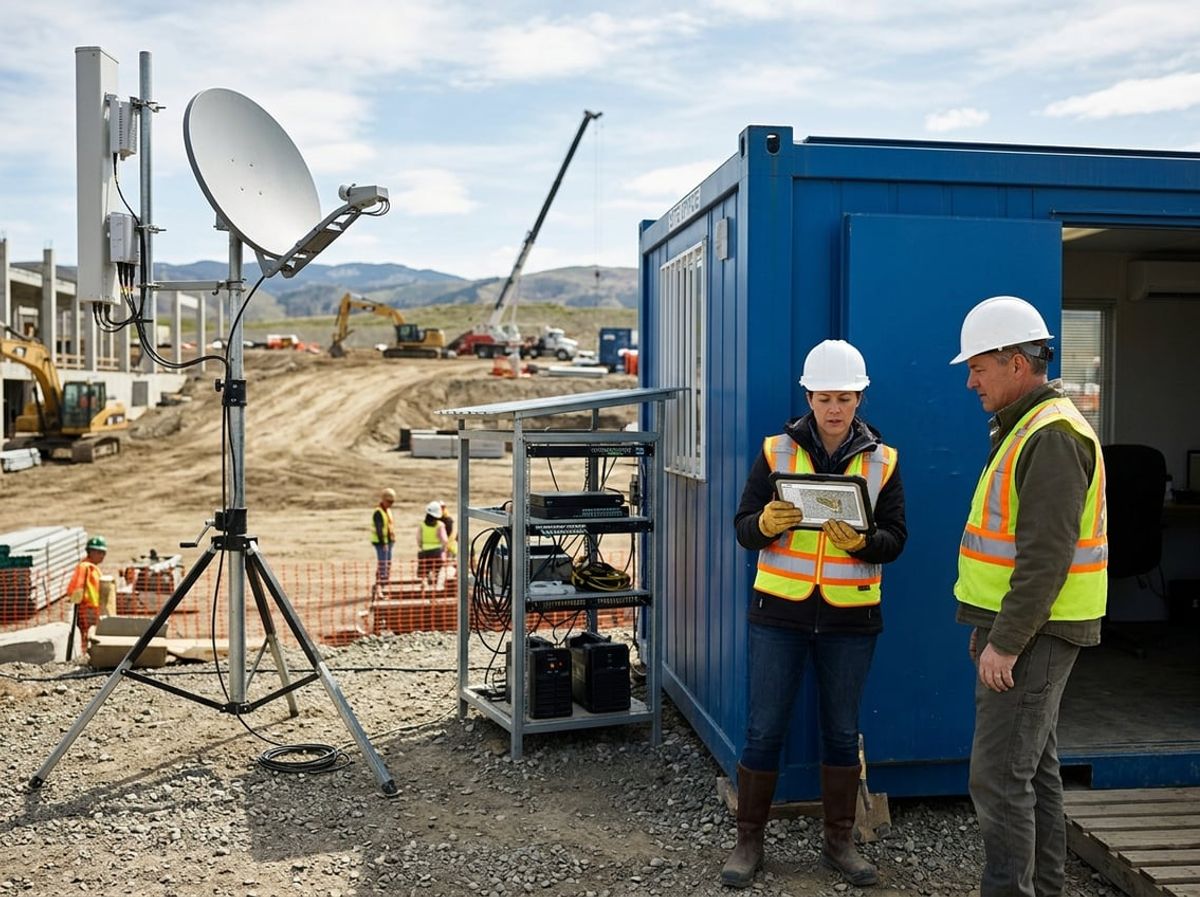
Job site internet divides into two cost buckets: the equipment you buy or rent, and the recurring data plan that keeps it running. Data caps, overages and the physical scale of the site determine how much you spend each month, and long-duration projects change the economics of fixed versus cellular connectivity.
Equipment Costs Versus Recurring Data Plans
Equipment costs cover the router, antennas, mounting hardware and any mesh nodes you need to cover trailers, staging areas and occupied floors. A cellular router typically runs $200 to $600 depending on band support and whether it includes external antennas for weak-signal sites. Satellite terminals start around $500 for the dish and mounting gear. Fixed connections installed by a carrier may include equipment as part of the service contract, or you may purchase your own commercial-grade router to terminate the line.
Recurring data plans are where most project budgets go. Cellular plans for construction use range from $50 per month for a low-cap consumer line to $200 or more for an unlimited business plan with priority data. Satellite service runs $100 to $300 per month depending on whether you choose a residential or business tier. Fixed connections vary widely by carrier and bandwidth tier but often cost $150 to $500 per month on a one- or two-year term.
Equipment is a one-time or short-rental expense; the data plan is what compounds over a six-month or two-year build.
Data Caps, Overages and Shared Plans
Most cellular carriers apply a soft or hard cap even on plans marketed as unlimited. After 50 GB, 100 GB or another threshold, your connection may be deprioritized during network congestion, which slows uploads when you need to push a Bluebeam Studio session or sync a Procore photo set at the end of the day. Hard caps cut you off or charge overage fees that can reach $10 to $15 per additional gigabyte.
Overage fees add up fast when your team uploads point cloud scans, drone footage or daily progress photos without compression. A single afternoon of laser-scan uploads can consume a large amount of data, and repeated overages can turn a modest plan into a much pricier invoice.
Shared plans let multiple sites or multiple devices pull from one data pool, which works well for a firm running several concurrent projects in the same metro area. The risk is that one site's heavy upload day drains the pool and throttles every other trailer until the cycle resets.
What Changes the Price on a Longer or Larger Project
Longer projects make fixed connections more economical because the cost to install coax or fiber amortizes over many months instead of a few weeks. A $1,500 installation fee spread across an 18-month build is less per month than a cellular plan with repeated overages, and the fixed pipe does not slow down under sustained daily use.
Larger sites drive equipment costs higher because you need additional mesh nodes or outdoor access points to cover multiple trailers, lay-down yards and occupied floors. A single-trailer job may need only the router's built-in radio, but a five-acre site with three staging areas often requires $400 to $800 in additional wireless gear to reach every work zone.
Project budget planning should account for both dimensions: duration determines whether installation fees pay off, and physical footprint determines how much hardware you deploy to maintain coverage as the build progresses.
Bringing In a Partner to Set Up Job Site Connectivity
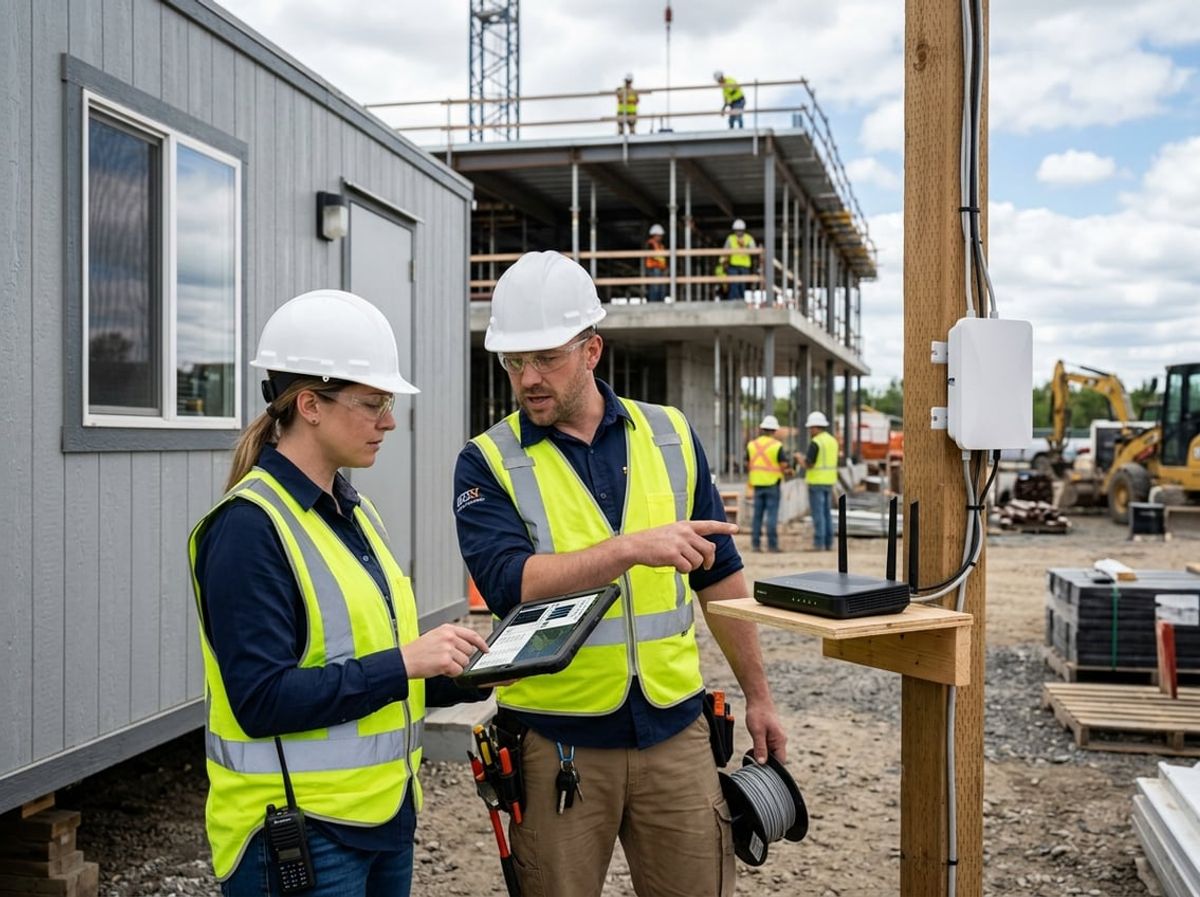
A connectivity partner handles the physical build-out and configuration of the network before your team moves into the trailer, then maintains uptime and troubleshoots problems throughout the project. Whether you bring one in or handle setup internally depends on how many concurrent sites you're running, how complex the connectivity needs to be, and whether your in-house IT staff has time to visit each location and manage gear remotely.
What a Connectivity Partner Sets Up Before Anyone Moves In
An IT provider staging a job site network will typically arrive before the trailer is occupied and install pre-configured equipment that's ready to work the day your team opens the door. That includes a dual-SIM cellular router with activated data plans from two carriers, so connectivity comes online without waiting weeks for a fixed line to be provisioned. The router is mounted in a NEMA-rated enclosure if it sits outside or in an unheated space, and connected to a managed switch and one or more access points rated for dust, vibration, and the temperature swings common in a construction trailer.
The partner configures separate networks for your project staff and for visiting subcontractors, applies firewall rules that block inbound threats, and sets quality-of-service policies so Procore uploads and Bluebeam Studio sessions get bandwidth priority over general browsing. If the site will eventually receive a coax or fiber circuit from a local carrier, the partner orders it early and configures the router to fail over to cellular automatically if the wired connection drops. Cabling, power protection against generator surges, and initial testing are all completed before the superintendent walks in.
ELMIDA's job site connectivity service covers this planning and setup work for architecture, engineering, and construction firms opening a new site, so your team has working internet from day one.
Ongoing Support Once the Site Is Live
Once the site goes live, ongoing site support includes monitoring each location's uptime, data usage, and equipment health from a central dashboard. If a cellular carrier's signal degrades as the building structure rises and blocks line of sight, the partner repositions antennas or swaps in a different carrier's SIM. When a superintendent calls because Forma sync has stalled or a point cloud scan won't upload, the partner can see real-time bandwidth utilization, check whether the router has failed over to backup, and reset equipment remotely without dispatching someone to the trailer.
As the project progresses and more subcontractors connect devices, the partner adjusts access point placement to maintain coverage across the laydown yard, below-grade work areas, and upper floors as walls go up. When the wired ISP circuit is finally installed, the partner transitions the site to use it as primary and keeps cellular as automatic failover. Before demobilization, the partner decommissions the network, retrieves the equipment, and redeploys it to your next project with a fresh configuration.
When In-House IT Can Handle It Alone
Your internal IT staff can reasonably manage job site setup alone if you're running one or two sites at a time, your IT team has capacity to travel for initial installation and periodic site visits, and you already stock ruggedized networking gear that can survive construction conditions. If your projects stay within strong metro cellular coverage and don't require fixed circuits, a capable IT generalist can order a business-grade LTE router, configure guest and staff VLANs, and troubleshoot connectivity issues remotely as they come up.
In-house management becomes harder when you're running three or more concurrent sites, each in a different borough or outside the metro area where signal strength varies. Remote sites may need Starlink or fixed wireless, which adds another vendor relationship and a different set of troubleshooting steps. If your IT resource is already responsible for your main office network, workstations, and cloud platforms, adding several temporary job site networks with their own hardware, carrier contracts, and physical site visits often stretches that person too thin, and problems at the site take longer to resolve.
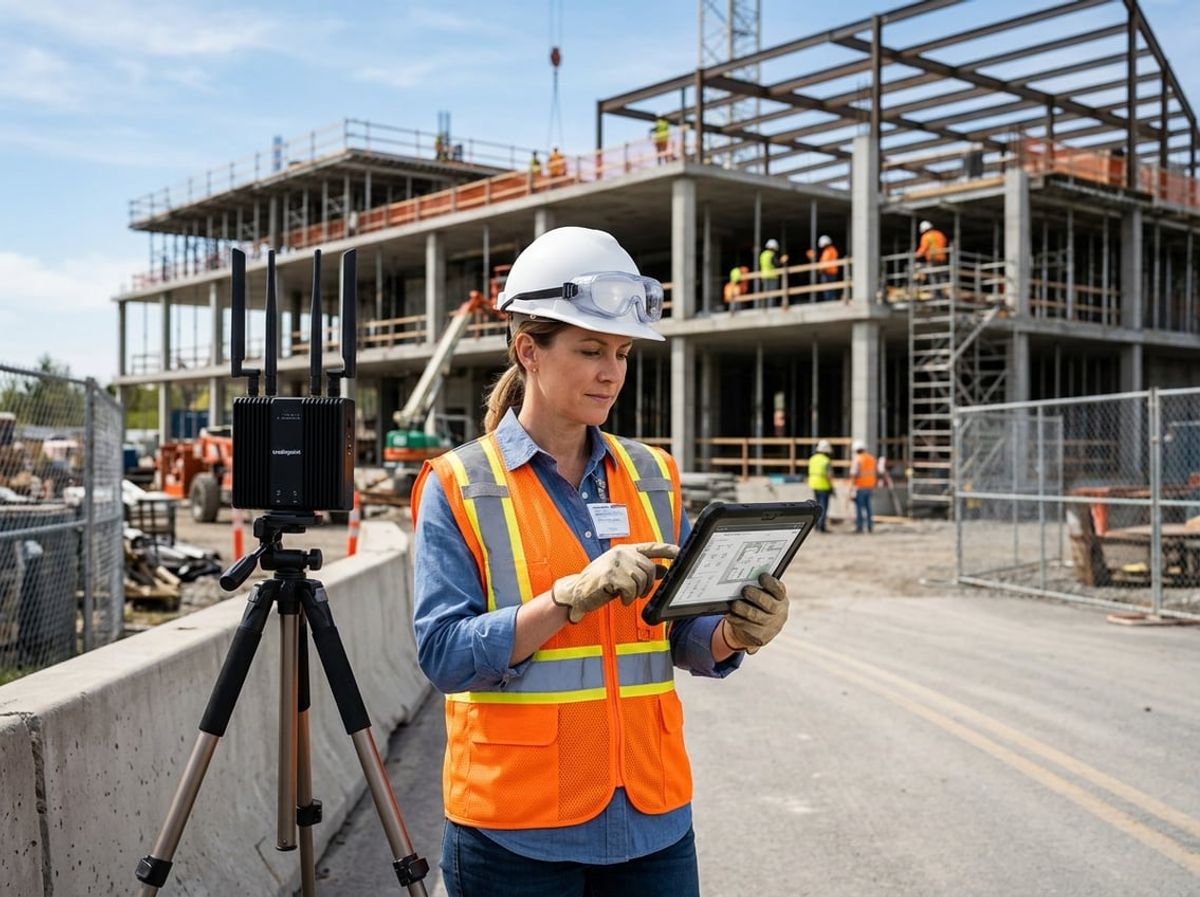
Job site internet setup raises practical questions about deployment, equipment choices, and how connectivity adapts to the physical reality of active construction. The answers depend on signal availability, project duration, structural interference, and what happens to the hardware after substantial completion.