
The 3-2-1 Backup Rule for Active Project Files
Learn how the 3-2-1 backup rule protects active Revit, AutoCAD and Bluebeam project files from ransomware, hardware failure and data loss.
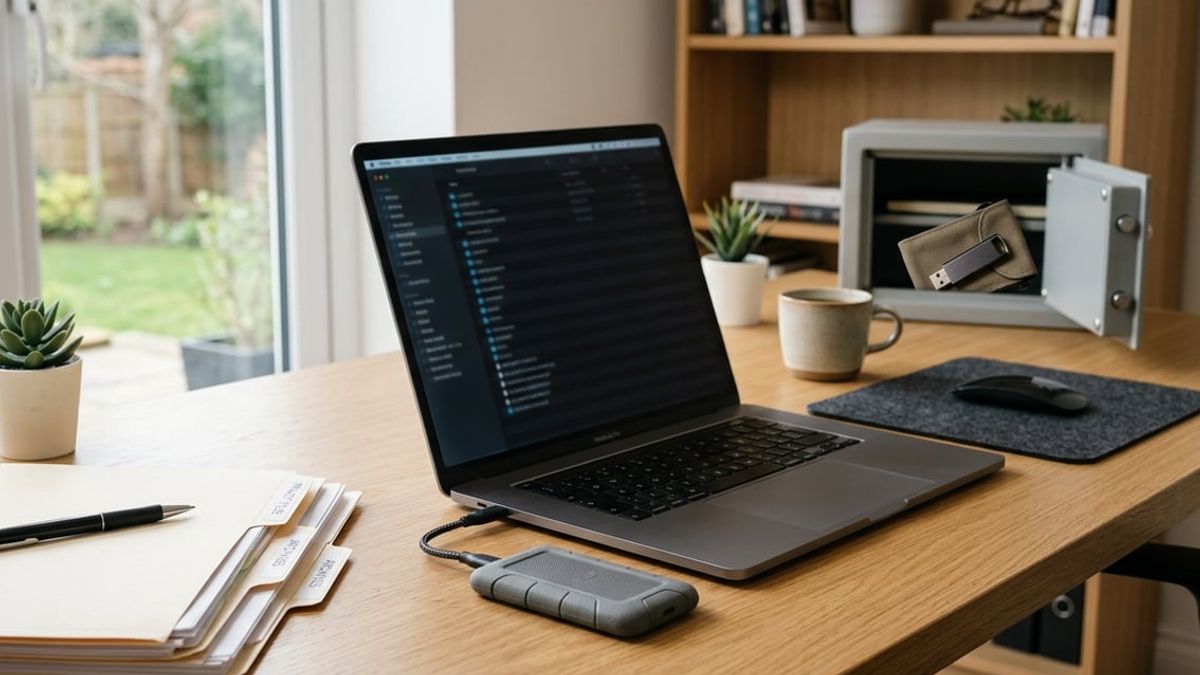
The 3-2-1 backup rule means keeping three total copies of your project data, storing those copies on two different types of media, and keeping one copy offsite so a single event cannot destroy everything at once. For your firm, that includes the Revit central model your team is editing right now, the AutoCAD xref set a consultant updated this morning, and the Bluebeam markup session your field team is working from on site. The 3-2-1 backup rule applies to active project files that are large, changing throughout the day, and shared across your team and outside consultants, not just to static documents sitting in an archive.
Most principals and BIM managers understand that backing up project files matters, but applying the rule to an active Revit worksharing environment or a coordinated drawing set raises questions that a simple explanation does not answer. What counts as a separate copy when your team is running local files synced to a central model hosted on Egnyte? Does OneDrive meet the offsite requirement, or does syncing a corrupted file to the cloud mean you have lost every copy at once? How often do you need to capture a backup when a project team is syncing changes every few minutes, and how do you prove the backup will actually restore a usable file if ransomware encrypts your server?
This guide walks through how the 3-2-1 backup rule applies to the project files architecture, engineering and construction firms in New York City depend on every day. You will see what counts as a true backup versus a sync, how to build an offsite copy that ransomware cannot reach, and how to match your backup schedule and retention to the way your team actually works on active projects.
Key Takeaways
- The 3-2-1 backup rule requires three total copies of your data on two different media types with one copy stored offsite to protect against a single disaster.
- Cloud sync tools replicate deletions and ransomware encryption to every connected location, so they do not replace a true backup captured on its own schedule.
- A backup plan is only proven when you test a restore and confirm the file opens and works, not when the backup software reports a completed job.
What the 3-2-1 Backup Rule Means for Active Project Files
When your team is working out of a Revit central model eight hours a day and the linked AutoCAD civil set updates twice a week, the traditional three copies, two media types and one offsite location formula needs translation into terms that fit how project files actually behave.
The Three Copies, Two Media Types and One Offsite Location, Explained
Three copies means three complete instances of your project data exist at the same time. One copy is the working file your team opens each morning. The second and third copies are backups captured on their own schedules, independent of the normal save and sync cycle.
For a Revit worksharing model, the central file stored on your file server or cloud workspace is the working copy. The local files on each team member's workstation are temporary working copies that sync back to the central file, so they count as part of the same working instance rather than as separate backups.
Two media types means the backups do not all sit on the same kind of storage device. If your working files live on a network-attached storage appliance in your office, one backup might go to a directly attached USB drive and another to cloud object storage. The goal is to survive a failure that affects an entire category of device at once, such as a RAID controller failure that takes down all volumes on a SAN or a ransomware script that encrypts every mapped network drive.
One offsite location protects against events that affect your entire office. A fire, a break-in, a flood or a ransomware infection that spreads across your local network can destroy both the working copy and any backup stored in the same room. Offsite for most New York City firms means a cloud backup repository in a provider's data center or a physical backup device stored at a separate office or secure location outside your building.
Why This Rule Exists: The Failures It Is Designed to Survive
The rule was developed as general guidance by agencies including CISA and promoted widely by NIST to address the most common causes of permanent data loss. It assumes that hardware eventually fails, that a single location is vulnerable to physical events, and that no single copy can be trusted to survive every scenario.
For AEC project teams, the most disruptive failures are not abstract. A RAID array fails overnight and the file server does not come back up Monday morning. A team member opens a central model and sees a worksharing error because the file was partially overwritten. Ransomware encrypts every file on mapped drives, including the central model and every linked consultant file. A laptop is stolen from a job site with a week of markups and site photos that were never synced back to the office.
Each of these events destroys or locks one copy of your data. If that copy is the only one, or if the second copy is stored on the same device or in the same location, the project stops until you rebuild the lost work from scratch. The 3-2-1 framework ensures that at least one usable copy remains available after any single failure, so recovery is a matter of restoring files rather than recreating them.
What Counts as a Copy When a File Is Open All Day
A project file that twenty people edit simultaneously presents a challenge the rule does not directly address. Your Revit central model changes hundreds of times a day as team members synchronize. The version that exists at 9 a.m. is not the same file that exists at 4 p.m., and a backup captured at noon does not include work completed after lunch.
For the purposes of the rule, a backup copy is any capture of the file taken at a defined moment and preserved without further modification. A scheduled backup job that snapshots your file server at 6 p.m. creates a backup copy. A manual copy you drag to an external drive before leaving for the day creates a backup copy. A cloud sync service that continuously mirrors every save does not create a backup copy, because it replicates changes in real time and has no mechanism to preserve an earlier version once a file is deleted, corrupted or encrypted.
The central model and its associated local files remain a single working copy because they all update together as part of the same worksharing session. Your backup plan needs at least two additional captures taken on independent schedules, stored on different media, with one copy placed offsite or isolated so it cannot be altered by the same event that affects your working files.
Why Active Project Files Complicate the Rule

An actively edited Revit central model or AutoCAD drawing with linked files challenges the rule's fundamental assumption that a file is a discrete, static object. Project files change constantly during the workday, grow to tens or hundreds of gigabytes, and often depend on consultant data stored outside the firm's own infrastructure.
Revit Central Models and Worksharing Change What One Copy Means
A Revit central model paired with multiple local copies does not function as separate files for backup purposes. Each team member's local copy is a working instance that synchronizes back to the single central model. If the central file is lost or encrypted, the local copies cannot be promoted to replace it without manual intervention and potential data loss from unsynchronized work.
The central model is the single source of truth. It must be counted as one copy under the rule, not three or five simply because the team has that many local copies open. A proper backup plan captures the central file on its own schedule, independent of the sync-with-central operations your team performs throughout the day. That second copy needs to be written to different media and stored where ransomware or a failed RAID array cannot destroy it alongside the central model itself.
Worksharing complicates the backup window because the central file changes every time a team member synchronizes. A backup that runs once at midnight may miss six hours of afternoon coordination work if something fails the next morning.
Large Files, Frequent Saves and the Backup Window Problem
A complex Revit central model can exceed 500 MB, and large infrastructure projects easily reach several gigabytes before sheets, families and linked models are added. Copying a 2 GB file to a network backup location takes time, and copying it to a cloud repository takes longer still. If your team synchronizes changes every fifteen minutes during active design phases, a traditional backup job that locks the file and copies it in full cannot run without interrupting the workday.
Incremental and differential backup methods reduce the amount of data copied each time, but they depend on the backup software recognizing which blocks inside the file have changed. Revit's worksharing structure writes changes throughout the file, so block-level incremental backups often copy more data than a simple text document would.
The practical result is that many firms can run a full backup only during evenings or weekends, leaving a gap between the last backup and the current state of the project. How much rework the team can tolerate losing determines how wide that gap can be, not a fixed interval that applies to every project.
Consultants, Linked Files and Data That Lives Outside Your Control
Most projects depend on structural, MEP and civil models created and hosted by consultants who maintain their own servers and their own backup schedules. Your architectural model links those files, but you do not control when they are backed up, where the backup is stored, or whether the backup is tested. If a consultant's linked model is unavailable Monday morning, your team cannot open the coordinated architectural model even if your own central file and backups are intact.
Point cloud scans, survey data and large rendering assets often live on separate storage because they do not fit comfortably on the same volume as the central model. A backup plan that captures only the firm's primary file server will miss those external dependencies.
The offsite copy required by the rule becomes harder to enforce when the data is distributed across your own office server, a consultant's SharePoint site and a scan technician's external drive. You cannot back up what you do not host, so the plan needs to account for which linked files are critical to reopening the project and ensure that at least the most recent versions are captured in your own backup set or retrieved from the consultant on a regular schedule.
Applying the 3-2-1 Backup Rule to Revit, AutoCAD and Bluebeam
Each software platform your firm uses creates files that behave differently under worksharing, external linking and active collaboration. Revit central models rely on local copies to distribute a project across your team, AutoCAD drawings pull geometry and layers from external references spread across folder structures, and Bluebeam Studio sessions hold live markups that disappear if a session closes before they are saved back to the PDF.
Revit Central Models, Local Files and Backup Copies
Your Revit central model sits on a file server or BIM 360 location and acts as the single source of truth for worksharing. Each team member works in a local copy that synchronizes changes back to the central file throughout the day. For backup purposes, the central model and all local copies together count as one working copy because the local files are temporary by design and cannot be restored as a substitute for a missing central file.
Your backup plan needs at least one additional copy of the central model captured on its own schedule. A nightly backup that copies the central file after most of the team has synchronized and closed their sessions gives you a version from the end of each working day. That second copy should land on media that is separate from the file server itself, such as a network-attached storage device or a cloud backup repository, so a hardware failure on the server does not also destroy the backup.
The third copy belongs offsite so a fire, theft or ransomware event at your office cannot destroy both the central file and the backup at the same time. Cloud backup services that copy your central model to a data center outside New York City satisfy this requirement. If you rotate external drives to a second location, make sure the schedule matches how much rework your project team can tolerate losing between backups.
AutoCAD Drawings and Xrefs Across Multiple Project Folders
AutoCAD projects rely on external references that pull base plans, site context and consultant files into a host drawing. A single sheet may reference half a dozen xrefs, each stored in its own folder and potentially managed by a different discipline. The 3-2-1 rule requires three copies of every drawing and every xref because a missing reference breaks the host file just as completely as a missing drawing.
Your backup routine must capture the entire project folder structure, not just the top-level drawings. Many firms organize AutoCAD work with xrefs in subfolders named by discipline or phase, and a backup that copies only the parent folder while skipping subfolders will miss the references entirely. Configure your backup software to include all subfolders recursively, and test a restore by opening a drawing that uses xrefs to confirm that AutoCAD can locate every linked file without manual pathing.
Store one backup copy on a device that is separate from your primary file server. A second local drive, a NAS appliance or a dedicated backup disk all qualify as different media. Keep the third copy offsite, either in a cloud backup location or on a drive that rotates to a separate physical site. If your project includes consultant xrefs stored on their own servers, coordinate with each consultant to confirm that their backup plan covers the files your team references.
Bluebeam Studio Sessions, Markups and PDF Sets
Bluebeam Studio sessions let your team add markups to a shared PDF in real time. Those markups live in the session while it remains active, and they are written back to the PDF only when you choose to save them. A Studio session that closes unexpectedly or a network interruption that ends the session before markups are committed can result in lost work that does not appear in any backup of the PDF file itself.
Your backup plan for Bluebeam projects should capture the PDF files on the same schedule as your other project data. If your team works heavily in Studio sessions, save markups back to the PDF at the end of each work session rather than leaving them in the cloud until the end of a review cycle. That practice ensures your nightly backup includes the day's markup activity and gives you a recoverable file if the session is lost.
Keep one backup of your PDF sets and markup files on media separate from your file server, such as a NAS device or a cloud sync folder that your backup software also copies to its own repository. Store a third copy offsite so a single event at your office cannot destroy both the working files and the backup. Test a restore by opening a backed-up PDF in Bluebeam and confirming that all markups, hyperlinks and Studio data load correctly.
Cloud Sync vs Backup: Where Egnyte, SharePoint and OneDrive Fit

Cloud sync platforms keep files accessible and current across your team, but they replicate every change including deletions, corruption and encryption. Version history catches some mistakes quickly, yet it is not an independent copy that survives an event affecting the source platform.
What Sync Tools Actually Protect Against
OneDrive, SharePoint and Egnyte protect your project files when a single laptop is lost, stolen or fails. A drafting workstation with a dead hard drive loses nothing if its Revit families and AutoCAD title blocks were already synced to the cloud. A field team member who drops a tablet in a trench can log in from a replacement device and continue working from the same set of Bluebeam markups.
Cloud sync also protects against simple mistakes made by one person on one file. If someone overwrites a correct sheet note with an incorrect one, version history inside OneDrive or SharePoint usually lets you roll back that single file to the prior version within minutes. The same applies to an Egnyte folder where someone accidentally saves over a consultant's linked CAD drawing.
These tools solve availability and accidental single-file changes efficiently. They do not address threats that affect the central storage location or that arrive with valid user credentials.
What Sync Tools Do Not Protect Against
Cloud sync does not protect your project data when an attacker gains access to a valid user account or when ransomware encrypts files that then sync everywhere. OneDrive, SharePoint and Egnyte replicate changes made at the source to every connected device. If ransomware encrypts your Revit central model on the server or in SharePoint, the encrypted version syncs to every team member's local cache within minutes.
The same replication happens when someone with valid credentials accidentally deletes an entire folder of consultant drawings or a complete Bluebeam Studio session. The deletion syncs to every connected location. The recycle bin may offer a short recovery window, often 30 to 93 days depending on the platform and your settings, but that window is not a backup with a defined retention period separate from the active environment.
A corrupted Revit central model presents the same problem. If the file becomes unreadable and syncs in that state, every workstation pulling from that location receives the corrupted file. Version history might offer a prior copy, but retention is limited and the feature can be disabled by policy or exceeded by the number of changes.
Version History Is Not the Same as a Backup
Version history inside OneDrive, SharePoint or Egnyte captures prior states of individual files within the same storage platform. A true backup is a separate, time-stamped copy stored independently from the original so an event affecting the source does not also destroy the backup.
Version history helps recover from a handful of recent mistakes on specific files. It does not help when ransomware encrypts the entire SharePoint site, when an admin-level account is compromised and used to delete project folders, or when you need to recover a state from six months ago after retention limits have cycled older versions out of reach. Version history is stored within the same system as your working files, so a credentials breach or platform-level issue can affect both.
For a Revit worksharing environment, the central model and its local copies together represent one working dataset. A backup captured on its own schedule, stored on different media and kept offsite or immutable, provides the second and third copies required by the three-copy rule. Version history within the sync platform does not count as one of those copies.
Building an Offsite Copy That Ransomware Cannot Reach
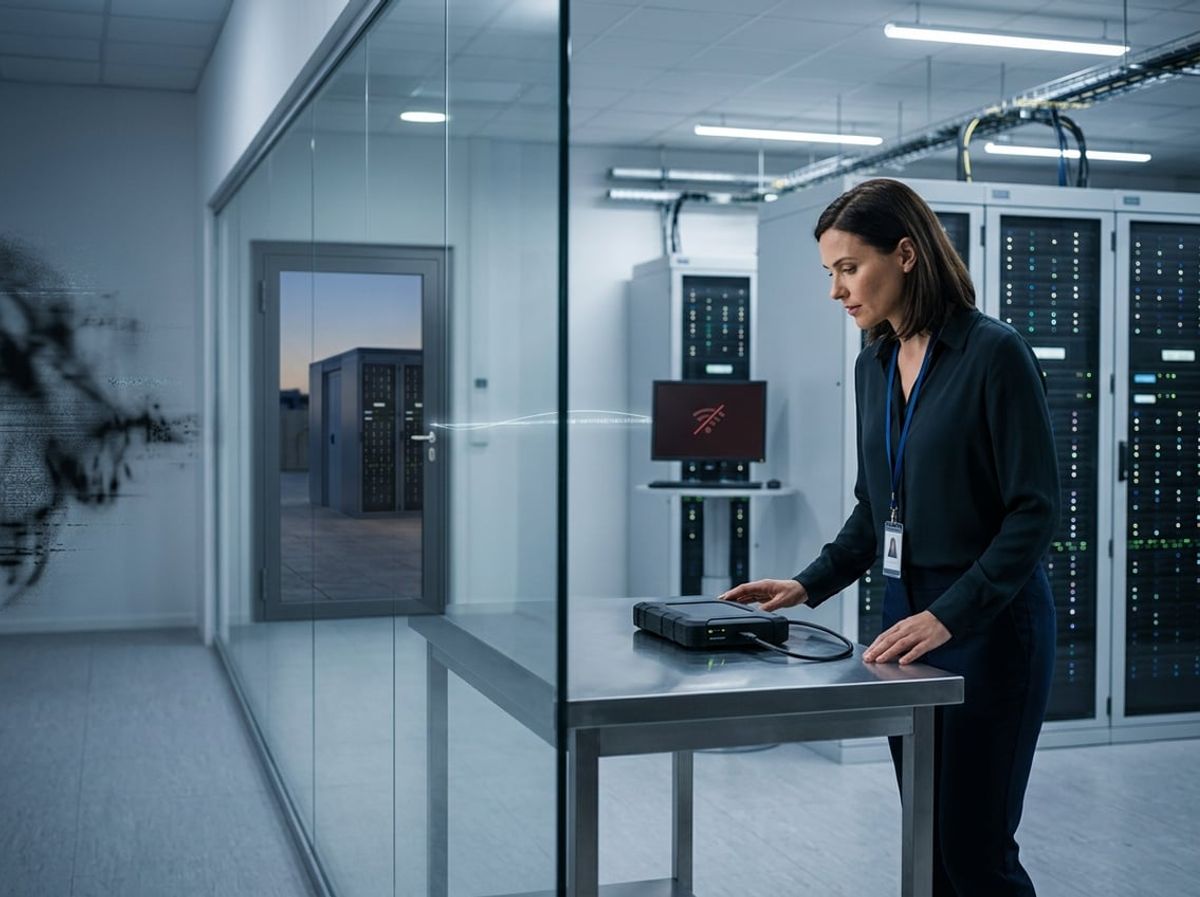
An offsite backup is only ransomware-resistant if it is stored in a way that prevents an attacker with full access to your network from deleting or encrypting it. That means using immutable storage or an air-gapped copy stored in a location that is physically or logically separate from your main office systems.
Immutable and Air-Gapped Copies, in Plain Terms
An immutable backup is a copy that cannot be changed, deleted or encrypted for a set period of time, even by someone with full administrative credentials. Once the backup is written, it is locked at the storage layer using policies that prevent modification until the retention window expires. If ransomware reaches your backup system, the immutable copy remains intact.
Cloud object storage platforms enforce immutability through write-once, read-many policies. Even if an attacker compromises your backup account, they cannot overwrite or delete a locked object before its retention period ends.
An air-gapped copy is physically disconnected from the network. Traditional examples include tape drives that are unplugged and stored offsite, or external drives that are connected only long enough to receive a backup and then removed. An air-gapped copy cannot be reached remotely, so ransomware that spreads across your network stops before it reaches that backup.
For project data like Revit central models and AutoCAD drawings, either approach works. What matters is that one copy stays out of reach when an attacker compromises the systems where your team works day to day.
Choosing an Offsite Location for a Firm Working Out of New York City
Offsite means a separate physical building or a cloud storage region that a fire, theft or ransomware event at your main office cannot affect. Storing a second external drive in the same office, even in a different room, does not qualify as offsite under the 3-2-1 framework.
For firms based in New York City, a genuinely separate location typically means one of two things. A cloud backup service that stores copies in a datacenter outside the immediate area provides geographic separation without requiring physical transport. A second option is a physical location such as a principal's home, a remote office or a secure offsite storage facility where backup media is rotated regularly.
Cloud backup is the more practical choice for most firms. It runs automatically, supports immutability through storage policies, and provides access to files without transporting physical media. A backup stored in a different cloud region cannot be encrypted by ransomware running inside your local network or your primary cloud tenant.
How This Fits Into a Firm's Backup and Disaster Recovery Plan
A ransomware-resistant offsite copy is the third piece of the 3-2-1 rule and the most important one for recovery when an attack encrypts your primary systems. Without it, you have no safe copy to restore from, and your project teams cannot resume work until files are rebuilt or ransom is paid.
Your backup and disaster recovery plan should document where the offsite copy is stored, how often it is updated, how long each snapshot is retained and who can initiate a restore. That plan also needs to include regular restore tests so you know the backup produces usable files before an emergency forces you to rely on it.
ELMIDA's backup and disaster recovery service is built around this exact requirement. It captures copies of your project files on a schedule separate from your sync tools, stores them in immutable cloud storage offsite, and provides verified restore capability so your team can get back to work after a ransomware event or accidental deletion.
Matching Backup Frequency and Retention to Project Work
How often you back up and how long you keep those backups should match how much rework your team can afford to lose and how long files remain in active use. A design model that changes daily needs tighter intervals than a completed set filed for record.
What Determines How Often an Active Project Should Be Backed Up
The interval between backups is determined by your rework tolerance, not by a universal schedule. If your team can afford to lose a full day's work on a Revit model when someone discovers Monday morning that Friday's central file is encrypted, daily backups meet that tolerance. If losing half a day of structural coordination or facade detailing puts a deadline at risk, you need backups every few hours.
Consider what happens during high-intensity phases. A week before a permit submission, your team is syncing to central every hour, consultants are updating linked models, and Bluebeam Studio sessions are collecting redlines from the client. Losing even four hours of that work means missing the filing window. That phase demands backup intervals measured in hours, not days.
Rework tolerance changes by project phase:
- Schematic design: Daily backups often suffice because individual file changes are smaller and easier to recreate.
- Design development and coordination: Four to six hour intervals protect against meaningful loss as models grow and linked references multiply.
- Construction documentation and permit phases: Hourly or two-hour backups match the density of changes and the cost of recreating markups, sheet revisions and updated central models.
The 3-2-1 backup rule requires those intervals to produce copies stored on different media types, with one kept offsite, so a ransomware attack or hardware failure during a critical phase cannot eliminate every recovery point.
How Long to Keep Backups While a Project Is Still Open
Retention during active work balances the need to roll back to earlier versions against the cost of storing hundreds of incremental snapshots. Most firms keep daily recovery points for at least two weeks and weekly points for the duration of the project. That gives you enough history to recover from a corrupted worksharing file, an accidental purge of families, or a change directive that requires reverting a portion of the model to an earlier state.
Point-in-time recovery becomes critical when someone discovers that a linked consultant file was corrupted three days ago and every sync since then has propagated the problem. Without retained snapshots, your only option is to rebuild from scratch. A two-week rolling window of daily backups and monthly snapshots from major milestones let you step back to a known-good state without losing weeks of progress.
Storage grows quickly when you retain frequent snapshots of large Revit central models, point cloud scans and rendered view sets. Cloud backup with incremental block-level tracking keeps retention practical by storing only what changed between snapshots rather than duplicating entire files each cycle.
What Changes Once a Project Closes Out
When a project closes and files move to archive status, backup frequency drops to zero because the files no longer change. Retention shifts from rolling snapshots to long-term preservation. You keep one final verified copy that satisfies your firm's record retention period, typically seven years or longer depending on contract terms and the type of work.
That final archive still requires offsite protection. A fire or ransomware event five years after closeout destroys your ability to respond to a warranty claim or answer questions during future work on the same building if the only copy sat on a local file server. Cloud storage or a separate physical location provides that separation without ongoing backup jobs.
Closed project files also need verification before they leave active backup rotation. Test that the archived Revit model actually opens, that xref paths resolve, and that the final PDF set matches what was transmitted. Discovering file corruption when you need the archive for litigation support or a renovation phase means the record is worthless.
Testing Restores and Proving the 3-2-1 Backup Rule Works

A backup job that reports "completed successfully" confirms only that the software ran and wrote data somewhere, not that you can recover a usable Revit central model or AutoCAD drawing when you need it. Proving your three-copy backup plan works requires periodic restore testing that checks whether the recovered file actually opens and behaves correctly in the hands of your project team.
Why a Completed Backup Job Does Not Mean a Usable Backup
Backup software reports completion when it finishes copying files. It does not confirm that a Revit central model will reconnect to worksharing, that AutoCAD xrefs will resolve, or that a Bluebeam markup set still links to its underlying sheets.
File corruption can occur during the backup process itself, especially when capturing active database files or models that are open at the time the job runs. Network interruptions can truncate large files mid-transfer without triggering an error flag.
Storage media can fail silently over time. A drive showing healthy in monitoring tools can still return corrupted data on read. Cloud storage can experience service-side corruption or synchronization errors that leave files incomplete.
The only way to confirm recoverability is to restore actual project files to a test location and verify they open correctly. A monthly or quarterly restore test of your most critical models catches failures while you still have alternate copies available.
What a Restore Test Should Actually Check
Restore a current Revit central model to a temporary location and open it in Revit. Confirm that worksharing reconnects, that families and linked files load without errors, and that views display geometry as expected. If the model depends on external links from consultants, verify those paths resolve or can be redirected.
For AutoCAD projects, restore the main DWG file along with any xrefs and open it. Check that xrefs attach correctly, layers display as expected, and custom linetypes or fonts load without substitution.
Restore a recent Bluebeam Studio session or markup set and confirm that markups display on the correct sheets and that comments are intact. Restore a point cloud file and verify it opens in the expected viewer or imports cleanly into Revit or Navisworks.
Time the restore process and compare it to how long your team can afford to be offline if the live file were lost. This measures your actual recovery time against your project schedule, not just storage speed.
Who Should Own This on a Small Firm's Team
At firms without dedicated IT staff, responsibility for running restore tests typically falls to a BIM manager, operations manager, or principal who already oversees project file organization. That person should schedule quarterly restore tests as a recurring task, document the results, and escalate failures immediately.
If your firm works with a managed service provider or cloud backup vendor, confirm in writing whether restore testing is included in your agreement or requires a separate request. Many providers monitor backup job completion but do not test actual file recoverability unless asked.
Assign a specific person to verify that automated backup alerts are being monitored and that failed jobs trigger immediate investigation. A backup that silently fails for two weeks creates exactly the gap that a ransomware event or drive failure will exploit.

These questions address how the rule applies to firms running Revit worksharing, whether cloud sync meets the offsite requirement, and whether common local backup methods satisfy the framework on their own.