
Revit CPU or GPU: Which One Matters More
See whether Revit CPU or GPU matters more for modeling, syncing large central models and rendering with Enscape or V-Ray.
Revit is CPU-intensive for nearly all core modeling tasks, and the GPU only becomes critical when you render through plugins like Enscape or V-Ray. If your firm works in Revit Architecture with central models hosted on a server or in BIM 360, syncing to the central file, opening large linked consultant models, and regenerating views all depend on the CPU. Most of what slows down a project team, sync wait times, opening a structural or MEP link, regenerating a section view, happens on the processor, not the graphics card.
The question of revit cpu or gpu comes up because the software uses both, but not equally. Your GPU handles rotating the 3D view and drawing elements on screen, but these tasks rarely bottleneck a typical workflow for architecture, engineering and construction firms in New York City. The workstation feels slow because Revit's modeling engine runs on a single CPU core at a time, and that single-threaded performance determines how quickly the software responds when you place a wall, edit a family, or sync your local file back to the central model.
Understanding the real split between CPU and GPU demands helps you spend hardware dollars where they make a difference on your projects, rather than chasing specifications that look impressive but do not address the actual wait times your team sees every day.
Key Takeaways
- Revit modeling, regeneration and most of a sync rely on CPU single-threaded speed, not GPU power
- A dedicated GPU matters primarily when rendering through plugins or working with very large or complex models
- Match your workstation investment to your firm's actual workflow, prioritizing CPU performance for core Revit work and upgrading the GPU only when rendering and visualization justify the cost
Revit CPU or GPU: What Each One Actually Controls
Understanding which component handles what inside Revit helps you match hardware to your actual workflow. The CPU runs the Revit engine itself: geometry, parameters, relationships, element calculations, while the GPU draws what appears in your viewport.
What the CPU Handles in a Revit Model
Your CPU is responsible for everything that defines the model. Every wall, door, parameter, constraint, and relationship between elements runs through the processor. When you open a central model from your file server, the CPU loads element data into memory. When you sync to central, the CPU compares your changes against the current state and writes them back.
Element calculations happen on the CPU. That includes wall joins, curtain wall subdivisions, structural framing connections, and MEP system calculations. If you're working in a linked model environment with structural and MEP consultants, every time Revit recalculates relationships across those links, your CPU is doing the work.
Multi-core processors help with specific tasks. Revit uses multiple cores for opening and saving files, exporting to DWG or DWF, calculating color fills, running the Autodesk Raytracer, and processing point cloud data from site scans. View regeneration and most day-to-day modeling still rely heavily on single-core speed, which is why a 3+ GHz processor with a large L3 cache delivers better responsiveness than a slower chip with more cores.
What the GPU Handles in a Revit Model
The graphics card controls viewport rendering. When you rotate a 3D view, pan across a floor plan, or switch to shaded mode, your GPU draws the geometry on screen. Newer Revit releases can hand more of this drawing work to the GPU; check Autodesk's current documentation for which versions include it and what graphics hardware it needs.
Your GPU does not calculate the model. It draws what the Revit engine has already defined. If you're working in a complex view with linked consultant models and high detail levels, a stronger GPU reduces lag when you orbit or zoom. If you're staying in plan views with wireframe display, your graphics card does very little.
Third-party rendering plugins like Enscape, Lumion, and V-Ray rely heavily on the GPU for real-time visualization and final frame rendering. Those tools offload rendering work from the Revit engine entirely, and their performance depends almost exclusively on your graphics card. Traditional Revit rendering using the Autodesk Raytracer remains CPU-bound.
Why the Answer Changes Based on the Task
The CPU vs GPU split in Revit means that different tasks stress different components. If you spend most of your day modeling in plan and section views, your CPU determines responsiveness. Model open time, sync time, and element regeneration all run on the processor. A faster CPU with high single-core performance matters more than an expensive graphics card.
If you work in 3D views with shaded or realistic display, or if you present designs to clients using Enscape or similar tools, your GPU becomes the bottleneck. Viewport lag during navigation and rendering wait times both improve with a stronger graphics card. Firms running large coordination models with multiple linked files see the same pattern: the CPU handles the element calculations, and the GPU smooths out viewport interaction.
Your actual Revit CPU or GPU demands depend on your project scale and your team's workflow. A small firm working on single-building projects in 2D views needs processor speed more than graphics power. A larger firm coordinating multi-discipline models and producing client renderings needs both, with the GPU gaining importance as visualization work increases.
Why Revit Leans on the CPU for Core Modeling Work
Revit's architecture assigns the CPU responsibility for nearly every modeling operation that affects project data: opening the central model, regenerating views after element changes, syncing to central, and processing linked consultant files. Much of this work runs on a single thread, which means high clock speed matters more than core count when your team is waiting for a sync to finish or a section view to refresh.
Regeneration, Sync and Element Calculations
When you modify a wall, adjust a level, or change a family parameter, Revit recalculates every view, schedule, and constraint that references those elements. This regeneration process is almost entirely CPU-bound and single-threaded. A model with hundreds of hosted families, complex curtain walls, or adaptive components will tax the CPU heavily during each regeneration cycle.
Syncing with central adds another CPU-intensive task. Revit compares your local file against the central model, resolves conflicts, and writes changes back to the server or cloud host. Worksharing performance suffers when your CPU lacks sufficient single-thread speed. Teams working on a central model hosted in BIM 360 or on a local file server experience longer sync times as model size grows, because each sync requires the CPU to process thousands of element transactions.
Worksharing and Central Model Performance
Worksharing depends on the CPU to manage worksets, element ownership, and file locking. When multiple team members edit the same central model, Revit's worksharing engine tracks every borrowed element and every sync operation. The CPU handles these transactions, and high-frequency cores reduce the time your staff spends waiting for permission to edit elements or for the central model to accept their changes.
Projects with dozens of worksets and active users place constant demand on the CPU. A 500,000-square-foot mixed-use building model with separate worksets for core and shell, interiors, site, and annotations will slow noticeably if the workstations lack strong single-thread performance. The CPU-bound nature of worksharing means that GPU upgrades will not improve sync speed or reduce conflicts.
Large Linked Models From Structural and MEP Consultants
Linked models from structural engineers and MEP designers add geometry and metadata that Revit must load and manage. When you open a central model that links a structural consultant's steel framing model and an MEP coordination model with full ductwork and piping, the CPU processes every linked element to display it correctly in your host file. This load operation is CPU-intensive and can extend model open time by several minutes on large projects.
Coordination workflows compound the issue. Running interference checks between your architectural model and linked MEP models requires the CPU to compare element geometry across multiple files. Teams coordinating a high-rise tower with separate structural, mechanical, electrical, plumbing, and fire protection links will notice that the CPU maxes out during these checks, while GPU utilization remains low. Faster single-thread CPU performance shortens these wait times and keeps coordination moving.
Where the GPU Actually Matters in a Revit Workflow
While Revit leans heavily on the CPU for most operations, the GPU becomes the critical component when you rotate a complex model in 3D, open views with millions of laser-scanned points from a site survey, or launch a live rendering session in Enscape to walk a client through the design.
3D Navigation, Shaded Views and Real-Time Display
Your GPU handles the on-screen drawing of geometry whenever you orbit, pan or zoom in a 3D view. In a simple architectural model with a few thousand elements, the difference between a basic card and a workstation GPU is barely noticeable. But when your central model includes structural steel from the engineer, MEP runs from the consultants and dozens of linked families, the viewport can stutter on entry-level graphics.
Shaded and realistic display modes tax the GPU further because Revit asks the card to render surface textures, ambient shadows and basic lighting in real time. A model that spins smoothly in wireframe may lag noticeably when you switch to shaded view with edges on.
Newer Revit releases can move more of the 3D viewport drawing to the graphics card. Check Autodesk's current documentation for which versions include this and what it needs. If your team spends hours each day coordinating in 3D views with heavy linked content, a stronger GPU reduces the friction of simply moving around the model.
Point Clouds and Reality Capture Data
Point clouds from laser scans place an outsized load on the GPU because each dataset can contain tens of millions of individual points that need to be drawn every time the view refreshes. When you link a site scan into your Revit model and rotate the view, the graphics card must calculate which points are visible and render them at the correct depth.
A mid-range or entry-level GPU will struggle with dense point cloud data, leading to choppy navigation or delayed screen updates. Workstation cards with more memory and higher bandwidth handle these datasets far more smoothly, letting you work in the model without waiting for the viewport to catch up after every move.
If your projects regularly involve existing conditions surveys or coordination with reality capture data, the GPU becomes one of the most important components in your Revit workstation spec.
Rendering Plugins Like Enscape, Lumion and V-Ray
Real-time rendering engines such as Enscape and Lumion rely almost entirely on the GPU to generate photorealistic images and live walkthroughs. When you launch Enscape from within Revit, the plugin hands the geometry to your graphics card, which then calculates lighting, reflections, shadows and materials on the fly. A faster GPU produces a smoother walkthrough and shorter wait times for high-resolution still renders.
V-Ray offers both CPU and GPU rendering modes. GPU mode can deliver faster results on scenes with moderate complexity, especially when the card has enough memory to hold the entire scene. CPU mode remains the better choice for very large models or complex lighting setups that exceed GPU memory capacity.
The balance between CPU and GPU for rendering plugins depends on which tools your firm uses for client presentations. If your team relies on Enscape or Lumion for every design review, investing in a high-performance graphics card will cut rendering wait times and improve the interactivity of live presentations.
Revit CPU or GPU: How Multi-Core Performance Fits In
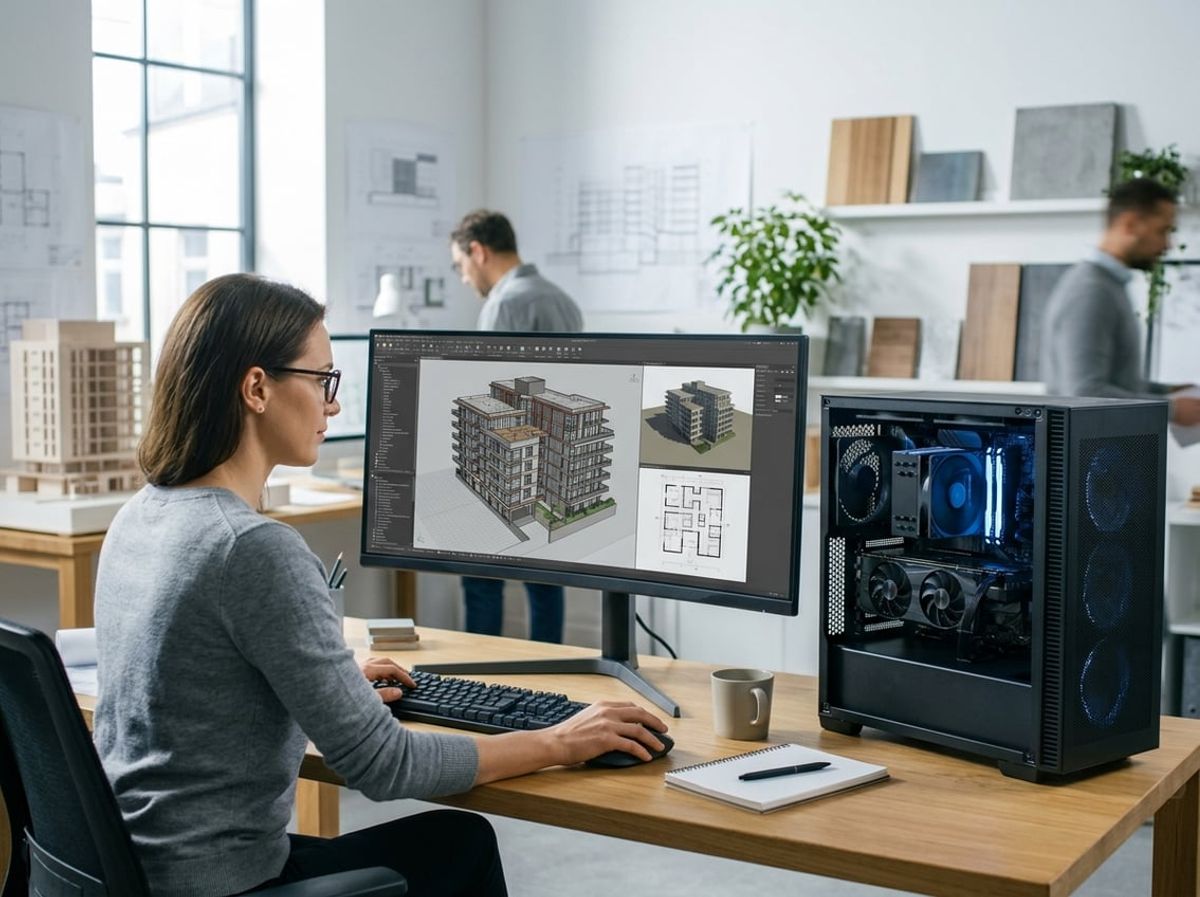
Revit spreads some operations across every available core while others remain locked to a single thread, making the choice between core count and clock speed more nuanced than picking the highest number on a spec sheet. What happens on screen during sync, file open and rendering depends on whether the task can parallelize, and where your team spends the most time waiting shapes which CPU configuration delivers the best return.
Multi-Threaded Tasks: Opening, Syncing and Rendering
Opening and saving files and Autodesk Raytracer rendering can spread their work across several cores. A sync with central includes a save, so part of every sync benefits too, but much of a sync still runs on one core. That is why clock speed matters for sync as well, and why adding cores helps a sync only up to a point.
Opening a large model with linked structural and MEP files from consultants similarly scales with core count. Revit translates geometry, builds display lists for your graphics card and loads point cloud data from site scans across multiple threads, reducing the time your viewport sits blank. Wall join calculations in plan and section views, DWG export and color fill computations also run in the background on separate cores, freeing the primary thread to keep the interface responsive.
Rendering with Autodesk Raytracer benefits directly from more cores. If your workflow relies on native Revit rendering for design development images, a higher core-count processor cuts render time substantially. Many firms now use GPU-based plugins like Enscape or V-Ray for client presentations, which shift the bottleneck away from the CPU entirely. For those tasks, the discussion shifts to CPU vs GPU for Revit rendering rather than which CPU configuration to buy.
Single-Threaded Bottlenecks That Still Slow a Fast CPU
Most of the core modeling engine in Revit remains single-threaded, which means tasks like placing walls, moving elements, applying families and regenerating views depend primarily on the speed of a single core rather than the total number of cores available. When you drag a curtain wall or adjust a massing element, the software recalculates constraints, updates dependent views and refreshes the display on one thread. A 16-core processor running at 3.2 GHz will feel slower in these tasks than an 8-core chip running at 4.0 GHz.
Viewport navigation in large 3D views can lag even on a system with plenty of cores if single-core clock speed is modest. Revit calculates silhouette edges and prepares geometry for the GPU on a limited number of threads, so responsiveness during design work depends more on frequency than on core count. This creates a tension in hardware selection: the CPU that excels at sync and export may not deliver the smoothest interactive experience.
Families with complex nested parameters and formulas also execute on a single thread. Loading a large library of content or adjusting a parametric component can pause the interface for seconds, and no amount of additional cores will speed it up. For firms spending most of their day modeling rather than syncing or rendering, clock speed becomes the dominant factor in perceived performance.
Core Count vs Clock Speed for Revit Work
Choose higher clock speed when your team spends the majority of time modeling, annotating and working in design views. A CPU running at 4.5 GHz with 8 performance cores will deliver a more responsive interface than a 16-core chip at 3.0 GHz because the single-threaded tasks that dominate day-to-day work complete faster. Many architects report that even with large central models, the biggest frustration is viewport lag and regeneration delays, both of which depend on single-core performance.
Choose higher core count when your workflow involves extensive use of Autodesk Raytracer, heavy export operations to DWG for coordination with consultants, or opening very large models many times a day. A processor with 12 or 16 cores at moderate clock speed reduces wait time during these operations and keeps background tasks from interfering with foreground work.
A balanced approach targets at least 3.5 GHz base clock with 8 to 12 cores, which addresses both Revit's CPU and GPU demands without sacrificing responsiveness for throughput. Some current processors offer higher boost clocks on a subset of cores, providing single-threaded speed when needed and multi-threaded capacity when the workload allows. Always confirm current specifications from the vendor before purchasing, as product lines and naming conventions change frequently.
- 3.5+ GHz with 8 cores: best for interactive modeling and smaller projects
- 3.2+ GHz with 12–16 cores: best for frequent native rendering and heavy exports
- Boost clock on select cores: bridges the gap between single- and multi-threaded needs
Integrated Graphics vs a Dedicated GPU for Revit
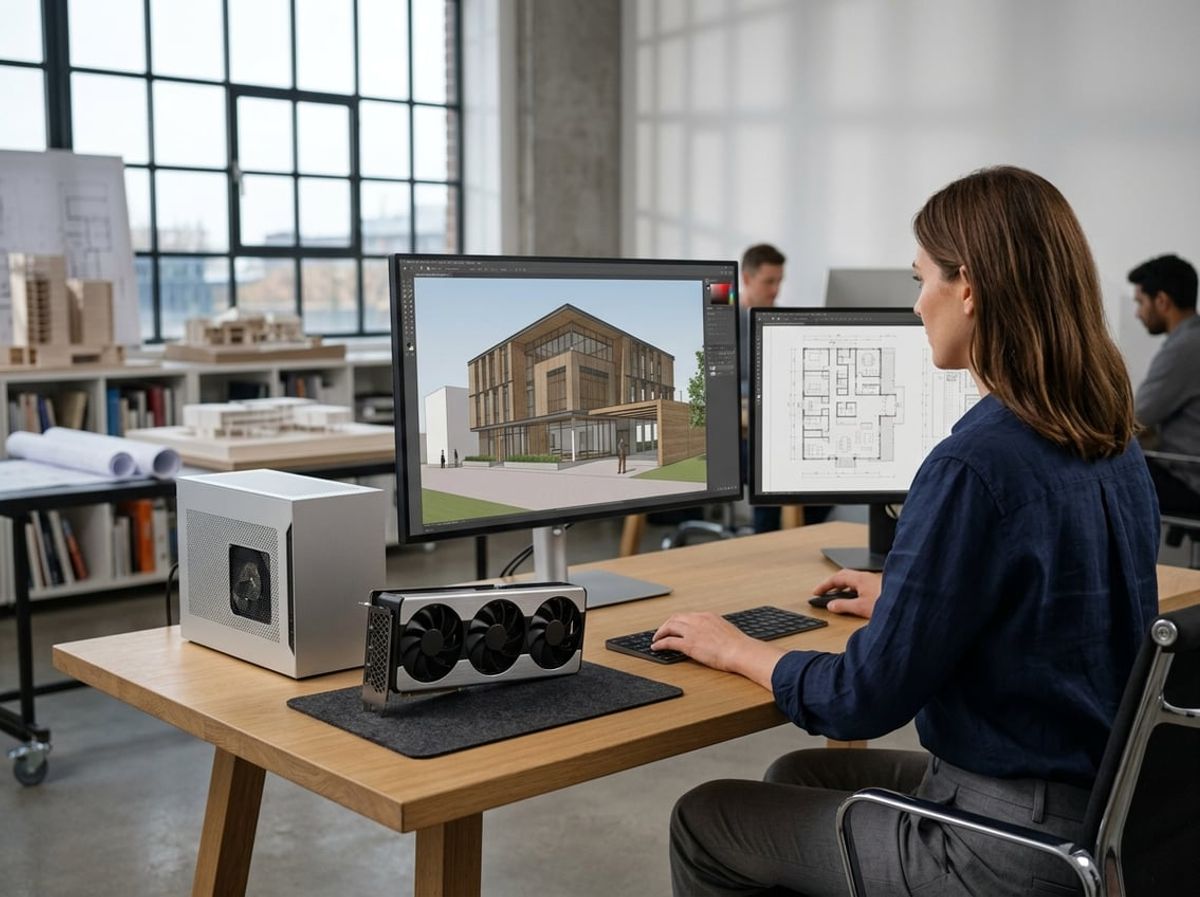
Integrated graphics built into Intel or AMD processors can handle basic Revit work, but larger models, linked files and visualization plugins quickly expose their limits. The question is not whether integrated graphics can launch Revit, but whether your team will spend time waiting on viewport refreshes instead of designing.
When Integrated Graphics Is Enough
If you work on small standalone models, single-family homes, tenant fit-outs under 5,000 square feet, early schematic studies with minimal detail, integrated graphics from a recent Intel Core or AMD Ryzen processor will run Revit without constant frustration. You can navigate floor plans in wireframe and hidden line views, place families, dimension walls and produce construction documents at typical display resolutions.
Integrated graphics rely on system RAM rather than dedicated video memory. This arrangement works when your Revit session uses modest geometry and you keep only one or two viewports open at a time. The moment you open a 3D view with shadows enabled, link a consultant's MEP model or apply a realistic visual style, the integrated GPU draws power and memory bandwidth away from other tasks, and you notice lag when rotating the view or selecting elements.
Laptops with integrated graphics make sense for principals who review models during client meetings but do not spend full days modeling in Revit. They also suit junior staff working on redline coordination rather than authoring central models.
When a Dedicated GPU Becomes Necessary
A dedicated GPU with its own video memory becomes necessary when your workflow includes linked models from structural and MEP consultants, point cloud data from site scans or real-time rendering plugins such as Enscape or Lumion. Revit's CPU handles most calculation tasks, but the GPU is responsible for drawing geometry on screen, applying materials and shadows and refreshing the viewport as you pan and zoom.
When you open a central model hosted on a file server or in the cloud and synchronize changes from other team members, the CPU processes the transaction logic while the GPU redraws updated elements in open views. Larger projects, office buildings, healthcare facilities, multifamily residential towers, involve enough linked files and detail that integrated graphics struggle to maintain smooth viewport performance, especially in 3D views or when using the realistic visual style.
Visualization plugins that render live previews shift even more work to the GPU. Enscape and Lumion both rely on GPU acceleration to display materials, lighting and reflections in real time during design reviews and client presentations. If your firm regularly uses these tools, a dedicated professional graphics card such as an NVIDIA RTX A-series or even a GeForce RTX card will deliver noticeably faster feedback than integrated graphics.
Point cloud data from laser scans adds millions of individual points to your Revit session, and rotating or sectioning a model with an active point cloud view taxes the GPU heavily. Teams that incorporate survey data into coordination models need dedicated video memory to keep those views responsive.
Multiple Monitors and High-Resolution Displays
Integrated graphics support multiple monitors, but they share system RAM to hold the framebuffer for each connected display. When you run Revit on one screen, Bluebeam Revu on a second and a browser with project management tabs on a third, integrated graphics must allocate memory and processing cycles to all three outputs simultaneously.
Higher display resolutions multiply the workload. A single 4K monitor at 3840 × 2160 contains four times the pixels of a 1920 × 1080 display, so every viewport refresh requires the GPU to update four times as many points. If you connect two 4K displays to a laptop with integrated graphics, you may see stuttering when dragging windows between screens or scrolling large sheets in Revit.
A dedicated GPU with its own video memory, 8 GB for most Revit work, handles multiple high-resolution monitors without competing for system RAM. This separation keeps Revit viewport performance stable even when you have several applications visible at once, a common scenario in AEC workflows where you reference consultant drawings, coordinate schedules and respond to RFIs while modeling.
Matching CPU and GPU to How Your Firm Actually Works
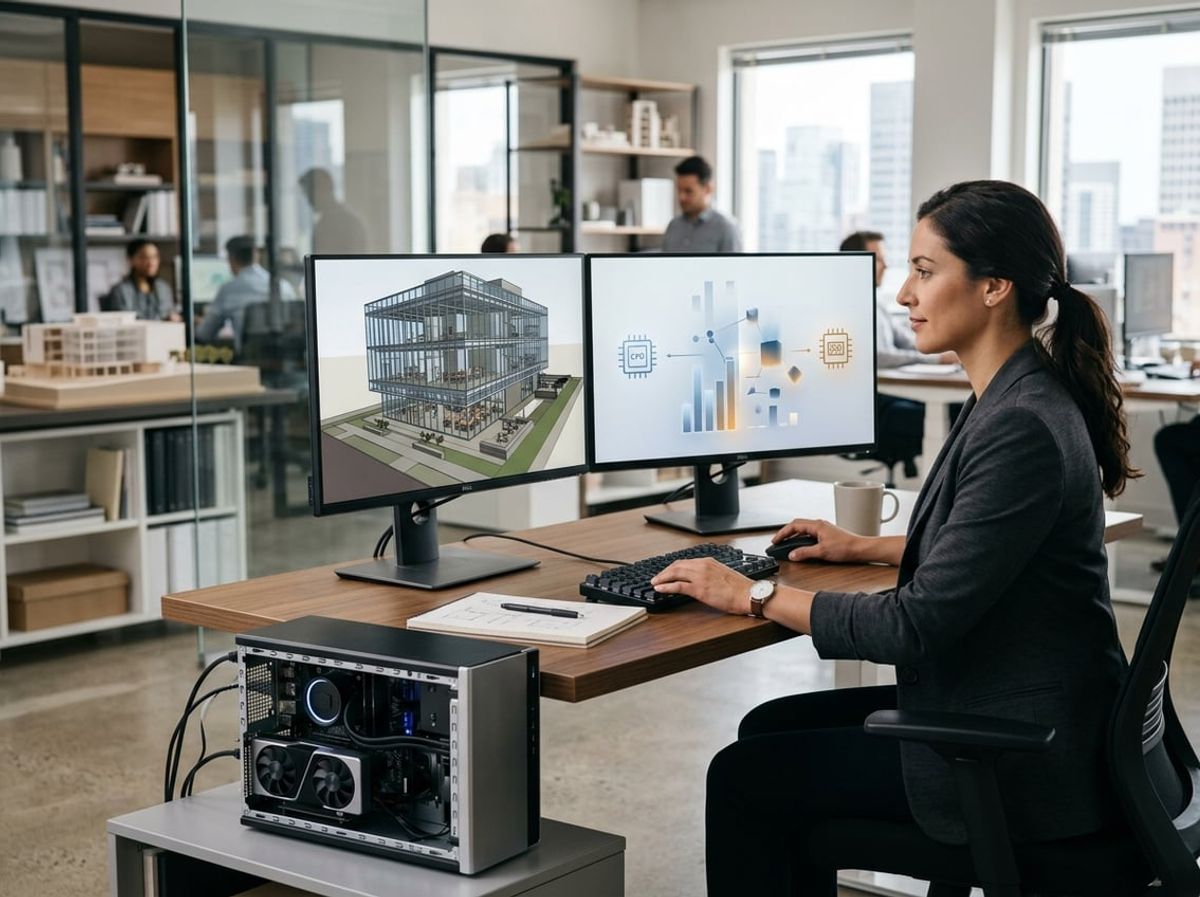
The right CPU and GPU balance depends on what your team does in Revit every day. A firm coordinating large central models needs different hardware than one rendering client presentations in-house or splitting time between BIM and field tools.
Architecture and Structural Teams Running Large Central Models
Your core workflow lives in the Revit viewport. You open central models, sync changes, coordinate linked files from MEP and structural consultants, and navigate 3D views while tracking design intent across disciplines.
CPU priorities define your experience here. Single-threaded clock speed has the biggest effect on how fast Revit processes a sync to central, regenerates views and responds while you model. If your models routinely hit 300 MB or larger with multiple linked files, a processor running 4.5 GHz or higher on a single core will deliver smoother interaction than a chip with more cores but lower clock speeds.
Newer Revit releases can hand some viewport drawing to the GPU, and how much that helps depends on the card's video memory. Check Autodesk's current documentation for the hardware it expects before you buy.
Most architecture and structural engineering firms working on multi-story commercial or healthcare projects should spec workstations with high-frequency CPUs and at least 8 GB of VRAM, knowing that larger projects will push that requirement higher. Your BIM manager should track model sizes across active projects to confirm hardware matches project scale.
Firms Doing Renderings and Visualization In-House
If your team produces client-facing renderings using Enscape, V-Ray, or Lumion, the GPU moves from supporting role to primary performance driver. These plugins offload rendering calculations to the graphics card, and render times scale directly with GPU capability.
A mid-range NVIDIA RTX card with 8 GB of VRAM handles typical residential and small commercial visualization workloads. Once you move into high-rise residential, corporate interiors, or campus work where scenes include detailed furniture, complex lighting, and large exterior contexts, 12 GB or 16 GB of VRAM becomes necessary to avoid memory bottlenecks that slow render speeds or force the plugin to lower quality settings.
CPU still matters for the modeling work that precedes rendering, but your visualization team's productivity hinges on GPU performance. If you're running both modeling and rendering on the same workstation, balance both: a CPU with strong single-threaded performance for Revit and a GPU with enough VRAM to handle your largest typical scene without falling back to slower render modes.
Firms with dedicated visualization teams sometimes split the workflow, modeling on one machine and rendering on another with a more powerful GPU. That approach works when project schedules allow handoff time, but most small to mid-size practices need machines that handle both roles without switching hardware.
Design-Build Teams Mixing Revit With Field-Facing Tools
Your workflow splits time between Revit for design and coordination, field management software, and document review in Bluebeam. The CPU and GPU demands shift depending on which task dominates your day.
Design work in Revit follows the same CPU-first logic as other firms: clock speed drives sync performance and viewport responsiveness. Field coordination reviewing RFIs, managing submittals, and annotating drawings in Bluebeam is CPU-bound but far less demanding than Revit modeling.
If your team also imports point cloud data from site scans into Revit, the GPU workload increases. Point cloud visualization benefits from graphics hardware, and large scan files can push VRAM requirements higher. An 8 GB GPU covers typical scan sizes, but dense scans of complex existing conditions may justify 12 GB.
The practical balance for most design-build firms is a CPU optimized for Revit's modeling demands paired with a mid-range GPU with 8 GB of VRAM that handles occasional point cloud work without becoming a bottleneck. Your BIM manager should confirm that field data workflows don't regularly exceed VRAM capacity on current hardware.
Building or Upgrading a Workstation Around This Balance
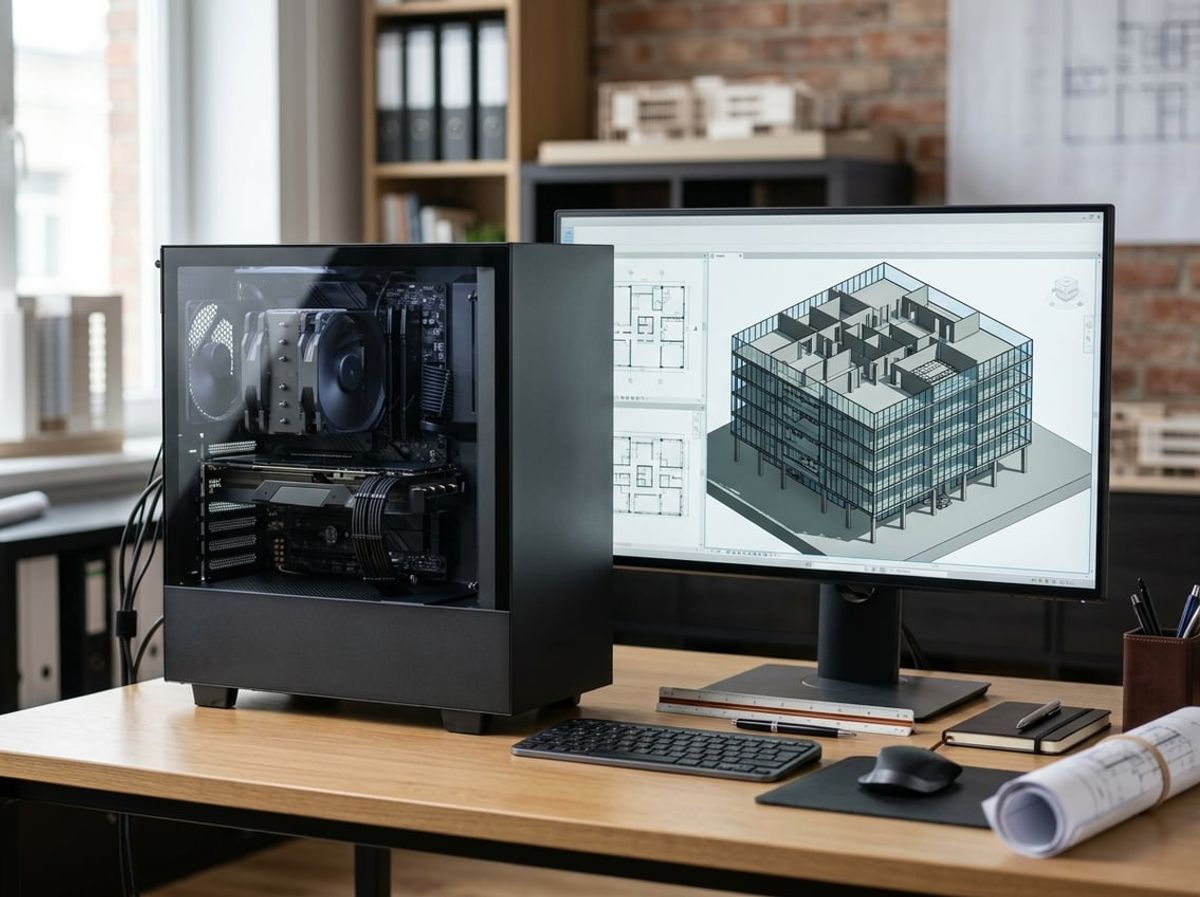
Many firms either overspend on a high-end GPU they rarely use or pair a fast CPU with inadequate memory and storage, creating bottlenecks that cancel out the processor's advantages. A well-balanced workstation spec delivers better day-to-day Revit performance than any single expensive component can achieve on its own.
Why Balanced Specs Beat One Powerful Component
Revit's CPU and GPU demands change throughout the day, so no single component runs at full capacity all the time. When you sync a central model or open a heavily workshared file, the CPU carries the load while your GPU idles. When you orbit a 3D view with realistic visual styles enabled, the GPU becomes active but most CPU cores sit unused.
A balanced build ensures that neither component starves the other. A common example: pairing a high-core-count workstation processor with 16 GB of RAM forces Windows to page memory to disk when you have Revit, Bluebeam, Navisworks and Outlook open simultaneously. The CPU waits on storage I/O, and your expensive cores contribute nothing to responsiveness.
Key components to balance:
- CPU: Single-thread speed for modeling, enough cores for background sync and rendering
- RAM: 32 GB minimum for typical projects; 64 GB when working with large linked models and point cloud data
- Storage: NVMe SSD for the OS and active project files; secondary SSD or HDD for archived models
- GPU: Mid-range card with 8 GB of VRAM for Revit viewports and occasional Enscape rendering; 12 GB or more for daily rendering or dense point clouds
Budget allocation for a typical CAD BIM workstation should favor the CPU first, RAM second, then storage and GPU in roughly equal measure.
Common Overspending Mistakes We See in AEC Firms
The most frequent error is specifying a flagship GPU because the team occasionally renders with Enscape or Twinmotion. Real-time rendering plugins benefit from GPU acceleration, but a mid-range card handles typical client walkthroughs without difficulty. The price difference between a mid-tier and top-tier GPU often exceeds the cost of doubling system RAM, which improves every task you perform in Revit.
Another mistake is buying the maximum core count without checking single-thread performance. A 32-core processor sounds impressive, but if its base clock sits below 3.0 GHz, you will experience slower modeling than a 12-core chip with higher per-core speed. Revit modeling, section view generation and schedule updates depend on single-thread speed; extra cores help only during rendering or when running multiple applications.
Undersizing storage is also common. Firms invest in CPU and GPU but install a single 512 GB SSD, forcing users to store active projects on a network drive. Every model open, every sync, every autosave crosses the network, adding latency that no processor can overcome.
Finally, some firms skip the upgrade path entirely by purchasing non-expandable systems. A workstation spec that cannot accept additional RAM or a second SSD becomes obsolete faster than your depreciation schedule.
Getting the Right Workstation Spec for Your Team's Work
Start by cataloging your actual workflows: central model size, number of linked files, frequency of rendering, and whether your team works on point cloud renovations or new construction with lighter geometry. A five-person firm working on residential projects needs different specs than a 40-person office managing hospital central models with structural and MEP links.
For typical architectural work in New York City, mixed-use buildings, tenant fit-outs, residential projects with occasional façade or landmark components, a balanced build looks like this:
If your firm produces frequent renderings for client presentations, allocate more budget to the GPU and choose a card with 12 GB of VRAM or more. If your projects involve large scans or many consultant links, prioritize RAM and storage over GPU upgrades.
ELMIDA helps AEC firms translate these principles into specific workstation specs for their actual project load. We review your central model sizes, linked file counts and rendering frequency to size CPU and GPU correctly for Revit, so you avoid both bottlenecks and waste. You can learn more about how we approach CAD BIM workstations for architecture and engineering teams.
When planning an upgrade path, look for systems that accept RAM expansion to 128 GB and offer multiple M.2 slots for additional NVMe drives. Your project complexity will grow faster than your hardware budget, and an expandable workstation stays useful longer.
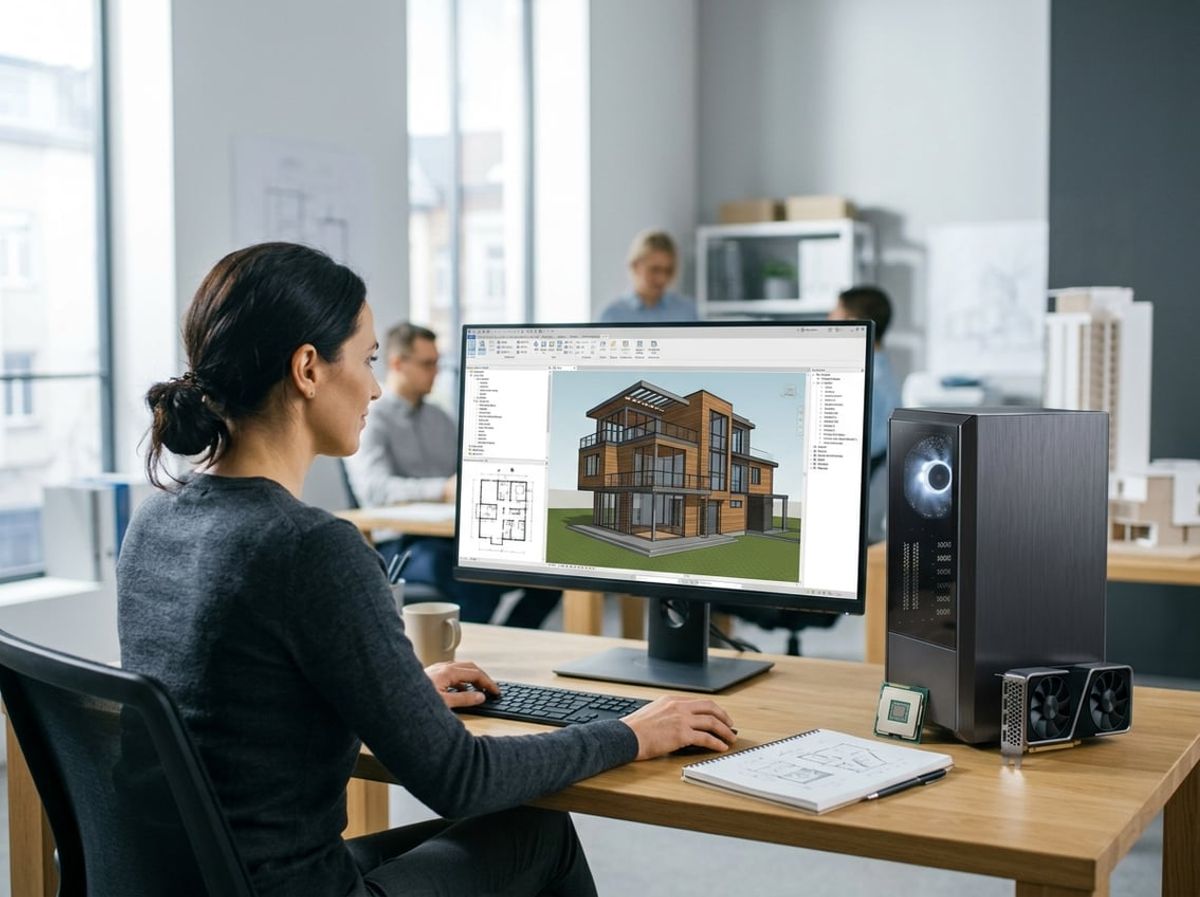
Revit's hardware demands change with the task. Modeling and coordination lean heavily on the CPU, while navigating 3D views and running real-time visualization plugins puts the GPU to work.