
File Server vs SharePoint for Project Files
Compare file server vs sharepoint for Revit, AutoCAD and Bluebeam project files, and see which setup fits your AEC firm's workflow.

When your architectural team is waiting to sync in to the Revit central model for a multifamily project in Queens, or when a structural engineer at the job site needs to pull up the current AutoCAD foundation plan and a Bluebeam markup set from yesterday's coordination meeting, the platform holding those files matters. The file server vs SharePoint question is not about which system is newer or which vendor's pitch sounds better; it comes down to where the file actually lives, how your team opens it, and whether the people who need it are sitting in your office or working from somewhere else. A file server keeps project files on local storage connected by your office network, while SharePoint keeps them in Microsoft's cloud and syncs copies down to each device, and that difference in location explains most of the practical gaps you will notice day to day.
The right answer depends on how your firm works. A ten-person architecture practice in one Manhattan office with everyone on the same LAN running active Revit worksharing will see different performance than a thirty-person engineering firm with offices in Brooklyn and White Plains, or an office that sends half its staff to job sites and home offices several days each week. For an active Revit central model with several people worksharing at once, a file server on the office LAN generally handles the constant small saves better than a SharePoint sync client, which was built for document sharing rather than exclusive-lock worksharing. For firms with multiple offices, remote staff, or people who need to open files from outside the office regularly, SharePoint reduces the need for VPN connections back to a physical server, though large CAD and Revit files still sync slower over the internet than over a LAN.
This article walks through the file server vs SharePoint comparison from the angles that affect AEC project work in and around New York City: how each platform handles Revit central models, AutoCAD drawings, Bluebeam markups and point clouds, what performance looks like on large project files, how permissions and version control work, what remote access and job site connectivity require, cost of ownership over the life of a project, backup and disaster recovery, security differences that matter for AEC firms, hybrid setups that combine both platforms, the migration path in either direction, and how to choose the right setup for your firm's workflow.
Key Takeaways
- A file server keeps project files on local office storage while SharePoint stores them in Microsoft's cloud and syncs copies to each device, and that difference explains most practical performance and access gaps.
- Active Revit worksharing with multiple users generally performs better on a file server over the office LAN than through SharePoint's sync client, while SharePoint simplifies remote access and reduces VPN dependency for multi-office firms.
- Many AEC firms run a hybrid setup, keeping active Revit and CAD work on a file server for speed and using SharePoint for completed archives, office documents and access outside the office.
What "File Server" and "SharePoint" Actually Mean for a Project Team

A file server keeps Revit models, AutoCAD drawings and project documents on physical storage inside your office network, while SharePoint keeps them in Microsoft's cloud and syncs copies down to each device. The distinction matters because where the file actually lives determines how your team saves a Revit central model, how fast an xref loads, and whether someone at home or on a job site can reach the drawings they need.
The File Server Model: Local Storage, Shared Drives and the Office LAN
A file server is a computer in your office that stores project files on local hard drives and shares them over your office network. When someone opens a Revit central model from a shared drive, the file lives on the server's storage, not on the user's workstation. Every sync-to-central writes directly to the server over the LAN.
This architecture suits Revit worksharing because multiple people can lock elements and save changes to the same central file rapidly. The constant small writes that Revit sends during a sync-to-central perform better over a local network than over an internet connection.
When your team works from the office, file access is fast. A Revit user opening a central file, an AutoCAD session resolving xrefs, or a Bluebeam markup loading a reference sheet all happen at LAN speed, typically one gigabit per second or faster on modern switches.
The limitation appears when someone works remotely. To reach the file server from home or a job site, they connect through VPN, which routes their traffic back through your office internet connection. Large files such as point clouds or rendering outputs take longer to open, and a poor VPN connection can interrupt a Revit session.
The SharePoint Model: Cloud Libraries, Sync Clients and Microsoft 365
SharePoint stores files in cloud libraries hosted by Microsoft, accessible through a web browser or the OneDrive sync client that runs on each user's device. When you sync a library, the sync client downloads a copy of each file to your local hard drive and monitors for changes. Any edit you save locally uploads to the cloud, and the sync client pulls updates made by others.
This model removes the need for VPN when working remotely. A project manager reviewing shop drawings at home or an architect opening a consultant's drawing set from a job site connects directly to SharePoint over the internet, authenticating with their Microsoft 365 account rather than tunneling back to a physical server in the office.
The sync client handles ordinary documents well, but it was built for document collaboration rather than the exclusive-lock worksharing that Revit uses. A Revit central model stored in a synced SharePoint library must upload each sync-to-central over your internet connection, which is slower than saving directly to a local file server. Autodesk documentation advises against placing central models in cloud sync folders for this reason.
Bluebeam Studio sessions, large AutoCAD xref sets, and point cloud files also sync more slowly than they would open from a local server, especially when your upload bandwidth is limited.
Why AEC Firms Frame This as a Single Choice When It Is Actually Two Questions
Most principals and operations managers initially approach this as a binary decision: move everything to SharePoint or keep everything on a file server. In practice, you are answering two separate questions.
The first question is where to keep active project files that change constantly. Revit central models, AutoCAD drawings under daily revision, and Bluebeam markups exchanged during coordination perform better on local storage where LAN speed and direct writes matter.
The second question is where to keep completed project archives, proposal documents, contract sets, and office files that people need to reach from outside the office. These files benefit from cloud access and do not require the rapid read-write cycles that worksharing demands.
Many firms run a hybrid setup without naming it as such. Active projects stay on a NAS or file server in the office, and closed projects move to SharePoint or another cloud platform for long-term access. Office documents, HR files, and consultant correspondence live in SharePoint from the start because they are lightweight and benefit from easy remote access. This approach matches the tool to the workload rather than forcing every file type into a single platform.
How Each Platform Handles Revit Central Models and Worksharing

A file server keeps the central model on local storage where every team member reads and writes to the same live file, while SharePoint syncs a copy of the model to each user's device through a client that was designed for Word documents and PDFs, not exclusive-lock worksharing. That architectural difference determines whether your team can work efficiently during the day and whether a consultant on their own network can join the model without delays.
Central Models on a File Server: Local Locking and the Worksharing Monitor
When you store a Revit central model on a file server, everyone's local copy points directly to a single file on shared storage over the office LAN. Each time you synchronize with central, Revit writes your changes to that file and reads back changes from the rest of the team. The server uses a local lock file to track which worksets and elements are borrowed, so the Revit Worksharing Monitor can show you in real time who owns what.
Because the file lives in one place, every synchronization is a small, fast transaction over a network connection measured in gigabits per second. Your team sees each other's changes within seconds, and borrowing conflicts appear immediately.
A dedicated file server or NAS on your office network also means the storage, the backups and the hardware all sit under your control. You schedule maintenance, you decide when to replace drives, and you know exactly where the project files are.
Central Models on SharePoint: Why Sync Clients Were Never Built for This
SharePoint was designed to share finished documents, not to act as live storage for worksharing. When you place a Revit central model in a SharePoint library, the OneDrive or SharePoint sync client downloads a copy to each user's local cache and uploads changes whenever Revit saves. That round trip happens over the internet rather than a LAN, and the sync client does not understand Revit's lock file or workset borrowing.
The result is slower synchronizations, especially over a home internet connection or VPN. You may also see sync conflicts if two people save at nearly the same time, because the client treats each save as a new version of a binary file rather than a workshared transaction.
Microsoft has never marketed SharePoint as a platform for Revit worksharing, and Autodesk's guidance is to use a file server for central models or to move to Autodesk's own cloud worksharing service if your team works remotely. SharePoint works well for completed project sets, office standards and other documents that do not change constantly throughout the day.
What Happens When a Consultant or Field Team Needs the Same Model
A consultant working on their own network cannot open your Revit central model unless they can reach the server where it lives. With a file server in your office, that means either a VPN tunnel back to your LAN or hosting the model on a platform both firms can access. Some teams copy the model to a shared FTP site or a third-party cloud service for handoff, but that breaks the worksharing link and requires manual coordination.
SharePoint offers easier access for outside users if you grant permissions to the library, but the same sync delays apply. A structural engineer pulling a 2 GB central model over their home internet will wait through a long download before they can open a local copy, and every synchronization will be slower than it would be over a LAN.
For multi-firm collaboration on a live model, Autodesk Forma Design Collaboration and similar cloud worksharing platforms are purpose-built to handle the locking and sync that consultants need. Neither a file server nor SharePoint solves that workflow on its own without added layers of VPN, manual file transfers or third-party tools.
AutoCAD Drawings, Bluebeam Markups and Point Clouds: Where Each Platform Struggles

CAD files and collaborative markup workflows introduce friction that office documents never cause. AutoCAD drawings depend on live references between files, Bluebeam Studio sessions operate as a separate collaboration layer above the file system, and point clouds routinely exceed the size either platform was built to handle comfortably.
AutoCAD Xrefs and Shared Drawing Sets
AutoCAD external references rely on consistent file paths between the drawing and every xref it calls. When your team works from a file server, the drawing stores a path such as \\server\projects\2024-123\base.dwg, and everyone opening that file sees the same UNC path because they all connect to the same physical location on the network.
SharePoint breaks this consistency. The sync client downloads files to a local folder on each machine, and that folder path differs by user and device. A drawing saved with xrefs on your desktop syncs to SharePoint, then downloads to a colleague's laptop under a different local path, and AutoCAD reports the xrefs as missing.
You can rebuild paths using relative references or store the full drawing set in a single folder that syncs as a unit. Both workarounds add steps and rely on every team member keeping their sync folder in the same state. When someone pauses sync or selectively syncs only part of the project, xrefs break again.
A shared drawing set exchanged with a consultant runs into the same issue. Your structural engineer receives the architectural backgrounds through SharePoint, but their sync path differs from yours, and the xrefs require manual patching before they open correctly.
Bluebeam Markup Sessions and Shared PDF Sets
Bluebeam Studio and Studio Sessions let multiple people mark up the same PDF set in real time without emailing versions back and forth. A Studio Session is not a file stored in your usual project folder; it is a live collaboration space hosted on Bluebeam's servers, separate from both your file server and SharePoint.
This separation means your choice of file server versus SharePoint does not directly affect how Studio Sessions work. You store the underlying PDF in SharePoint or on the server, then upload it into a Studio Session for markup. When the session closes, you download the marked PDF and save it back to your project folder.
The friction appears when your team expects SharePoint to replace Studio entirely. SharePoint can store PDFs and track versions, but it cannot host the simultaneous live markup that Studio provides. If your firm cancels Studio subscriptions to save cost and assumes SharePoint version history will cover markup collaboration, you lose the real-time layer and fall back to emailing markup rounds or using shared PDFs that only one person can edit at a time.
Bluebeam Cloud is a separate offering that stores PDFs in Bluebeam's own cloud. It competes with SharePoint for storage rather than complementing Studio's live markup, and introduces a third location for project files alongside your server or SharePoint library.
Point Clouds, Renderings and Other Oversized Files
Point cloud files from laser scans regularly reach tens of gigabytes. High-resolution renderings and large consultant model exchanges fall into the same category. Neither a file server nor SharePoint handles these files the way they handle typical office documents.
A file server connected by gigabit Ethernet moves a 20 GB point cloud in a few minutes if the network is quiet. Opening the file directly over the network is slower than copying it to the local workstation first, but the transfer itself is straightforward.
SharePoint was built for documents that change incrementally, not massive binary files that replace entirely with each version. When you save a 20 GB point cloud to a SharePoint library, the sync client uploads the full file to Microsoft's datacenter, then queues that same file to sync down to every other team member who has that library synced. The upload alone can take hours on a typical office internet connection, and simultaneous downloads to multiple machines saturate your bandwidth and stall other work.
Many firms work around this by keeping point clouds and large rendering archives on a local NAS or file server even when the rest of the project moves to SharePoint. You reference the point cloud from your Revit or CAD file using a UNC path to the server, and only the team members actively working with the scan need local access. Consultants receive a link to download the file once from a large file transfer service rather than syncing it through SharePoint.
File Server vs SharePoint: Performance on Large Project Files
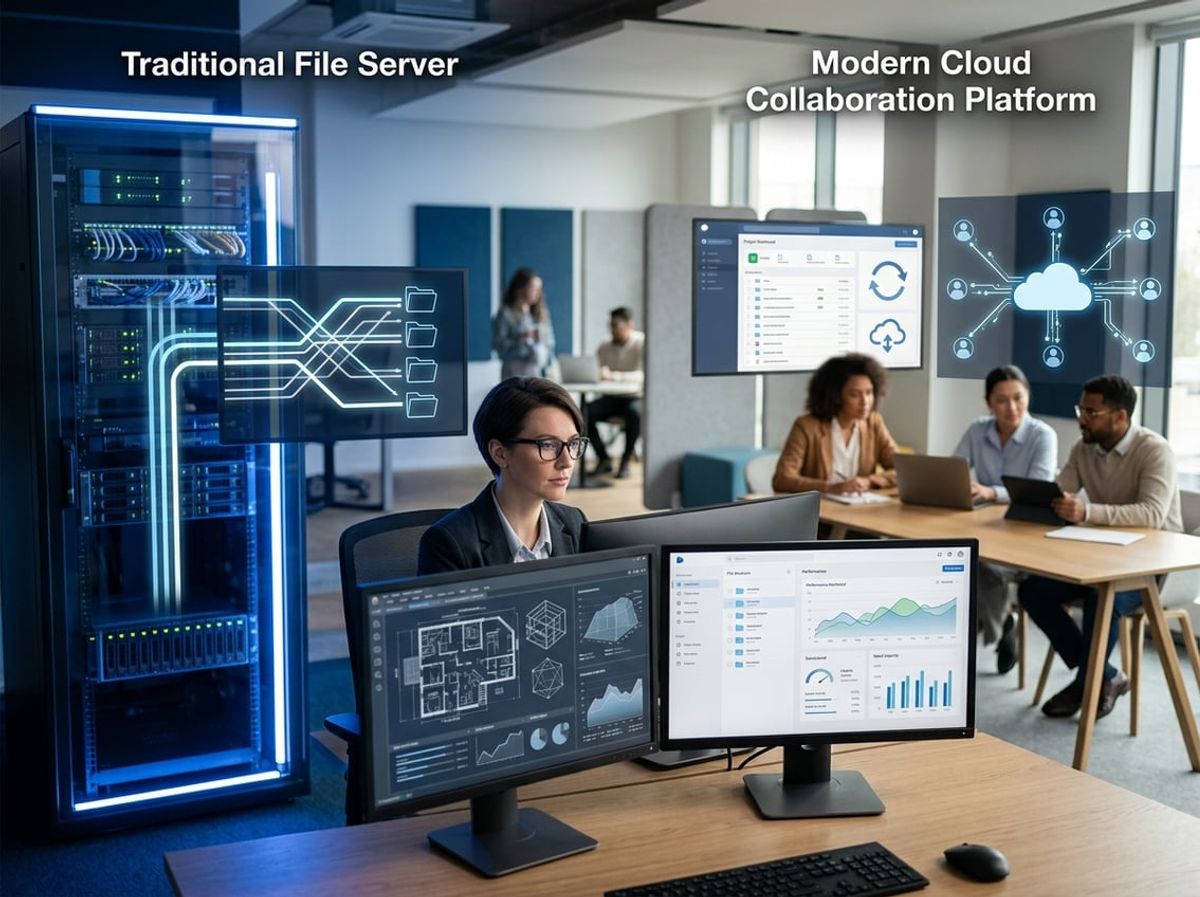
File servers deliver project data over a local network at speeds that match the office switch infrastructure, while SharePoint syncs file changes through the internet and caches them locally, creating measurable differences when teams work with multi-gigabyte Revit models, large AutoCAD xref assemblies, or point cloud datasets.
Local Network Speed Compared to Cloud Sync Speed
A file server connected to a gigabit office network can deliver read speeds around 100 to 125 MB/s in typical conditions. That means opening a 500 MB Revit central model takes roughly four to five seconds over the LAN. SharePoint requires the OneDrive sync client to pull that same file down through your internet connection first, and most New York City office broadband plans provide download speeds between 100 and 500 Mbps (12 to 62 MB/s). The same 500 MB model can take anywhere from eight seconds to over forty seconds to sync before you can open it.
The gap widens when several people work in the same Revit worksharing session. Each save-to-central sends a small transaction back to the file. A file server handles those frequent writes at LAN speed with low latency. SharePoint's sync engine batches changes and uploads them through the internet, adding delay that can disrupt the save cycle or cause sync conflicts when multiple team members save at nearly the same time.
What Slows Down a SharePoint Library as Project Files Grow
SharePoint libraries begin to lag when a single library exceeds 30,000 items or when individual files approach the maximum supported sync size. The OneDrive sync client must track every file in a synced library, and large libraries with deep folder trees slow down the indexing process that watches for changes. Revit central models stored in SharePoint can encounter sync conflicts if two users attempt a save-to-central within the same sync window, because the platform was designed for document versioning rather than exclusive-lock worksharing.
Large point clouds, rendering output folders, and archived consultant sets add to the item count quickly. A single photo folder from a construction camera can contain thousands of images, and the sync client indexes every one. Bluebeam Studio sessions stored in SharePoint work more reliably when the Studio Session files remain small, but marking up a 200-page specification set can produce session files that trigger long sync waits.
Web upload through a browser bypasses some sync-client bottlenecks, but it does not solve the underlying issue: SharePoint keeps the authoritative copy in the cloud and pushes changes to devices, so every large-file operation crosses the internet twice.
What Slows Down a File Server as a Firm Grows
A file server loses speed when too many users access it simultaneously or when the storage backend cannot keep up with the workload. A server with spinning hard drives rather than solid-state storage will bottleneck around 150 to 200 MB/s aggregate throughput, and that capacity is shared across every open file and every active save. When three Revit teams and two AutoCAD users all work during the same afternoon, read and write operations queue up.
Network infrastructure matters as well. Older offices still running 100 Mbps switches cap file transfer speed at roughly 12 MB/s per connection, making even a fast server feel slow. A misconfigured or underpowered switch can create packet loss that disrupts Revit worksharing and causes the "central model unreachable" warnings that lose work.
Firms that maintain both platforms often keep active Revit central models on a local file server or NAS and move completed project archives to SharePoint once worksharing ends.
File Server vs SharePoint: Permissions, Version Control and Audit Trail

File servers rely on NTFS permissions managed through Windows, while SharePoint adds web-based permission groups and sharing links on top of its own inheritance model. Version history works differently on each platform, with SharePoint tracking changes automatically and file servers requiring manual versioning or third-party tools.
Folder Permissions on a File Server: Simple but Manual
NTFS permissions on a file server let you control who can read, write or modify folders holding Revit models, AutoCAD drawings and consultant sets. You assign permissions to Active Directory groups or individual users, and those permissions flow down through subfolders unless you break inheritance.
The model is straightforward for a project team working in the office. You create a project folder, grant the design team full control, give consultants read access to a shared deliverables subfolder, and deny access to everyone else. Changes require an administrator to edit the security tab on each folder.
Problems appear when someone needs access from outside the office. A VPN connection brings a remote laptop onto the office network so NTFS permissions apply, but the VPN adds latency and requires the user to connect before opening files. Sharing a drawing set with an external consultant means either granting them VPN access or copying files to email or a file transfer service, since NTFS permissions do not extend beyond your network perimeter.
Audit trails on a file server require enabling Windows file auditing, which logs access events to the Event Viewer. Reviewing who opened or modified a Revit central model means filtering through text logs that are difficult to read without scripting or third-party reporting tools.
SharePoint Permissions, Groups and Sharing Links
SharePoint permissions work through a combination of site-level groups, folder-level inheritance and item-level overrides. You add users to SharePoint groups such as Members, Visitors or Owners, then assign those groups to libraries or folders holding project files.
Sharing links add flexibility that NTFS permissions do not provide. You can generate a link to a folder of Bluebeam markups or a rendered image set and send it to a consultant, with options to allow viewing only, allow editing, set an expiration date or require a password. The consultant opens the link in a browser without needing VPN access or an account on your domain.
SharePoint tracks every permission change, file view and download automatically. You can pull a report showing who accessed a specific AutoCAD xref or modified a consultant coordination folder without parsing system logs.
The added flexibility brings complexity. SharePoint permissions can be set at the site level, inherited by a document library, broken at a folder and overridden on individual files. A project manager trying to figure out why someone cannot open a Revit family file may need to check four permission layers, while the same question on a file server usually traces to one NTFS entry.
Version History: What Each Platform Actually Keeps
SharePoint saves a new version every time someone uploads a file or edits it through the web or sync client. You can view previous versions of a Revit family, restore an earlier AutoCAD drawing or compare changes to a spec document without relying on manual file naming. Major and minor version labels help separate draft changes from published releases.
Version limits are configurable per library. Setting a library to keep 50 major versions means SharePoint will delete the fifty-first oldest version when a new one is saved, which matters for long-running projects with frequent saves. Storage for versions counts against your SharePoint quota.
A file server does not version files automatically. Users must save copies with different names, use shadow copies if enabled on the server or rely on backup snapshots to recover earlier versions. Shadow copies create point-in-time snapshots of the entire volume at scheduled intervals, typically once or twice per day, and keep them for a limited time before recycling the oldest snapshot.
That difference affects daily work. If a Revit user realizes they need to roll back a family file edited two hours ago, SharePoint shows a list of saved versions with timestamps and the person who made each change. On a file server with shadow copies enabled, the user can restore from the most recent snapshot, which may be several hours old and may not include the exact change they need to undo.
Neither platform replaces a real backup. Version history and shadow copies keep files on the same system as the live working copy, so hardware failure, ransomware or accidental deletion can destroy both.
Remote Access and Job Site Connectivity: Which Platform Wins

A file server requires a VPN tunnel to reach files from outside the office network, while SharePoint delivers browser and mobile access through Microsoft's cloud infrastructure. Neither approach solves every connectivity problem on an active job site where internet service may be limited or unavailable.
VPN Access to a File Server From Home or a Job Trailer
When your project files live on a file server in your office, anyone working remotely connects through VPN software that creates an encrypted tunnel back to the office network. The user authenticates, the tunnel opens, and mapped drives appear as though the person were sitting at a desk in the office.
This works well from home or a hotel where broadband is reliable. It becomes problematic on a job trailer where connectivity depends on cellular hotspots or temporary service. VPN adds latency to every file operation, which means opening a large Revit model or a set of consultant drawings over VPN takes longer than it would on the office LAN.
You also need to manage VPN client software, distribute credentials, and troubleshoot connection drops. If the office network goes down or the server loses power, remote access stops until someone fixes the problem onsite. Many smaller AEC firms run into support overhead when multiple users connect from job sites and home offices throughout the week.
SharePoint's Native Advantage for Browser and Mobile Access
SharePoint stores files in Microsoft's data centers and makes them available through any web browser or the OneDrive sync client without requiring VPN. A project manager can open a folder from a phone, tablet, or job site laptop as long as internet access is available.
The OneDrive sync client downloads copies of selected libraries to each device, which lets users open files when offline and sync changes back when connectivity returns. This model works well for PDF submittals, Bluebeam markups, and office documents that change less frequently than active CAD or Revit files.
Browser access does not replace desktop software for design work. You still open Revit and AutoCAD locally, but the files sync from SharePoint rather than sitting on a mapped drive. Large point clouds, rendering outputs, and full consultant sets take time to sync over cellular or slow broadband, and the sync client sometimes struggles with the constant small writes that Revit worksharing generates during an active modeling session.
Where Both Platforms Fall Short on a Live Job Site
Neither platform solves the core problem of limited or unreliable internet at many construction sites. A file server over VPN requires stable connectivity back to the office, and SharePoint requires stable connectivity to Microsoft's cloud. When a job trailer has weak cellular signal or no dedicated line, opening large files becomes slow regardless of where they are stored.
Some field staff work around this by copying files to a local laptop before heading to the site, then syncing or uploading changes when they return to the office or find better connectivity. This introduces version control risk if multiple people edit the same drawing or model during the day.
A dedicated article covers job site internet setup in greater depth, including options for bonded cellular, point-to-point wireless, and temporary fiber drops that improve access to either platform.
Cost of Ownership: File Server vs SharePoint Over the Life of a Project

A file server carries hardware and license costs up front but holds steady for three to five years. SharePoint grows with subscription count and storage. The total cost depends on how many people need access to Revit models, drawing sets and project files across the life of a typical project.
Upfront and Ongoing Costs of a File Server
Hardware cost for a file server typically includes a server chassis, processors, memory, and fast storage capable of handling concurrent Revit worksharing saves and large AutoCAD xref assemblies. A single server suitable for a small to mid-sized AEC firm commonly ranges from $5,000 to $15,000 before storage expansion. Add the cost of drives, RAID controllers and any redundant power supplies.
Licensing cost covers Windows Server and client access licenses (CALs) for each person who reaches the server. Windows Server Standard licensing allows two virtual machines on the host hardware. You also pay for backup software, antivirus and any monitoring or management tools.
Maintenance cost includes replacement drives, firmware updates, patching, monitoring and someone who can restore a Revit central model or recover a corrupted AutoCAD drawing from backup when needed. If you lack internal IT, expect to contract those tasks to a managed service provider or consultant. Factor in power, cooling and replacement after three to five years. A server sitting in the office draws electricity and generates heat every working day.
Recurring Licensing Costs of SharePoint and Microsoft 365
SharePoint appears as part of a Microsoft 365 subscription. Most AEC firms choose Business Standard or Business Premium at roughly $12 to $22 per user per month, depending on feature needs. Multiply that by headcount and twelve months for the annual licensing cost. Add staff or move an intern to full-time and the subscription grows.
Storage above the included 1 TB per user costs extra. If you archive completed Revit models, historical drawing sets, point clouds, renderings and consultant coordination files in SharePoint, storage can climb quickly. Microsoft charges additional fees for storage beyond the base allowance, often in blocks of several hundred gigabytes or by the terabyte.
Migration cost matters during the switch from a file server. Copying gigabytes of Revit families, AutoCAD blocks, Bluebeam Studio session files and project archives into SharePoint takes time and testing. Budget for the person who reviews folder structure, cleans out obsolete files, sets permissions and trains the team on the new workflow.
Hidden Costs That Show Up After the First Year
Remote access explains one common hidden cost. A file server often requires a VPN for staff working from home or visiting a construction site. That VPN subscription, support and troubleshooting add up. SharePoint removes the VPN for document access but pushes the cost into larger Microsoft 365 plans and the time spent managing sync conflicts when a job captain edits a drawing offline.
Training and change management appear after go-live. Your project managers and BIM coordinators need to learn where the Revit central model lives, how to share Bluebeam markups with an external consultant and why the mapped S drive disappeared. That time costs billable hours and slows project work while the team adjusts.
Performance issues can push cost into workarounds. If a Revit model syncs too slowly over SharePoint, you may keep it on a local file server and pay for both platforms. If a large civil drawing set times out during sync, you route it through an FTP site or a separate file-sharing tool. Each workaround adds another subscription, another login and another surface to back up and secure.
Backup, Disaster Recovery and What Cyber Insurers Expect From Each Setup

File servers and SharePoint both need their own backup strategy, and neither platform's built-in features count as a true backup. Insurers increasingly ask specific questions about how project files are protected, how quickly they can be restored, and whether backups themselves are isolated from ransomware.
Backing Up a File Server: What Actually Needs Protecting
A file server backup protects every Revit central model, AutoCAD drawing with linked xrefs, point cloud scan, Bluebeam markup and rendering stored on the system. You need a separate copy of that data written to a different device or location, not just a second volume on the same machine.
Most backup tools designed for Windows Server support image-based snapshots that capture the entire system state alongside file-level copies. This means you can restore individual drawings or recover a full server after hardware failure. For an AEC firm, the backup schedule should account for how often central models change during active design phases. Daily backups leave up to a full day's modeling work at risk if the server fails.
The 3-2-1 rule is covered in a dedicated article, but the short version is three copies of your data, on two different media types, with one copy offsite. For a file server that typically means the live copy on the server, a local backup to a NAS or external storage, and a third copy sent to cloud storage or rotated offsite. Insurers often ask whether your backup storage is air-gapped or immutable so that ransomware cannot encrypt both the live files and the backups at the same time.
What SharePoint's Recycle Bin and Version History Do Not Cover
SharePoint keeps deleted files in the recycle bin for 93 days and holds up to 500 versions of each document by default. These features help a project manager recover an old Bluebeam markup or undo an accidental delete, but they are not a backup.
Version history and the recycle bin live in the same SharePoint environment as the working files. If your tenant is compromised, if a malicious script deletes content across the entire library, or if Microsoft experiences a rare data event, those versions disappear along with the current copies. Recycle bin contents count against your storage quota, and deleting items from the second-stage recycle bin removes them permanently after the retention window.
Microsoft 365 Backup is a separate service that extends protection beyond the recycle bin with longer retention and faster recovery for ransomware scenarios. It is an add-on to your Microsoft 365 subscription and addresses some of the gaps, but it still runs within the same cloud tenant. A true backup for SharePoint means exporting copies of your libraries to a separate platform or service outside the Microsoft 365 environment, where an attack on your tenant cannot reach them.
What Insurers and Auditors Tend to Ask About Either Platform
Cyber insurance applications now routinely include questions about backup frequency, offsite or cloud storage, and whether you test restores. Carriers want evidence that you can recover project files without paying a ransom, and they distinguish between a file copy and a true isolated backup.
Common questions include whether backups are immutable, how often you verify that a restore actually works, and whether your backup storage is segmented from the production environment. For a file server these questions are straightforward because backup is a deliberate additional system. For SharePoint the questions require you to explain what sits outside the Microsoft 365 tenant.
Some policies ask for a recovery time objective and recovery point objective in writing. RTO describes how long your firm can tolerate being unable to access project files, while RPO describes how much work you can afford to lose measured in hours or days. A file server with hourly snapshots and a local NAS meets a tighter RPO than SharePoint libraries backed up once per day to an external service. Check your own policy and renewal questionnaire with your broker to see which specific controls your carrier expects, because requirements vary widely across underwriters.
Security Differences That Matter for AEC Firms

File servers and SharePoint face different security risks because one sits in your office and the other lives in Microsoft's cloud. The gaps that matter most for AEC firms involve how each platform is exposed to the internet, how each handles authentication, and how ransomware spreads when it reaches project files.
Attack Surface of a File Server Exposed to the Internet
A file server behind your office firewall is only reachable from the internet if you open a path to it through VPN, Remote Desktop or port forwarding. Each of those paths becomes an entry point for credential theft, brute-force attacks and ransomware delivery. If you leave Remote Desktop Protocol listening on a public IP without multi-factor authentication, automated scans will find it in hours.
Many smaller AEC firms expose a file server so that project teams can reach Revit central models and consultant drawing sets from job sites or home offices. That exposure puts the server on the same internet that attackers scan constantly. SharePoint avoids this specific risk because Microsoft manages the perimeter security and the authentication layer. Your firm does not need to open firewall ports or maintain a VPN gateway to let a remote engineer open Bluebeam markups.
A file server connected only to the office LAN and accessed through a VPN with multi-factor authentication reduces the attack surface substantially. If the server is never directly reachable from the internet, the exposure is limited to compromised user devices or credentials.
Identity, MFA and Conditional Access in SharePoint
SharePoint uses Microsoft's identity platform, which supports multi-factor authentication and conditional access policies that can block sign-ins from unfamiliar locations or unmanaged devices. You can require MFA for every external login, block access from countries your firm does not operate in, and restrict sharing of project files to approved domains.
A file server relies on Active Directory or local accounts and enforces whatever authentication rules you configure on the domain controller or VPN gateway. You can add multi-factor authentication to the VPN, but once a user is connected to the network, the file server itself does not reevaluate whether the session is still safe. SharePoint reevaluates access with each request, which allows you to revoke a session immediately if a device is reported lost or a contractor leaves the project.
For AEC firms that share consultant sets and rendering files with outside architects and engineers, SharePoint's guest-access controls let you grant time-limited access to specific document libraries without creating a full domain account or opening the office network to an outside device.
Why Ransomware Behaves Differently on Each Platform
Ransomware that reaches a user's workstation can encrypt any file the user has write access to, whether those files sit on a file server or are synced down from SharePoint. The difference is what happens next. A file server generally keeps only one live copy of each file, so when ransomware locks a Revit model or an AutoCAD drawing set, the original is gone unless your backup is recent and separated from the server.
SharePoint keeps versioning turned on by default and retains older copies of each file. If ransomware encrypts the synced copy on a user's laptop, the encrypted version uploads to SharePoint as a new version, but the previous clean versions remain in the version history and can be restored. This does not prevent the attack or replace a real backup, but it does create a recovery path if the encryption is caught quickly.
Ransomware can still reach SharePoint through a compromised administrator account or a user who has sync access to large parts of the document library. Conditional access policies and separation of admin roles reduce the chance that one stolen password leads to the encryption of every project file your firm holds.
Hybrid Setups: When Firms Run Both

Many AEC firms keep live Revit and AutoCAD work on a local file server or NAS for speed, then move completed projects to SharePoint for long-term storage and remote access. This hybrid storage model splits the workload based on how files are used rather than forcing everything onto one platform.
Active Projects on a File Server, Archives on SharePoint
Your current projects stay on the file server where Revit central models and AutoCAD drawings with xrefs perform best under constant worksharing traffic. Once construction wraps and the final as-builts are delivered, the entire project folder moves to SharePoint as a read-only archive. Principals and project managers can pull up old drawings or specifications from any location without VPN, and the archived files no longer demand the low-latency performance that active design work requires.
This approach keeps your server storage focused on what actually needs speed. A typical job folder shrinks from daily saves to a clean final set, so archiving older work to SharePoint frees capacity on the file server for new commissions. You also gain offsite redundancy for completed projects without relying entirely on the cloud for work in progress.
The handoff process needs a clear rule. Some firms move projects thirty days after the certificate of occupancy, others wait until all punchlist items close. Define the trigger and document the archive location in your project close-out checklist so everyone knows where to find past work.
Using a NAS as a Middle Ground
A network-attached storage device gives you file-server performance with simpler hardware and often supports cloud sync to SharePoint or another platform in the background. You map the NAS as a drive letter just like a traditional server, so Revit and AutoCAD see it as local storage. Many NAS appliances include automatic replication to a second device in another office or to a cloud bucket, giving you geographic redundancy without forcing every save through a sync client.
For firms with two or three offices around the metro area, a NAS at each location can replicate project folders overnight. Your team works against the local device during the day, then changes sync back after hours. This keeps worksharing fast while reducing dependence on site-to-site VPN bandwidth.
NAS platforms vary widely in performance and feature set. Confirm that the model you choose handles the simultaneous read-write load of a Revit central model with multiple users before you commit, and verify that any cloud sync feature can be scheduled or throttled so it does not compete with design work during business hours.
Where Third-Party Platforms Fit Instead of Either
Some firms skip the file server versus SharePoint decision entirely and adopt a third-party platform built for large AEC files and external collaboration. These tools typically handle point clouds, rendering sequences, and consultant drawing exchanges more smoothly than either a file server or SharePoint alone. If your workflow depends heavily on sharing large sets with structural engineers, MEP consultants, or contractors who work outside your Microsoft 365 tenant, a dedicated platform may simplify permissions and link sharing.
That comparison belongs in a separate discussion. For most firms, the hybrid model of a file server or NAS for active work and SharePoint for archives covers the day-to-day without adding another subscription or training burden.
Migration Path: Moving From a File Server to SharePoint (or Back)

A successful migration turns on whether your project teams can continue working without losing access to files mid-job, and whether links between documents survive the move. Most firms find that running both platforms side by side for a defined window, rather than attempting a single cutover weekend, keeps active work on schedule while new folder structures and permissions settle.
Planning the Move Around Live Projects, Not a Calendar Date
Migration schedules should respect project phases rather than calendar convenience. Moving an active Revit central model or a full set of linked AutoCAD drawings mid-CD creates risk that worksharing stops or external references break.
Identify which projects are in active production and which are closed or on hold. Migrate archived projects first to test the process without affecting daily work. For live work, coordinate the move with natural breaks such as the week after a submission deadline or during a design hold.
If your firm uses Bluebeam Studio sessions for markup review, those sessions are tied to the original file path. Moving the underlying PDF to SharePoint mid-session will break the connection. Plan to close active Studio sessions, migrate the files, then reopen new sessions pointing to the SharePoint location.
Revit central models present the largest challenge. A central model mid-migration cannot be workshared. Most firms keep active central models on the file server until the end of a phase, then move only the archived set to SharePoint. If you must move a live central model, all team members must close their local files, the central is copied to the new location, and everyone creates fresh locals pointing to the new path.
What Breaks During Migration: Shortcuts, Links and Worksharing
File paths change during migration, and anything that depends on an exact UNC path or mapped drive letter will break unless you update it. AutoCAD external references, Revit linked models, Navisworks file paths, and Windows shortcuts all store absolute paths.
Mapped drive letters disappear when files move to SharePoint. SharePoint uses either a sync folder on the local C: drive or a longer UNC path that includes your tenant name. AutoCAD xrefs that pointed to Z:\Projects\2026\Site Plan.dwg will show as missing after migration unless you repath them to the new location.
Revit links stored as relative paths survive better than absolute paths, but only if the folder structure remains identical. If you reorganize folders during the migration, every linked model, linked CAD file, and linked point cloud must be reloaded manually in each host file.
Bluebeam markups saved as embedded annotations within a PDF will move with the file. Markups stored as separate FDF files or linked as overlays require the same folder structure or the link breaks. Studio Projects and Sessions are entirely path-dependent; the session file references a specific network location and cannot follow a file that moves mid-session.
Hyperlinks in Word, Excel, and PDF documents that pointed to file server UNC paths will not automatically redirect to SharePoint. You will need to update those links manually or accept that they will return a file-not-found error. Desktop shortcuts and taskbar pins that pointed to folders on the file server must be recreated pointing to the OneDrive sync folder.
Running Both Platforms in Parallel During a Transition
A parallel run keeps the file server available in read-only mode while teams begin working from SharePoint, giving you time to catch broken links and repaths without halting production. Most firms allow two to four weeks of parallel operation before decommissioning the old server.
During parallel operation, designate SharePoint as the live working location and communicate clearly that any new saves must go there. The file server becomes a reference copy only. If someone continues saving to the old location out of habit, you will have duplicate versions that diverge.
Access control during the transition requires discipline. Remove write permissions from the file server folders so that users cannot accidentally save there. Pin the new SharePoint folders to Quick Access in File Explorer and remove the old mapped drives to guide behavior.
For Revit worksharing, parallel operation does not work. A central model cannot live in two places at once. The central remains on the file server until you are ready to move it, then moves in a single event with all locals closed. There is no gradual transition for an active central model.
Consultant coordination adds complexity. If an external structural or MEP team needs access to your linked architectural model, and you move that model to SharePoint mid-project, they lose access unless you either share the SharePoint folder externally or continue hosting the linked file on the old server. Most firms keep consultant-facing files on the file server through project completion to avoid mid-job access issues.
Monitor the parallel run for a full billing cycle. If timesheets, transmittals, or monthly reports still reference file server paths after two weeks, you know the transition has not fully taken. Extend the parallel window or increase communication rather than cutting access prematurely.
Choosing Between File Server and SharePoint for Your Firm's Workflow

The right platform for your firm depends on how many people work in how many locations on what types of projects. A ten-person firm with one Manhattan office working mostly in Revit needs different file infrastructure than a forty-person firm with staff split between Brooklyn and Albany who exchange PDF sets with consultants daily.
Firm Size, Office Count and Project Type as Decision Factors
Firm size matters because cost structures diverge quickly. A file server requires upfront investment in hardware, backup drives and possibly a small server closet with cooling, but those costs stay relatively flat as your headcount grows from twelve to eighteen people. SharePoint charges per user each month through Microsoft 365 licensing, so adding six staff adds six monthly bills that continue for as long as those seats remain active.
Office count shifts the conversation more sharply. A single-office firm can run everything over a LAN with mapped drives that point to a file server sitting in the back room or a nearby closet. Worksharing in Revit runs fast, AutoCAD xrefs load quickly, and nobody needs VPN credentials to reach project folders. A firm with offices in Manhattan and White Plains faces different conditions: staff in the second location either connect over VPN to reach the file server, which adds latency to every Revit sync and CAD save, or the firm migrates active projects to SharePoint so both offices pull files directly from the cloud without routing through a remote LAN.
Project type introduces workflow fit into the decision. If your work centers on large Revit models with five to ten people worksharing throughout the day, a file server on a gigabit LAN handles the frequent small writes that Revit central models generate more reliably than SharePoint's sync client, which was designed for document libraries rather than exclusive-lock file coordination. If your firm produces smaller AutoCAD drawings, PDF markup sets for Bluebeam Studio sessions, and rendering packages that get shared with clients and consultants, SharePoint's browser-based sharing and version history may improve collaboration more than raw save speed does.
A Simple Decision Framework for Principals and Operations Managers
Start with location. If everyone works in one office five days a week and your projects rely on active Revit central models, a file server often delivers better performance and simpler troubleshooting. If your team is split across offices, works from home regularly, or needs to hand files to outside consultants without setting up a VPN every time, SharePoint reduces friction for remote access.
Layer in project file types. Revit worksharing, large point clouds, and high-resolution renderings all perform better over a local network than through a sync client pulling changes from Microsoft's cloud. Office documents, completed drawing sets, specifications, and PDF submittals stored for record sync to SharePoint without the performance penalty that live CAD work would face.
Consider your IT capacity. A file server requires someone to patch Windows Server, monitor drive health, replace failed disks, configure backup schedules, and troubleshoot permission issues when a new hire cannot reach the right project folder. SharePoint shifts most of that operational load to Microsoft, though someone still needs to manage user accounts, library structure, sharing permissions, and sync conflicts when two people edit the same file offline.
Cost clarity comes from projecting three to five years. Calculate what a file server, backup storage, and replacement hardware will cost over that span, then compare it to the monthly per-user SharePoint licensing multiplied by your expected headcount. Firms that plan to grow from fifteen to thirty people will see SharePoint's recurring costs rise in step with that growth, while a file server sized for thirty users costs roughly the same whether you reach that number in year two or year four.
Questions to Ask Before Committing Either Way
How many people work on a typical Revit model at the same time? If the answer is more than three, and they work from the same office, a file server usually provides smoother worksharing than a cloud sync client.
Do your staff need to open project files from home, job sites, or client offices more than once or twice a month? Occasional remote access can run over VPN to a file server, but if remote work happens daily, SharePoint eliminates the VPN step and the support calls that come with it.
What happens to your projects after construction administration closes? Completed work does not need the same performance as active models, so many firms archive finished projects to SharePoint or another cloud platform even when they keep active work on a file server. That hybrid approach keeps live files fast and archived files accessible without maintaining two physical servers.
Who handles your IT work today, and how comfortable are they with Windows Server administration compared to Microsoft 365 tenant management? Both platforms require ongoing attention, but the skill sets differ. A file server needs someone who understands SMB shares, NTFS permissions, and hardware troubleshooting. SharePoint needs someone who can manage Azure Active Directory groups, OneDrive sync policies, and web-based sharing controls.
What does your backup situation look like right now? Neither platform is a backup on its own. A file server needs a separate backup target, whether that is a NAS running nightly snapshots or a cloud backup service that pulls copies offsite. SharePoint keeps file versions and a recycle bin, but a real backup means a separate copy outside Microsoft 365, which requires a third-party backup tool that most firms do not set up until something goes wrong.
How ELMIDA Approaches Project File Storage for AEC Firms

ELMIDA starts by reviewing how your firm currently stores and accesses project files, then builds a storage plan around the workflows your team actually uses, whether that points toward a file server, SharePoint or a combination of both. Ongoing support covers whichever platform fits your firm, not a single preferred technology.
Assessing a Firm's Current File Server or SharePoint Setup
The IT assessment begins with mapping where your active Revit central models, AutoCAD drawing sets and Bluebeam markups live today. ELMIDA reviews whether staff work primarily from the office or remotely, how often consultants need access to live files, and whether your current storage causes sync conflicts or slow save times during worksharing.
If you already have a file server, the assessment checks its age, backup configuration and whether remote access requires VPN. If you use SharePoint, ELMIDA reviews how large files sync for remote users and whether your team is hitting storage limits with point clouds or rendering archives.
The assessment also identifies which project files need the fastest possible access and which can tolerate slower cloud sync. A Revit central model for a building under construction in Manhattan with four users worksharing simultaneously has different storage needs than completed PDF sheets sent to the Department of Buildings for electronic filing.
Building a Storage Plan Around Revit, AutoCAD and Bluebeam Workflows
ELMIDA designs the storage plan based on how your specific project types generate and use files. For firms with active Revit models that multiple users open throughout the day, a file server on the office LAN typically handles the constant small saves and synchronize-with-central operations better than SharePoint's sync client.
AutoCAD drawings with external references work reliably on either platform as long as relative xref paths are maintained and the full project folder structure syncs to each machine that needs it. Bluebeam Studio sessions require internet access regardless of where the underlying PDF set is stored, so cloud storage does not add a new dependency there.
Typical storage plan configurations:
- Active projects: File server or NAS for Revit central models and current AutoCAD work
- Completed archives: SharePoint for closed-out job files and consultant sets
- Office documents: SharePoint for contracts, specifications and administrative files
- Large renders and point clouds: File server if accessed frequently, cloud archive if rarely opened
If your firm has staff working from home or a second office regularly, the plan may shift more file types to SharePoint to reduce VPN dependency. If everyone works on-site and speed is the priority, the plan may keep everything on local storage with cloud backup only.
Ongoing Support for Whichever Platform a Firm Chooses
ELMIDA supports both file server infrastructure and SharePoint environments after the storage plan is in place. Ongoing work includes monitoring backup jobs, applying Windows Server updates to on-premises hardware, managing SharePoint permissions and storage quotas, and troubleshooting sync issues when a remote user cannot reach a large CAD file.
When a project deadline requires temporary access for an outside structural engineer or MEP consultant, ELMIDA sets up the share or guest link and removes it when the project phase closes. When a new hire needs access to historical drawing sets, ELMIDA provisions the appropriate SharePoint library permissions or network drive mappings.
The support model does not push you toward one platform over the other. If your firm runs a hybrid setup with a file server for active Revit work and SharePoint for archives, ELMIDA maintains both and helps your team understand which files belong where.

File server and SharePoint decisions often surface the same practical questions: whether local hardware still makes sense, how different office setups affect the choice, and what happens when the network goes down.