
Best Laptop for Revit and AutoCAD Work
Find the best laptop for Revit and AutoCAD, with GPU, RAM and storage guidance built around real AEC coordination and site work.
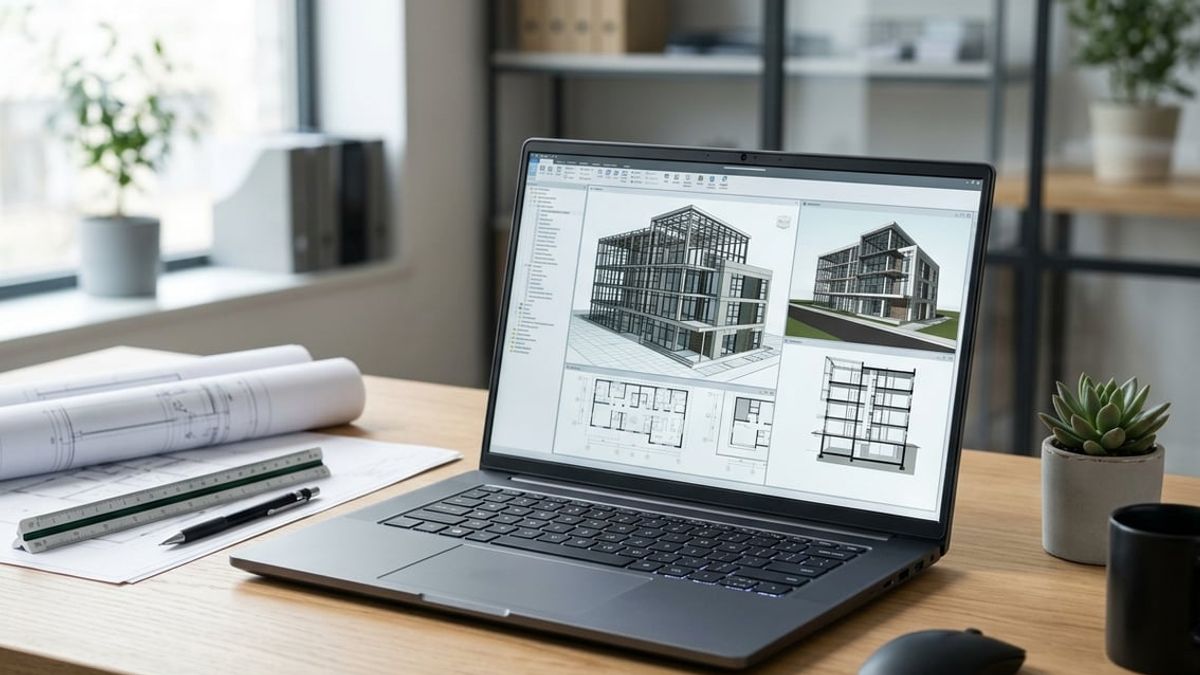
If you're choosing a laptop for staff running Revit and AutoCAD at your firm, you already know the question isn't whether they need something more powerful than a typical office machine. The real decision is whether to spec a true mobile workstation with professional grade components, settle for a gaming laptop that looks capable on paper, or try to make do with a thin consumer ultrabook that fits a smaller budget. A mobile workstation built around a dedicated professional or high end GPU, paired with at least 32GB of RAM and fast NVMe storage in the range of 1TB or more, delivers the sustained performance your team needs through a full workday of active Revit central models, linked consultant files, and coordination sessions, while a consumer laptop or gaming rig that throttles under load costs more in lost time than the price difference.
The best laptop for Revit is not the same machine your finance team uses to run spreadsheets, and it is not the same as a gaming laptop built to hit high frame rates in short bursts. Revit and AutoCAD put sustained load on the processor and graphics card, fill memory with large central models and linked point clouds, and demand a chassis that can cool those components without throttling when someone is three hours into a deadline session. A mobile workstation from a business line such as Dell Precision, Lenovo ThinkPad P Series, or HP ZBook provides that performance along with onsite or next business day warranty service that matters more during deadline week than any spec sheet number.
This guide walks through which components matter most for Revit work, where firms commonly overspend or underspec, and how to match the laptop to the role on your AEC project team. You will see which display sizes and resolutions work best for staff splitting time between the office and job sites around New York City, how to plan docking and monitor setups for hybrid work, and what buying mistakes cost firms later when the laptop can't keep up with the work.
Key Takeaways
- A mobile workstation with a professional GPU, 32GB of RAM, and 1TB NVMe storage outperforms consumer and gaming laptops for sustained Revit and AutoCAD work
- Thermal design and chassis quality prevent throttling during long coordination sessions, making them as important as processor and graphics specs
- Business warranty service from Dell Precision, Lenovo ThinkPad P, or HP ZBook reduces downtime during deadlines more than consumer support plans
Why the Best Laptop for Revit Is Different From a Standard Business Laptop
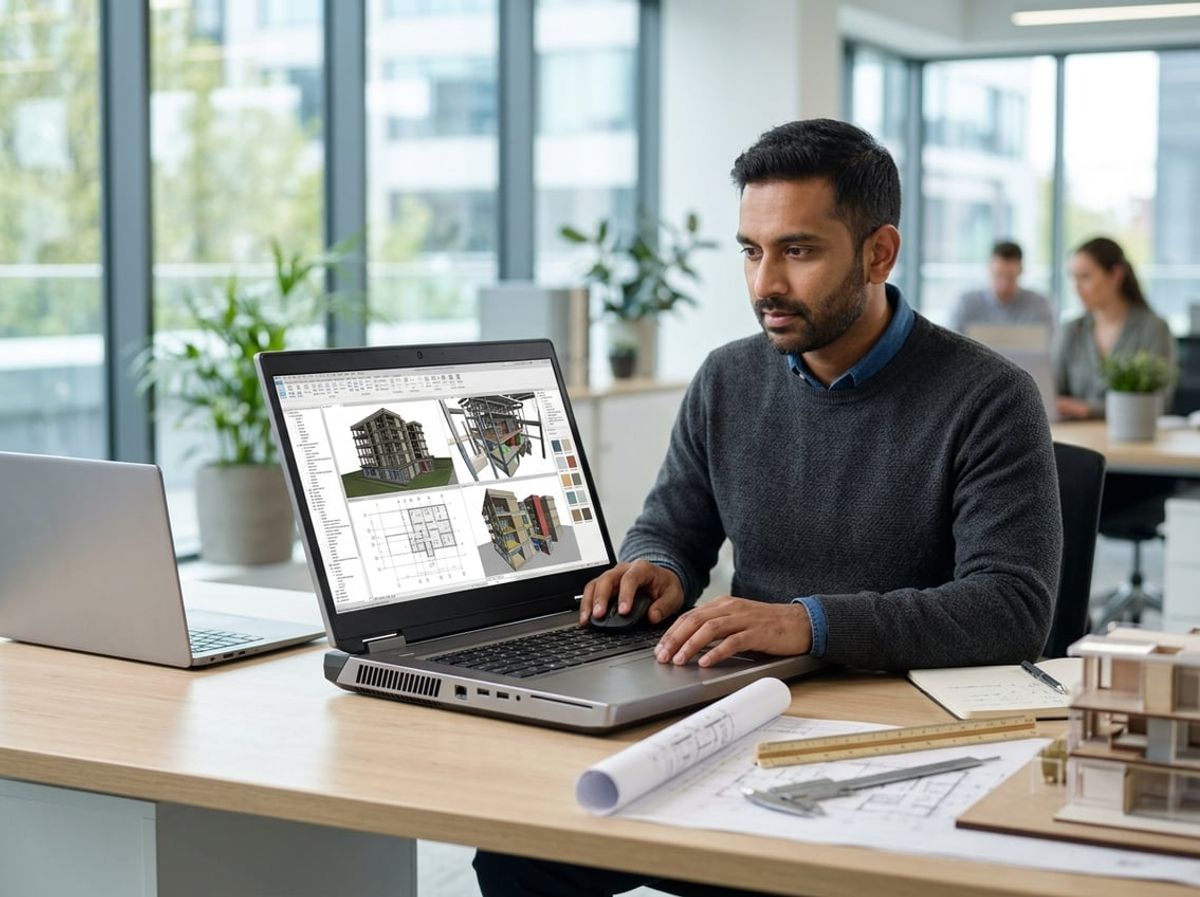
Standard business laptops are built for email, spreadsheets, and video calls, not for navigating a central Revit model with linked consultant files and live point cloud data. The best laptop for Revit requires dedicated graphics, sustained thermal performance under load, and enough memory to keep multiple linked models open without forcing you to close and reopen files during coordination sessions.
How AEC Firms Actually Use Laptops Day to Day
Your staff split their time between the office and field locations. A BIM manager works at the desk with dual monitors in the morning, then carries the same laptop to a job site coordination meeting after lunch. An architect opens a Revit central model at the office, syncs changes, then drives to a client meeting to present design options and make live edits based on feedback.
This workflow requires a laptop that performs consistently whether it is docked or running on battery. A standard business laptop throttles within minutes of opening a large linked model or rotating a 3D view. You notice lag in viewport navigation, slow sync times to the central model, and fans that spin loudly enough to disrupt a client meeting.
Mobile workstations built for Revit include chassis designs that manage heat over hours, not minutes. They use larger fans, better internal airflow, and thicker cases to keep the CPU and GPU running at full speed even when you are working through the afternoon on site. Battery life is shorter than an ultrabook, but you gain the ability to work in Revit without the machine slowing down or overheating.
Where a Laptop Beats a Desktop, and Where It Does Not
A laptop wins when you need to bring your work to a job site or client meeting. You can open the Revit model in the field trailer, make coordination changes with the general contractor, and sync back to the central model without waiting until you return to the office. During a design review at the client's office, you walk through views, adjust materials or room layouts in real time, and show updated renderings on the spot.
A desktop delivers better sustained performance for less money. The same budget buys a faster CPU, a more powerful GPU, and better cooling in a tower than in a portable chassis. For staff who rarely leave the office, a desktop paired with a budget laptop for occasional travel gives you more performance where it matters.
The gap narrows with high-end mobile workstations, but thermal limits still apply. A laptop running Revit and Enscape for an hour will eventually throttle or ramp fan noise to uncomfortable levels. A desktop runs the same workload quietly and at full speed all day.
The Cost of Getting the Laptop Choice Wrong on a Deadline Week
During deadline week, your team works long hours finishing construction documents, coordinating with engineers, and syncing constant changes to the Revit central model. A laptop that throttles under sustained load turns a four-hour task into six hours. Slow sync times to the central model add minutes to every save, multiplied across a dozen team members over several days.
You lose time when a laptop crashes mid-sync or when staff avoid working in 3D views because navigation is too sluggish. A standard business laptop without a dedicated GPU forces your team to work in wireframe mode or hide linked models entirely, slowing down clash detection and coordination.
Worse, consumer laptops often lack next-business-day warranty service. If a machine fails on a Wednesday during a Friday deadline, you wait days for a repair or scramble to redistribute work. Business-class mobile workstations from Dell Precision, Lenovo ThinkPad P Series, or HP ZBook include onsite service that gets a technician to your office the next business day. The warranty premium costs less than the billable hours you lose when a laptop is down for a week.
The Best Laptop for Revit Starts With the Right GPU
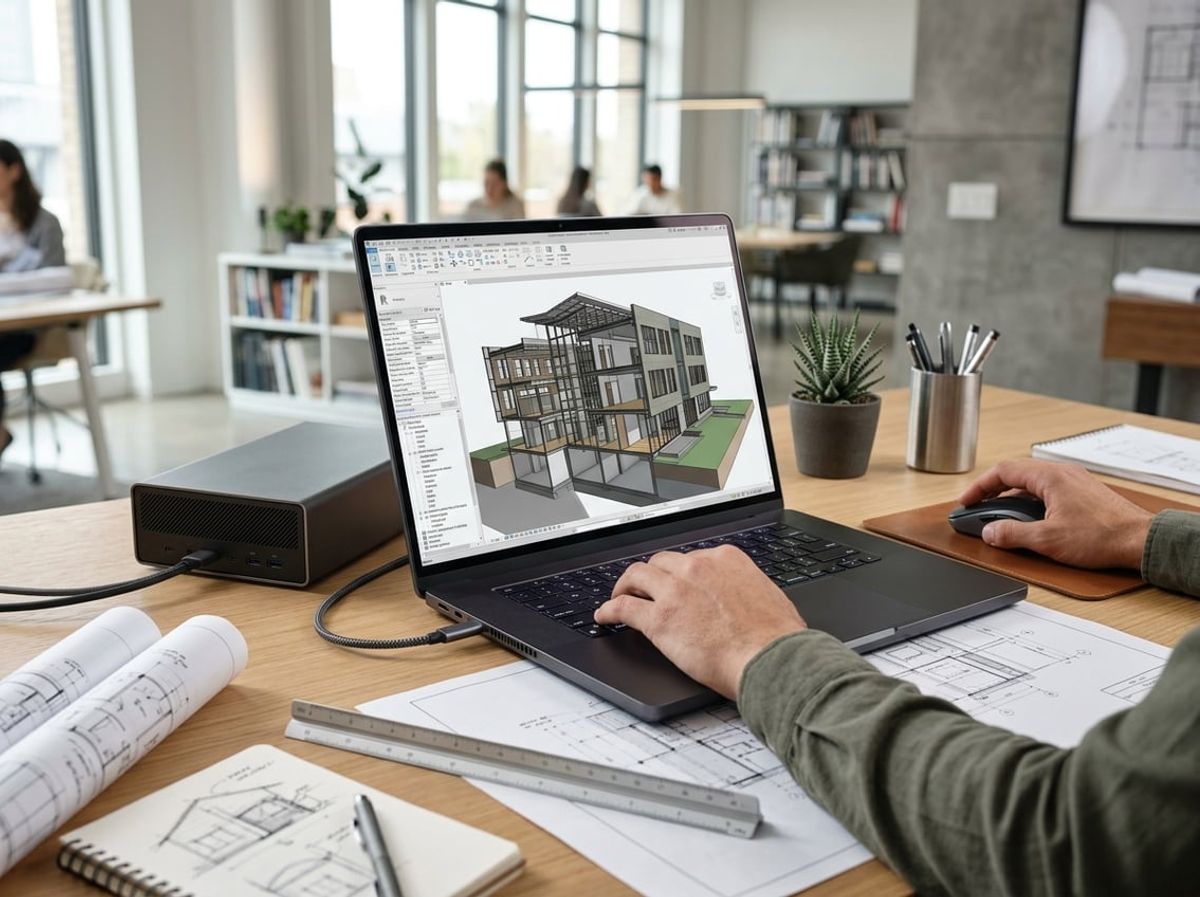
The GPU determines how smoothly your viewport rotates through a federated model and how quickly a rendering completes before you walk into a client meeting. Professional mobile GPUs are built for sustained workloads, while gaming chips chase peak frame rates that matter less during a full day of coordination work.
Professional GPUs vs Gaming GPUs in a Mobile Chassis
NVIDIA RTX A-series and Ada generation professional GPUs carry certified drivers that Autodesk tests against every Revit build. Dell Precision, Lenovo ThinkPad P, and HP ZBook laptops ship with these cards and support contracts that cover driver and software compatibility. Gaming GPUs from the GeForce line deliver similar silicon but lack the same driver stability when a linked consultant model introduces geometry that triggers an edge case.
Professional cards also hold their clock speeds longer under thermal load. A gaming laptop running an RTX 4070 may throttle after twenty minutes of viewport work once the chassis heats up, while an RTX 3000 Ada in a workstation chassis maintains its advertised clock through an afternoon coordination session. Driver updates arrive on a predictable schedule tied to Autodesk releases rather than game launch dates.
The premium for a professional mobile GPU runs noticeably higher than a similarly specced gaming laptop, but that cost buys you a warranty that covers your BIM software stack and next business day service when a project is three days from submission.
How Much GPU Power Revit and AutoCAD Actually Need on the Move
Revit relies on the GPU for viewport navigation, realistic visual styles, and ray traced rendering. A central model with structural and MEP links plus a point cloud overlay will push a substantial amount of video memory during active coordination, so plan on at least 6GB of dedicated VRAM. An RTX 3000 Ada with 8GB or an RTX 4060 with 8GB covers most project types a small to midsize firm encounters.
AutoCAD leans on single thread CPU performance more than GPU power, but a dedicated graphics card still accelerates viewport panning and zooming through a large sheet set. The same RTX 3000 Ada that handles Revit gives you headroom for Bluebeam markups on a second monitor and occasional Enscape or Twinmotion walkthroughs without closing your model.
Rendering workloads benefit from every additional CUDA core you can afford. If your team regularly produces client visualizations on the laptop rather than sending jobs to a render farm or cloud service, step up to an RTX 4070 or RTX 5000 Ada to cut wait times in half.
Integrated Graphics and Why They Fall Short for Design Work
Integrated graphics share system memory with the CPU and lack the dedicated VRAM that Revit fills with model geometry and textures. Intel Iris Xe and AMD Radeon integrated GPUs handle basic AutoCAD drafting and small Revit models under 100MB, but they struggle once you open a coordinated central file with links. Viewport lag appears during pan and orbit, and switching to realistic view or enabling ambient shadows drops your frame rate low enough to disrupt your work.
Thin ultrabooks with integrated graphics make sense for project managers reviewing drawings in Bluebeam or running cost estimates in Excel, not for staff modeling in Revit or coordinating MEP systems. A laptop without a dedicated professional GPU forces your team to work at the desk with an external workstation or tolerate performance that slows down every design decision. Battery life improves with integrated graphics, but that tradeoff costs you the mobility that justifies a laptop purchase in the first place.
If your budget constrains you to integrated graphics, plan on that machine handling markups, specifications, and email rather than modeling or coordination work. The laptop becomes a site documentation and communication device, not a design workstation.
Memory, Storage and Processor Choices That Hold Up on Real Projects
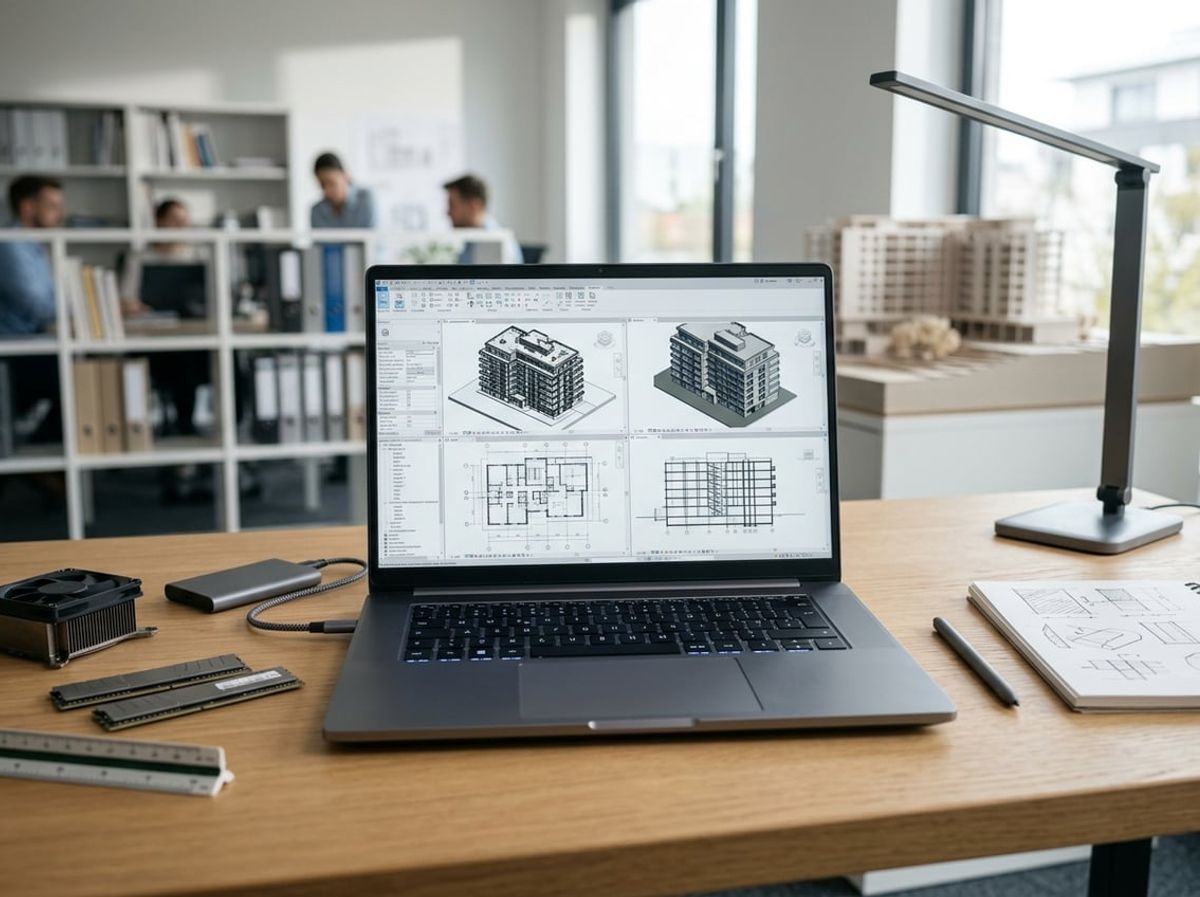
Laptops lock you into many decisions at purchase, especially RAM in models with soldered memory and limited drive bays for storage upgrades. Choosing the right processor tier means balancing single-thread speed for Revit with enough cores to keep the rest of your workflow responsive when you have AutoCAD, Bluebeam, and a coordination viewer open at the same time.
RAM Headroom for Linked Models and Point Clouds
You need 32GB of RAM as a starting point for any laptop that will open Revit central models with linked consultant files, especially when those models include architectural detail, MEP coordination, and structural tie-ins. A typical midsize mixed-use project in active design can push memory use past 20GB once you load the architectural model, structural links, and MEP coordination views together.
Point clouds from laser scans add another layer of demand. A single scan session covering a few floors of existing conditions can add several gigabytes to your active memory footprint, and firms doing renovation or adaptive reuse work regularly keep two or three scans loaded while modeling. If your team routinely works with scanned site data or coordinates large consultant models, plan on 64GB to keep Revit responsive when you switch between views or open additional project files.
Many mobile workstations solder RAM to the motherboard or limit you to two slots, so confirm upgrade paths before you buy. If the laptop ships with 16GB and offers one open slot, you cannot reach 64GB later without replacing both modules. Order the RAM you need at purchase or verify that the configuration leaves room to expand without waste.
Storage Speed and Capacity for Active Project Files
A fast NVMe SSD in the 1TB range or larger keeps your central models, local copies, and reference files accessible without waiting. Revit writes changes to your local file constantly during a session, and a slow drive turns every save into a pause. NVMe drives deliver read and write speeds several times faster than older SATA SSDs, which matters when you sync a large central model at the start of the day or pull updates during a coordination meeting.
Storage fills faster than most people expect. A single active Revit project with a full set of consultant links, backup copies, and exported coordination files can consume a large amount of storage. Add in AutoCAD reference drawings, marked-up PDFs from Bluebeam, and a few months of archived project files, and you approach the limits of a 512GB drive quickly.
Plan on 1TB as the practical minimum for a laptop that will carry multiple active projects, especially if your staff move between the office and job sites without relying on a constant network connection. A 2TB drive adds headroom for firms where staff keep several months of project history on the laptop for reference during site visits or client meetings. Pair local storage with regular backups to your office server or cloud storage, but do not depend on the network alone when you need to open a file in a trailer or at a coordination session offsite.
Processor Tiers Worth Paying For in a Laptop
Revit depends on single-thread performance for most modeling and view generation tasks, so a laptop processor with high turbo boost frequencies matters more than core count alone. Look for CPUs that sustain turbo speeds above 4.5GHz under typical workloads, not just in brief bursts. Mobile workstation processors from Intel's Core Ultra or HX series, or AMD's Ryzen mobile workstation lines, deliver the sustained clock speeds Revit needs without throttling when the laptop heats up during a long session.
Core count still matters when you multitask. A processor with 8 to 12 performance cores keeps Revit responsive while you run AutoCAD, Bluebeam, and a web browser with project management tabs open. More cores help when you export sheets, run interference checks, or batch process PDF sets, but prioritize single-thread speed over total core count if you have to choose.
Thin ultrabook processors and low-power U-series chips do not hold up under sustained Revit work. They throttle quickly when the chassis heats up, which drops your effective performance below what the spec sheet promises. Stick with H-series or HX mobile workstation processors in a chassis designed to cool them, even if it means a slightly thicker laptop. A machine that maintains its clock speeds through a full afternoon of modeling performs better in practice than a lighter laptop with higher peak specs that it cannot sustain.
Display, Chassis and Thermal Design: The Parts Spec Sheets Leave Out
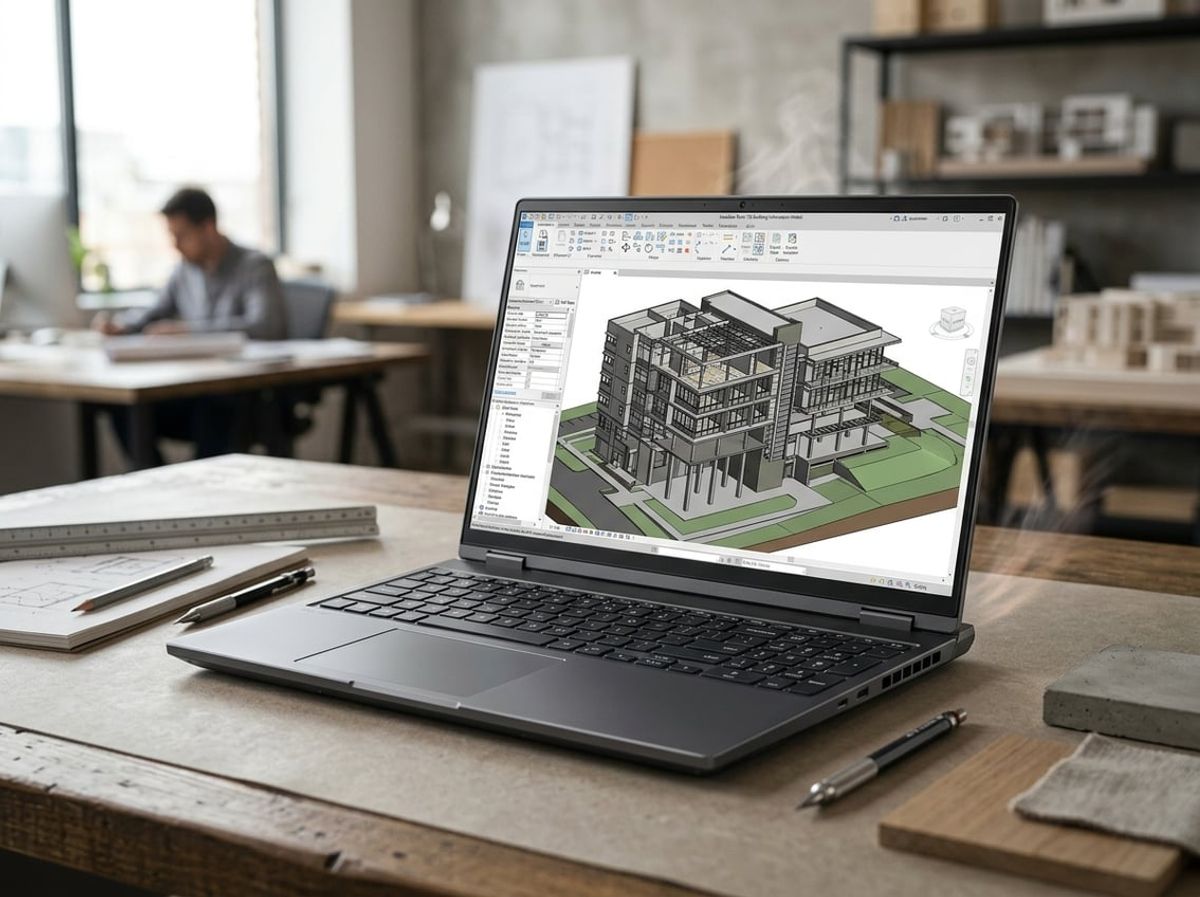
A laptop spec sheet tells you what processor and graphics card are inside, but it does not tell you whether the screen gives you enough room to work comfortably in Revit or whether the cooling system can hold clock speeds steady through a three-hour coordination meeting. These physical attributes determine how the laptop performs in your hands during real project work.
Screen Size and Resolution for Drafting and Markup
A 15 to 17 inch display with a resolution of at least 1920x1200 gives you enough space to keep the Revit Project Browser, Properties palette, and viewport visible at the same time without constant scrolling or window switching. The 16:10 aspect ratio found on many mobile workstations provides extra vertical pixels compared to standard 1920x1080 panels, which matters when the Revit ribbon and Windows taskbar consume the top and bottom of the screen.
Higher resolution displays such as 2560x1600 or 3840x2400 let you fit more detail on screen, but Windows scaling at 150% or 200% is required to keep text readable. That scaling can cause blurry text in older plugins or when connecting to an external monitor with a different pixel density. A matte anti-glare coating is necessary if you review drawings on site or in client conference rooms with overhead lighting.
Brightness of 300 nits is adequate for indoor office work. 400 nits or higher is better if you mark up drawings in Bluebeam during site walks or client meetings near windows. Color accuracy matters less for drafting and coordination work than it does for rendering or presentation tasks, so factory calibration is a nice-to-have rather than a requirement unless your team produces marketing visuals.
Thermal Throttling and Why a Thin Laptop Struggles Under Load
A processor or graphics card listed at a certain clock speed only reaches that speed if the cooling system can remove heat fast enough. Thin laptops marketed for portability often use smaller heat pipes and single fans that cannot sustain full power when you open a large Revit central model with linked consultant files or run a Navisworks clash detection. The system will slow itself down to prevent overheating, a process called thermal throttling.
Mobile workstations from business lines such as Dell Precision, Lenovo ThinkPad P Series, and HP ZBook use larger chassis with dual fans, vapor chambers, and more airflow to maintain performance under sustained load. A laptop that weighs half a pound more and measures a few millimeters thicker will outperform a thinner machine with identical specs on paper when both are pushed for hours at a time.
Fan noise is part of the trade-off. A workstation running a full-power GPU and CPU will be audible during rendering or point cloud processing, though most designs keep noise reasonable during lighter tasks like drafting in AutoCAD. Elevated temperatures on the bottom of the chassis are normal under load, which is why working at a desk with the laptop raised on a stand or docking station improves both cooling and ergonomics.
Build Quality and Keyboard Comfort for Long Design Sessions
A laptop used for production work in an architecture or engineering firm spends years being opened and closed, carried between the office and job sites, and set down on jobsite tables that are not always clean. Business-grade mobile workstations use magnesium alloy or reinforced plastic chassis with hinges rated for tens of thousands of open-close cycles, while consumer laptops use lighter materials that flex under pressure and wear faster.
The keyboard matters more than most spec sheets suggest. A full-size keyboard with a numeric keypad speeds up data entry in Revit schedules and quantity takeoffs. Key travel of at least 1.5mm and tactile feedback reduce fatigue when you type notes or coordinate over email during long project meetings. Backlit keys are useful when working in dimly lit spaces, including some job site trailers.
Spill-resistant keyboards and reinforced ports add durability when laptops are used in environments where dust, water, or accidental bumps are common. ThinkPad P Series and HP ZBook models include these features as standard. A pointing stick or precision touchpad that supports multi-touch gestures improves workflow when you do not have room for an external mouse, such as during site visits or client presentations in tight conference rooms.
Laptop vs Desktop vs Cloud Workstation for Design Teams
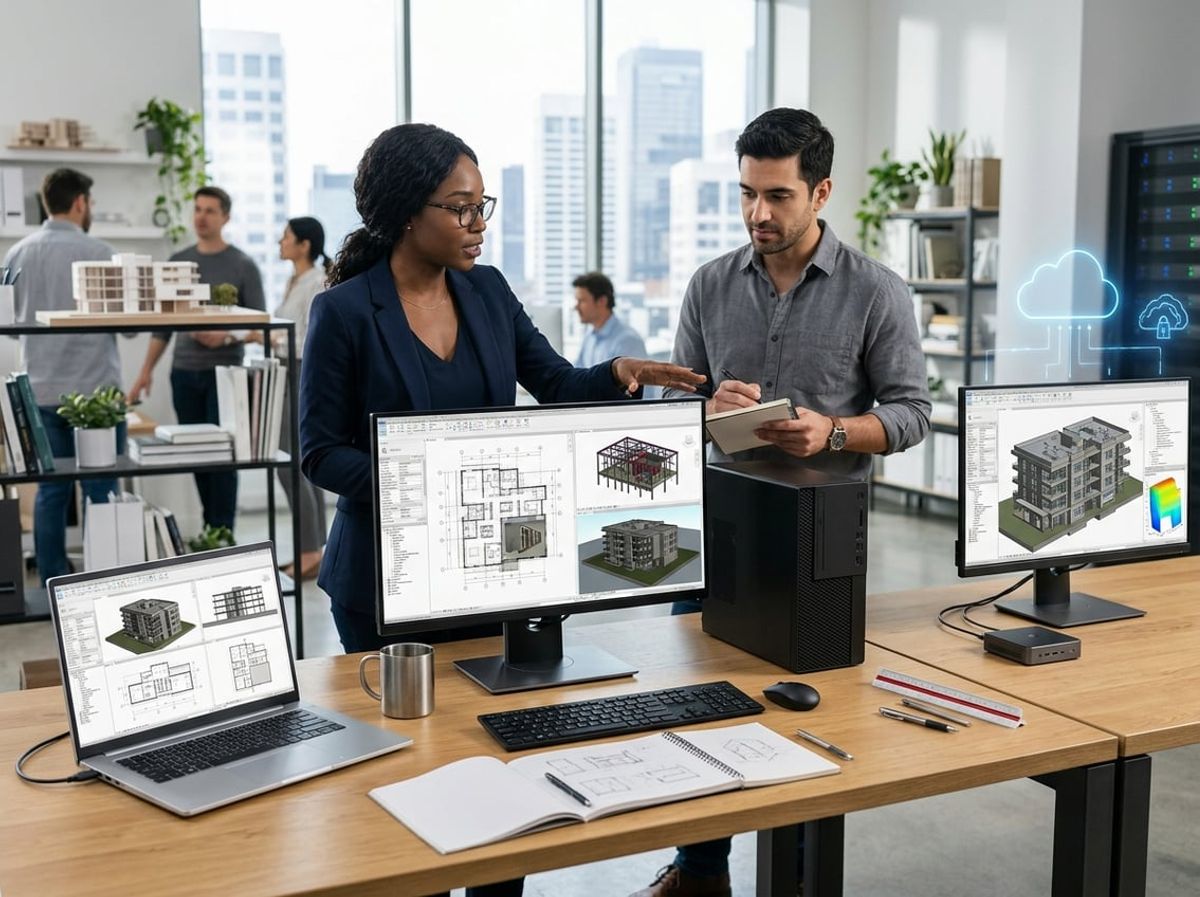
Desktop workstations deliver more sustained performance for less money, but most roles in a small to mid sized firm need the mobility a laptop provides. Cloud workstations offer flexibility for specific workflows and remote staff, though they introduce latency and monthly costs that make them a supplement rather than a replacement for local hardware.
When a Desktop Workstation Still Makes More Sense
A desktop workstation delivers noticeably more performance than a laptop with equivalent specs because it can sustain full CPU and GPU clocks without thermal throttling. If your role keeps you at the same desk all day working in large Revit central models with multiple linked consultant files, a tower workstation paired with dual monitors is still the most cost effective path to performance.
Desktop workstations also make sense when your firm manages model coordination, sheet set generation, or batch rendering that runs for hours at full load. A desktop holds its clock speeds through those sustained workloads without the thermal limits that cause a laptop to slow down after the first 20 minutes.
Upgradeability is another advantage. You can add memory, swap storage, or upgrade the graphics card in a tower without replacing the entire machine. For a firm replacing workstations on a three to five year cycle, that flexibility can extend useful life and defer replacement cost.
The tradeoff is obvious: a desktop ties you to one location. If your work involves site visits, coordination meetings at a consultant's office, or hybrid schedules where you split time between the office and home, a desktop forces you to duplicate files, work on a secondary laptop, or skip the work entirely until you return to your desk.
When a Laptop Is the Right Call for the Role
Most architects, engineers, and project managers in New York City firms need a laptop because their work moves between locations. If you attend client meetings, review drawings on site, or work from home part of the week, a mobile workstation keeps you productive without maintaining two separate machines or relying on remote desktop connections.
A laptop also makes sense when desk space is tight or your firm uses hot desking. Pair the laptop with a docking station, external monitor, and full size keyboard at your primary desk, and you get most of the ergonomic benefits of a desktop setup without losing the ability to unplug and take the machine to a coordination meeting.
Battery life on a workstation class laptop runs two to four hours under real Revit and AutoCAD workloads, not the eight hours advertised for light office tasks. Plan on charging at your desk, in the truck, or on site rather than expecting untethered work through a full day. That limitation is the cost of the dedicated GPU and high performance CPU that make the laptop capable in the first place.
For roles that never leave the office, a laptop costs more and performs slightly worse than an equivalent desktop. But for most staff in a firm of five to 30 people, the flexibility to take your work with you justifies the tradeoff.
Where Cloud and Remote Workstations Fit In
Cloud workstations and remote desktop solutions let you run Revit, AutoCAD, or rendering workloads on a remote machine billed by the hour or month. They make sense for staff working fully remote without access to office hardware, for temporary contractors who need access for a few weeks, or for overflow rendering and batch tasks that you don't want to tie up a local machine.
Latency is the main limitation. Revit and AutoCAD are interactive applications where every mouse movement and view rotation sends data back and forth between your input device and the application. Even a fast internet connection introduces enough delay to make drafting feel sluggish compared to local hardware, especially for detail work or fast navigation through large models.
Cloud workstations also introduce a recurring cost that adds up quickly. A machine powerful enough for Revit work typically costs $100 to $300 per month if kept running full time, or $1 to $3 per hour if billed by usage. For a full time employee, that cost exceeds the amortized price of a physical laptop or desktop workstation within a few months.
The best fit is as a supplement, not a replacement. Use cloud workstations for remote work arrangements that don't justify shipping hardware, for rendering tasks that benefit from GPU power you don't need on premises, or as a temporary solution while a physical machine is being repaired or replaced.
Matching the Laptop to the Role on an AEC Project Team

Different roles within an AEC firm place different demands on hardware. A BIM manager running coordination sessions needs more processing power and memory than a project manager who primarily reviews models and marks up sheets on site.
BIM Managers and Model Owners
You need the most capable mobile workstation your budget allows. Your day involves maintaining central models that can reach several gigabytes with linked structural, MEP, and site files, managing worksharing sessions with multiple team members, and troubleshooting model performance issues that no one else can reproduce.
Minimum specifications for this role:
- GPU: NVIDIA RTX 3000 Ada or higher professional graphics
- RAM: 64GB, with expansion room to 96GB or 128GB
- Storage: 2TB NVMe SSD to accommodate central models, backups, and point cloud data
- Display: 17 inch panel at 1920x1200 or higher for comfort during extended modeling sessions
The ThinkPad P16 Gen 3 and similar 16 to 17 inch mobile workstations provide the thermal headroom and expansion capacity this role requires. You will rarely work untethered for long periods, so prioritize sustained performance and build quality over weight. Business class warranty service with next business day onsite response keeps you working when a component fails during a coordination deadline.
Project Architects and Engineers Working Across Files
Your workflow balances active modeling with coordination review, sheet production, and attending meetings where you present work or mark up consultant drawings. You open large central models but rarely manage them, and you switch between Revit, AutoCAD, and Bluebeam throughout the day.
A 15 to 16 inch mobile workstation with 32GB of RAM and a mid range professional GPU handles this workload without the weight and cost of the largest machines. Look for models in the 4 to 5 pound range that fit comfortably in a backpack when you travel between the office and job sites.
Key priorities for this role:
- Balance between performance and portability
- Fast NVMe storage in the 1TB range for active project files
- Display quality that works well in office lighting and client conference rooms
- Reliable docking solution at your desk to drive dual external monitors
You spend less time in single sustained modeling sessions than a BIM manager, but you need the machine to respond quickly when jumping between applications and large files during coordination calls.
Field Staff and Project Managers Who Need Portability More Than Power
Your primary tasks involve reviewing models in view only mode, marking up construction drawings in Bluebeam, and running lightweight AutoCAD edits on site. You rarely model in Revit for extended periods, but you need to open and navigate large central models during site walks and client meetings.
A lighter mobile workstation in the 14 to 15 inch range with 16GB to 32GB of RAM serves this role well. Prioritize battery life, build quality that withstands job site conditions, and a display bright enough to remain visible in trailers and partially lit spaces. The GPU can step down to entry level professional graphics since you are not performing sustained rendering or complex modeling work.
Ruggedized features such as spill resistant keyboards and reinforced hinges matter more in this role than maximum specifications. Your machine travels daily between the office, truck, and active construction sites where dust, temperature swings, and accidental impacts are common.
Docking, Monitors and the Hybrid Office and Site Setup
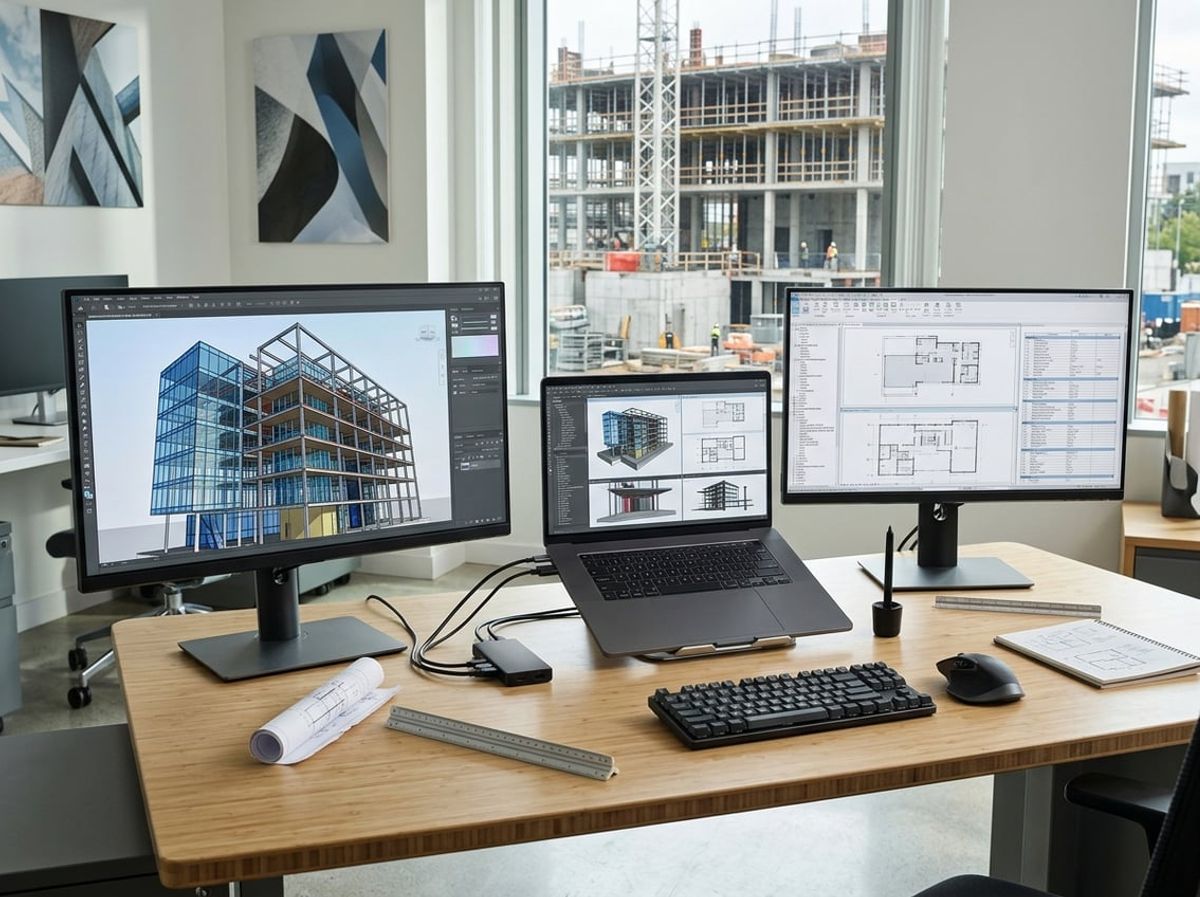
A laptop powerful enough for Revit needs a proper desk setup when staff are in the office, and a practical charging and display solution when working from a job site trailer. Thunderbolt docking stations consolidate power and peripherals into a single cable, high-resolution external monitors give you the screen space Revit coordination demands, and planning for power delivery at the job site keeps your team productive beyond the office.
Docking Stations for a Full Power Desk Setup
Thunderbolt 4 docking stations are the standard for mobile workstations because they deliver video, data, and power through one cable. A quality dock provides 96W or more of power delivery, enough to charge a workstation-class laptop while driving two external monitors and connecting USB peripherals without unplugging anything.
Key features to look for:
- Power delivery of at least 96W to keep the laptop charged during sustained Revit sessions
- Two DisplayPort or HDMI outputs capable of driving 4K monitors at 60Hz
- Gigabit Ethernet for stable file transfer to and from the server during central model synchronization
- Multiple USB-A and USB-C ports for plotters, external drives, and other peripherals
Dell Precision, Lenovo ThinkPad P Series, and HP ZBook laptops pair best with their manufacturer's branded docks because firmware and driver support is tested together. Aftermarket Thunderbolt docks work but sometimes introduce display connection issues or charging delays that waste time during deadline weeks.
Most Thunderbolt 4 docks range from $250 to $400. Cheaper USB-C docks often lack the bandwidth or power delivery a workstation needs and should be avoided for daily desk use.
External Monitor Choices for Revit and AutoCAD
A 27-inch 4K monitor gives you enough resolution to view Revit's properties palette, project browser, and drawing area without constant scrolling. Architects working with large drawing sets or coordinating multiple linked models benefit from a second monitor, letting you keep AutoCAD or Bluebeam open on one screen while Revit fills the other.
Recommended specifications:
Monitors with USB-C inputs that support power delivery can charge your laptop while serving as a display, reducing cable clutter at the desk. Models like the Dell UltraSharp U2720Q and LG UltraFine series are common choices for AEC firms because they balance color accuracy, ergonomic adjustability, and connectivity.
Expect to spend $500 to $700 per monitor for a reliable 27-inch 4K display with ergonomic adjustments. Ultrawide or 32-inch models run $700 to $1,200.
Power and Cable Management for Job Site Trailers
Job site trailers rarely have enough outlets, and power strips daisy-chained across folding tables create trip hazards and unreliable charging. Plan your trailer setup around dedicated power for each workstation and enough length in your charging cables to reach from the laptop to a mounted or secured outlet.
Mobile workstations pull 90W to 130W under load, so avoid plugging more than two laptops into the same power strip. Bring your original power adapter rather than relying on USB-C charging alone, because most job site setups lack the infrastructure for high-wattage USB-C power delivery.
A portable USB-C monitor in the 15 to 17-inch range gives you a second screen in the trailer without needing a full desk monitor setup. These draw power from the laptop's USB-C port and weigh under three pounds, making them practical to move between the office and the site. Models from ASUS and Lenovo designed for business use cost $200 to $350 and hold up better than consumer-grade portable displays.
Velcro cable ties and adhesive cable clips keep power and Ethernet cables organized along trailer walls and under tables, reducing clutter and preventing accidental disconnections during coordination meetings.
Brands, Business Lines and What Separates Them
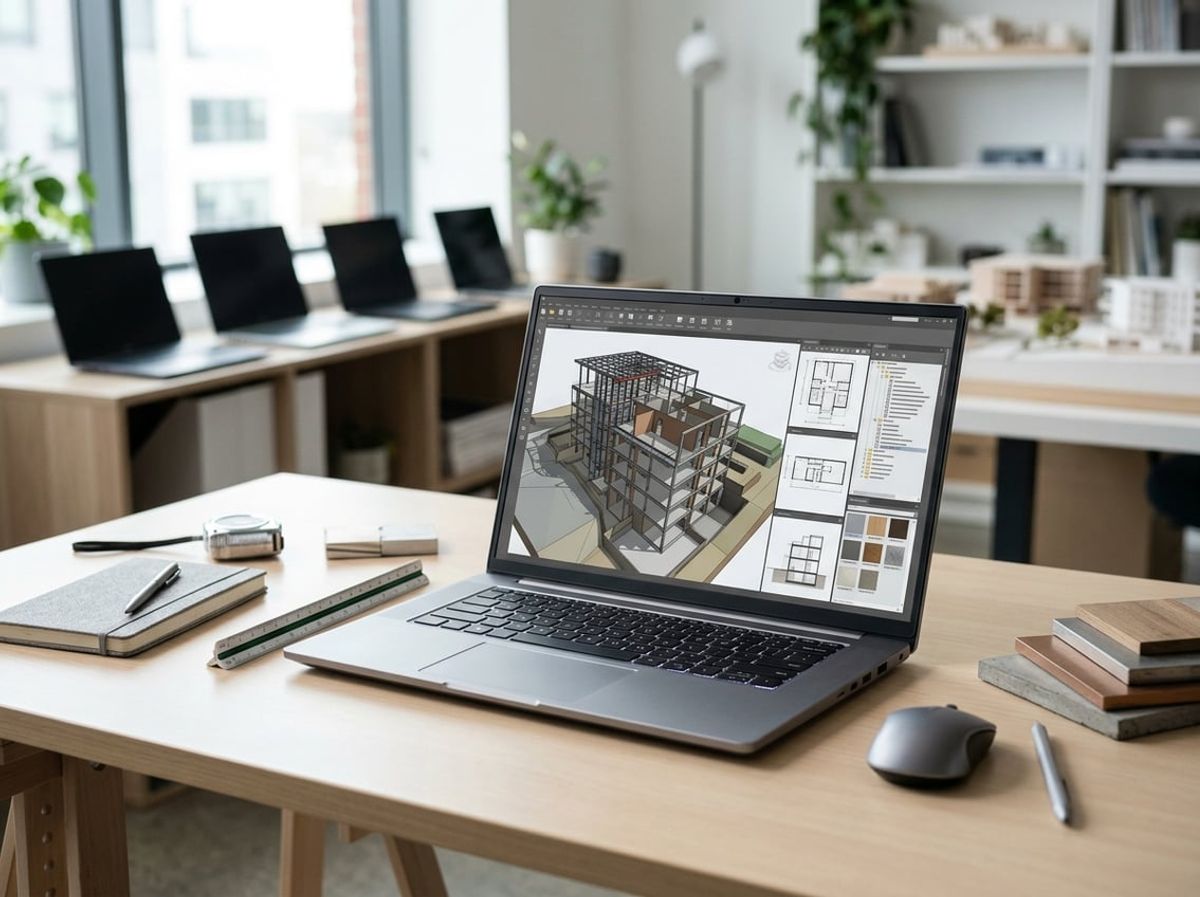
When you're buying laptops for staff running Revit and AutoCAD, the business workstation lines from Dell, Lenovo, and HP deliver warranty terms and thermal design that consumer laptops skip. The difference shows up in how quickly you get a machine back after a hardware failure during a deadline week and whether the laptop holds its clock speed when a coordination model is open all afternoon.
Dell Precision, Lenovo ThinkPad P Series and HP ZBook
Dell Precision, Lenovo ThinkPad P Series, and HP ZBook are the three business workstation lines built for sustained CAD and BIM work. Each uses professional GPUs, chassis designed to dissipate heat during long Revit sessions, and component-level testing that consumer laptops do not receive.
Dell Precision models come in tower, rack-mount, and mobile workstation form factors. The mobile Precision line ranges from 15 to 17 inch models with NVIDIA RTX professional GPUs and Intel Xeon or Core processors. You can configure them with up to 128GB of RAM and multiple NVMe drives, which matters when your team works with large central models and linked consultant files.
Lenovo ThinkPad P Series splits into standard P models and ultra-light P1 or P16s variants. The standard P models carry the thermal capacity and GPU options Revit work requires. The ultra-light variants compromise on cooling and graphics to cut weight, which makes them less suitable for full-time BIM work in the field.
HP ZBook G9 and G10 generations offer similar configurations, with 15 and 17 inch chassis, professional GPUs, and ECC memory options. ZBook models include HP's DreamColor displays on some SKUs, which deliver factory calibration useful for rendering and presentation work but not strictly necessary for day-to-day drafting and modeling.
All three lines support onsite or next business day warranty service, which you purchase at the time of order. They also offer multi-year extended warranties that cover accidental damage, which consumer lines either exclude or charge separately for after purchase.
Consumer Laptops vs Business Workstation Lines
Consumer laptops, including gaming laptops with high-end GPUs, lack the warranty terms, driver certification, and thermal consistency that business workstation lines provide. A gaming laptop with an NVIDIA GeForce RTX GPU may match or exceed the raw specs of a Precision or ThinkPad P, but it uses consumer drivers that Autodesk does not certify for Revit, and it ships with a one-year mail-in warranty instead of onsite service.
Thermal design differs between the two categories. Business workstations prioritize sustained performance under continuous load, while gaming laptops target short bursts of high performance between cooldown periods. When you open a 500MB central model with three linked structural files and a point cloud, the laptop runs flat out for minutes at a time, not in the 10 to 30 second intervals typical of gaming workloads.
Driver stability matters more than most spec sheets suggest. Professional GPUs receive driver releases tested and certified by Autodesk for Revit and AutoCAD, which reduces crashes and display corruption during coordination sessions. Consumer GPUs rely on game-ready drivers that prioritize frame rates in the latest releases, not stability in a BIM application open eight hours straight.
Business workstation lines also deliver longer product lifecycles and part availability. When a firm standardizes on a Precision 5680 or ThinkPad P16, you can order identical configurations for new hires 18 months later and you can get replacement parts three to five years after purchase. Consumer laptop SKUs turn over every six to twelve months, which makes fleet management harder.
Warranty and Onsite Service Terms Worth Checking
Onsite warranty service sends a technician to your office or job site to replace failed components rather than requiring you to ship the laptop back to the manufacturer. For a firm working through construction documents or permit revisions, the difference between a four-hour onsite visit and a five-day mail-in turnaround is whether the deadline gets met or missed.
Dell ProSupport Plus, Lenovo Premier Support, and HP Care Pack all offer onsite service options purchased at the time of order. Standard consumer warranties require you to box the laptop, ship it at your expense, wait for depot repair, and wait again for return shipping. Business warranties include prepaid shipping labels if depot service is faster, but onsite remains the default.
Next business day response is the standard tier for business workstations, meaning a technician arrives the day after you open the ticket if you call before a daily cutoff time. Same-day and four-hour response tiers cost more and make sense for firms where downtime costs exceed the warranty premium, such as during final permit coordination or construction administration on a large project.
Accidental damage protection covers drops, spills, and cracked screens that standard warranties exclude. If your staff take laptops to job sites or client meetings regularly, the accidental damage rider pays for itself the first time someone knocks a machine off a desk or a table at a trailer. You purchase it at order time; adding it later costs more or is not available.
Keep warranty terms and serial numbers in a spreadsheet your operations manager or IT contact can access quickly. When a laptop fails during a critical week, you want to open the ticket and confirm entitlement in minutes, not hunt through purchase orders and email threads to prove you bought the service contract.
Best Laptop for Revit Buying Mistakes That Cost Firms Later
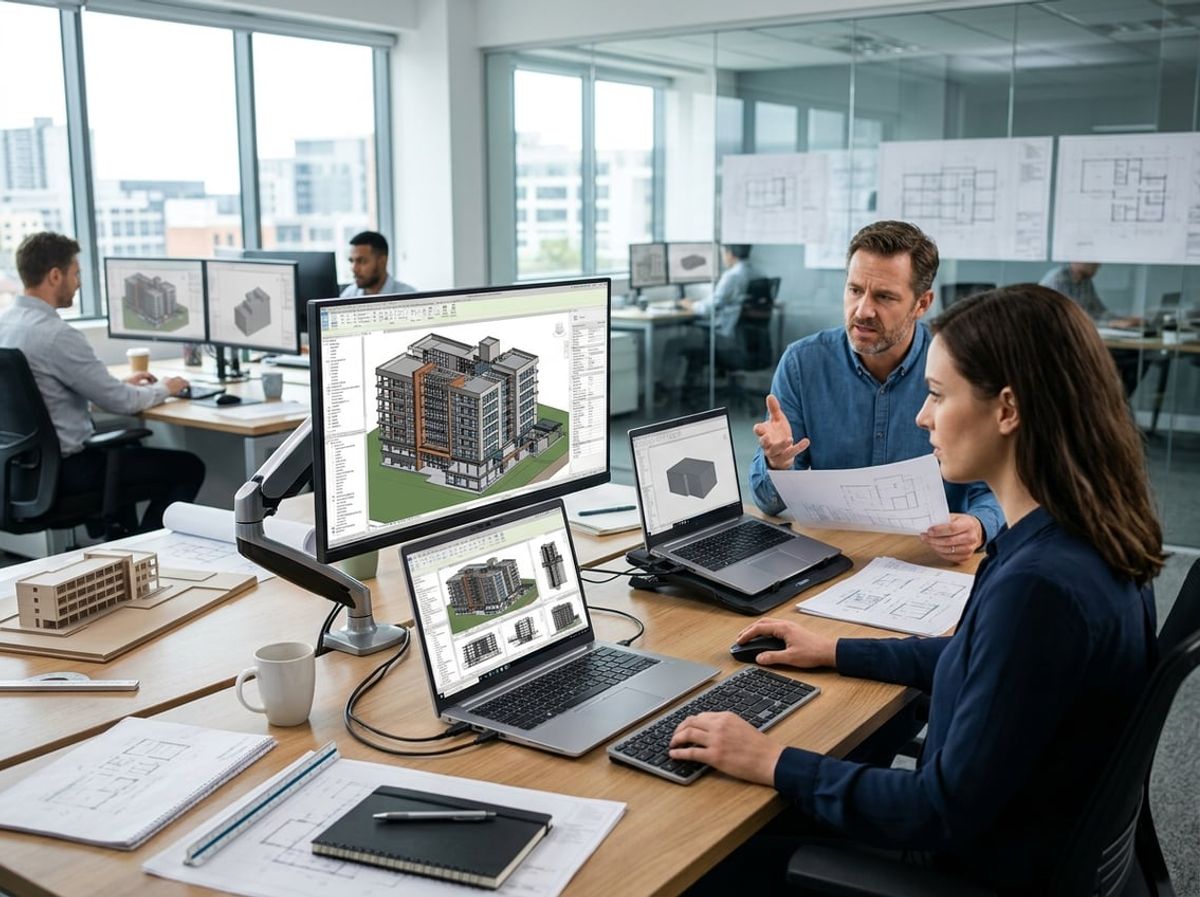
Firms that focus only on initial price or lean too hard on consumer-grade hardware often face slower model coordination, warranty delays during deadline weeks, and higher replacement costs within two years. The buying mistakes below show up most often when firms scale past five seats or start working with larger central models and linked consultant files.
Buying on Price per Gigabyte Instead of Sustained Performance
Price per gigabyte makes sense when comparing storage or memory modules in isolation, but it fails completely when choosing a laptop for Revit that needs to hold clock speeds during a three-hour coordination session. A machine with a high-core-count processor and a large SSD can still throttle under load if the thermal design cannot move heat out of the chassis fast enough.
Firms that choose based on the lowest cost per unit of RAM or storage often end up with laptops that slow down after twenty minutes of heavy use. This happens most visibly when working in a large central model with multiple linked files, point clouds from a site survey, and rendering viewports open in the background. The specs look good on paper, but the machine cannot sustain them under the continuous load that Revit and AutoCAD place on the CPU and GPU throughout a workday.
A mobile workstation with a professional GPU and a chassis designed for sustained performance will cost more per gigabyte than a consumer laptop with the same headline specs. The difference pays for itself the first time your team works through a deadline without watching model performance degrade as the day goes on.
Choosing a Gaming Laptop for Design Work
Gaming laptops share some components with workstations, including high-performance CPUs and dedicated GPUs, but they are optimized for different workloads. Gaming graphics drivers prioritize frame rates in short sessions, while professional drivers are tuned for stability and accuracy in CAD and BIM applications that run for hours at a time.
Gaming laptops also tend to use consumer-grade support channels and shorter warranty periods, which becomes a problem when a machine goes down during a construction document set or a permit filing. The RGB lighting and aggressive styling that appeals to gaming audiences can also read as unprofessional when a project manager pulls the laptop out during a client meeting or a site walk.
Firms that buy gaming laptops to save money often discover compatibility issues with Revit viewports, display driver crashes during larger models, and limited or no onsite repair options. A business-class mobile workstation costs more upfront, but it includes ISV-certified drivers, next-business-day service, and a chassis that fits into a professional context without drawing attention.
Skipping a Warranty or Support Plan to Save Upfront Cost
A warranty that includes onsite or next-business-day service costs between $150 and $400 per machine depending on the term and coverage level. Firms that skip this to reduce the initial purchase price face longer downtime and higher effective costs when a laptop fails during a critical phase of a project.
Consumer warranties typically require the user to ship the machine to a depot, wait for diagnosis, and then wait again for parts and return shipping. That process can take one to three weeks, which means a staff member is without their primary workstation during drawing production, coordination meetings, or site documentation. Replacing the laptop temporarily with a loaner that lacks the same configuration or software licenses creates its own delays and frustration.
Business-class laptops from Dell Precision, Lenovo ThinkPad P Series, and HP ZBook offer onsite service that sends a technician to your office, often the next business day, with the parts needed to complete the repair on the spot. For firms buying three or more laptops, this service level is worth the price difference the first time it prevents a missed deadline or a staff member sitting idle while a machine is in transit.
Budgeting and Planning Laptop Purchases Across the Firm

Laptop purchases for Revit and AutoCAD typically fall into one of three cost brackets that reflect different levels of workload and team role. Planning refresh cycles based on warranty end or project pipelines helps avoid sudden outages during coordination deadlines, while working with a partner that understands AEC workflows can reduce the time spent evaluating specs and chasing downtime.
Cost Tiers for Revit and AutoCAD Capable Laptops
Entry-level mobile workstations with an NVIDIA RTX A1000 or A2000 GPU, an Intel i7 or AMD Ryzen 7 CPU, 32 GB of RAM, and a 1 TB NVMe SSD typically start around $2,200 to $2,800. These machines handle smaller Revit central models, AutoCAD drawing sets, and Bluebeam markups comfortably when your staff work mostly in documentation rather than large federated models.
Mid-tier configurations with an RTX A3000 or RTX 5000 GPU, an i9 or Ryzen 9 HX CPU, 64 GB of RAM, and a 2 TB SSD run $4,500 to $6,000. This bracket fits BIM coordinators, project architects working with linked consultant files, or engineers managing point cloud overlays during design development.
High-end workstation laptops with RTX 5000 Ada or RTX 5090 GPUs, 128 GB of RAM, and faster Gen 5 storage can reach $7,500 to $9,500. These machines suit principals who run full rendering and coordination sessions on the road, or firms combining Revit with Rhino, real-time visualization plugins, and heavy computational design.
Refresh Timing and Fleet Planning
A three to four year refresh cycle aligns with most business-line warranties and keeps your team ahead of thermal wear and expanding file sizes. Spreading purchases across the calendar avoids sudden IT budget spikes and lets you phase new machines in as older units reach warranty expiration.
Replace machines when the warranty ends rather than when they fail, since downtime during a deadline week costs more in lost hours than the residual value of an aging laptop. Tracking purchase dates and warranty terms in a simple spreadsheet makes it easier to plan refresh orders and avoid surprises.
For growing firms, consider maintaining one or two spare units from the previous refresh as temporary loaners when a primary machine needs service. This approach reduces pressure on your helpdesk and keeps project work moving when a laptop ships out for repair.
Working With ELMIDA on Workstation Selection and CAD/BIM Support
ELMIDA supports New York City architecture, engineering, and construction firms with CAD and BIM workstations that fit the way your teams actually work. We help you match specs to project scale, coordinate deployments around your job pipeline, and maintain machines so they hold performance through warranty and beyond.
Working with a partner who knows the difference between a linked structural model and a standalone floor plan means less time explaining your workflow and faster answers when something slows down. ELMIDA handles driver updates, thermal monitoring, warranty claims, and onsite support so your staff stay focused on project delivery rather than troubleshooting hardware.
Whether you need one replacement laptop or a staged fleet refresh across multiple offices, ELMIDA aligns procurement timing with your IT budget and project calendar to avoid disruptions during critical coordination windows.
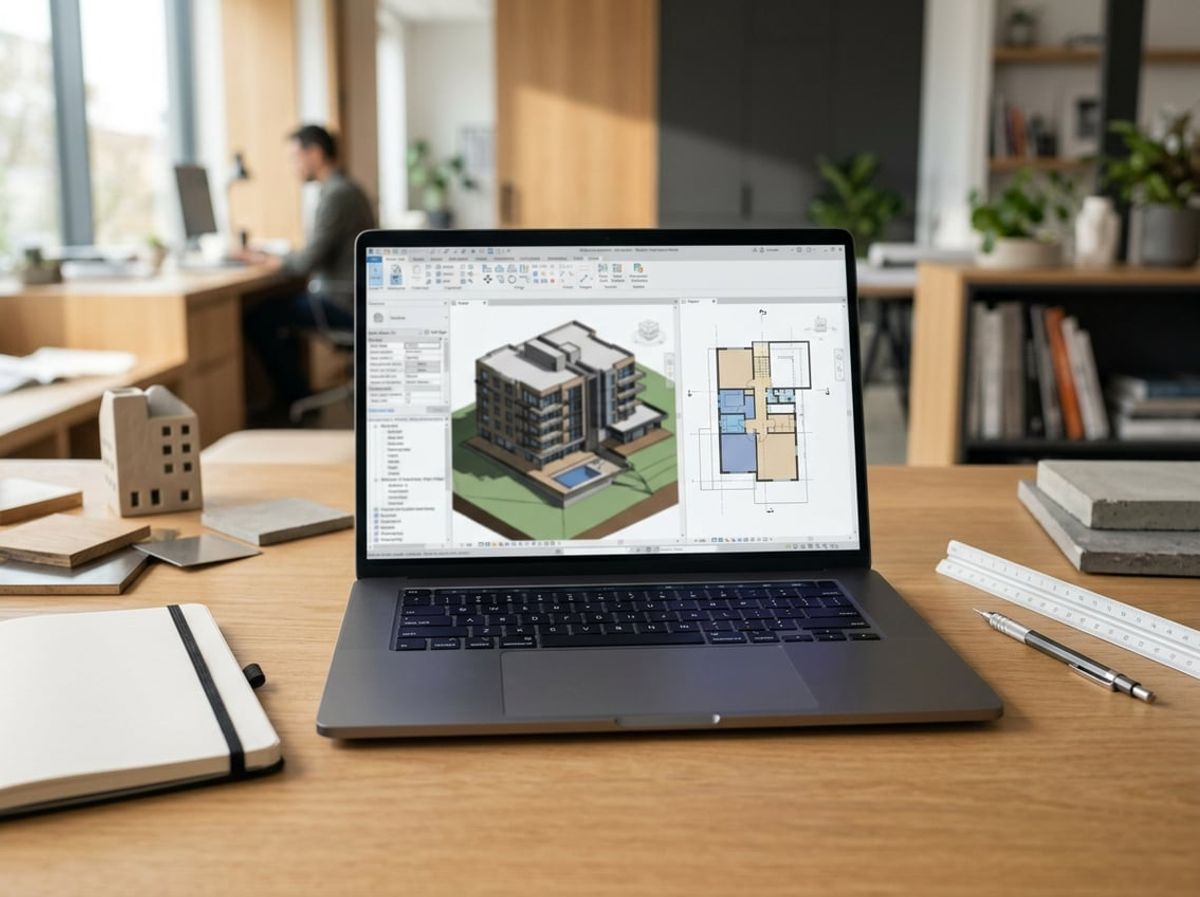
Architects, engineers, and project managers working in Revit and AutoCAD often face the same core questions about what a capable laptop actually requires and where to prioritize the budget. Battery life, GPU selection, and the difference between consumer and workstation hardware come up in nearly every purchasing conversation.